
Need Starlink Installation or Network Optimization?
We help homes, offices, apartments, and businesses with Starlink installation, WiFi coverage improvement, and professional setup in Kenya.
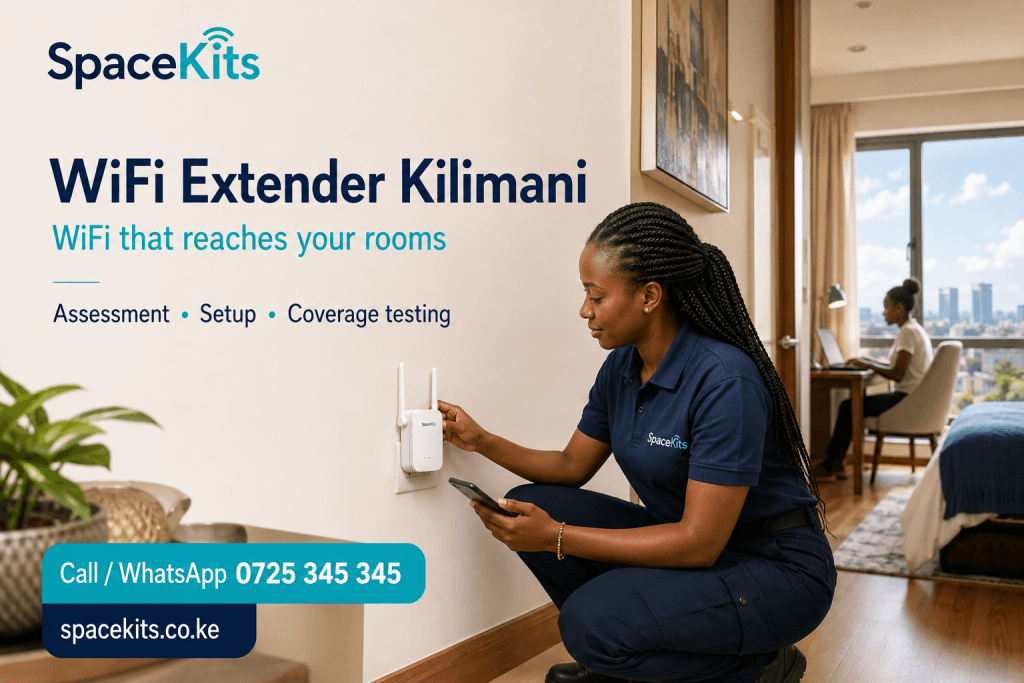
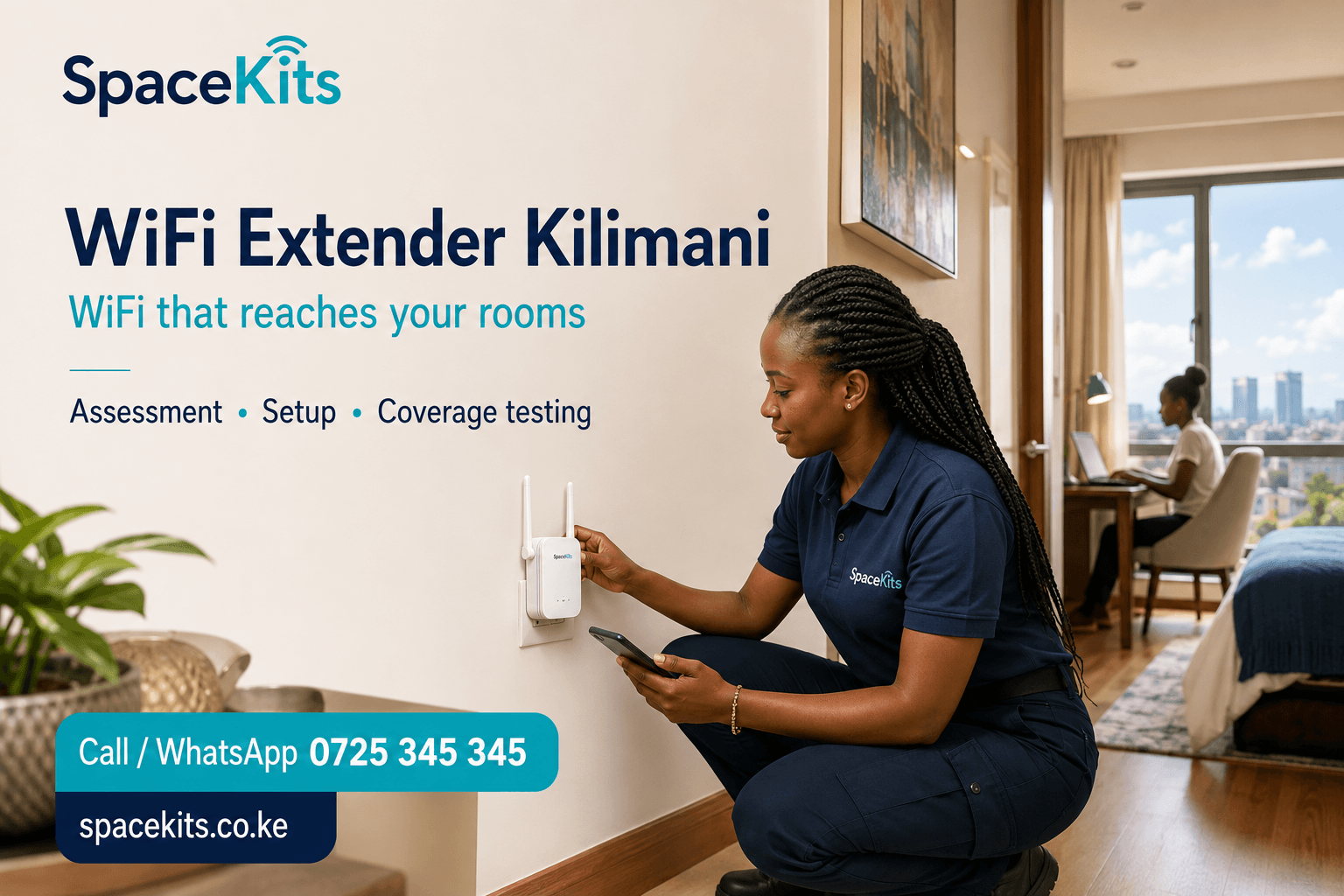
Request Installation Chat on WhatsAppWiFi Extender Kilimani searches are often about making an apartment usable beyond the sitting room. A router near the entrance may serve the television well while a bedroom desk struggles with video calls. The right fix depends on the route the signal takes through the apartment, available power sockets and whether you can move the router or install a discreet cable.
Talk to Spacekits
Need Starlink help for your home or business?
Talk to Spacekits before you buy or book installation. We help with kit supply, mounting, activation, router placement, WiFi coverage, and written quotes.
Map the apartment as you actually use it
Draw a simple plan showing the router, bedroom desk, television and any rooms where the connection drops. Mark walls and doors between them. The direct distance matters less when the signal must cross several solid obstacles.
Test the same device in each location with doors in their normal positions. Note whether the issue happens all day or mainly when the household is busy. This separates a room-specific coverage problem from a connection that slows everywhere at once.
A hallway socket can help, but test it first
A plug-in extender needs a useful connection back to the router. Choosing the socket nearest the desk can fail if that socket is already in the poorly served room. Compare intermediate positions and use the equipment's connection-quality indicator during setup.
Avoid hiding a unit behind furniture merely to keep it out of sight. Leave its ventilation clear and consider whether someone will unplug it to charge a phone. A tidy position must still support the intended wireless path.
When an apartment needs mesh or cabling
If several bedrooms and the kitchen all struggle, evaluate a coordinated mesh system or an access point connected by Ethernet. Wireless mesh nodes still need good links between them; adding more units without a layout plan can disappoint.
A discreet cable to a bedroom work area may be appropriate for a fixed desk. Where drilling or surface trunking is involved, obtain the landlord's or managing agent's permission. Ask which parts can move with you when the tenancy ends.
Check compatibility before ordering
Share the ISP router's exact model and photos of its available ports with the installer. A brand name alone does not confirm mesh compatibility. Some devices support ordinary repeater mode while requiring specific partner equipment for coordinated mesh features.
Ask how the final network will appear on your phone. Using the same network name does not guarantee uninterrupted handover, and some devices may remain attached to a weaker access point. Test movement between rooms with the devices you use most.
What counts as a successful bedroom fix?
Run a video call from the normal desk, try the television during ordinary household use and confirm reconnection after an agreed restart. Keep the final WiFi details and equipment location documented.
A WiFi Extender Kilimani quote should say which rooms are covered, whether hardware and installation are included and what happens if the proposed position does not meet the agreed test. Avoid paying for a larger internet package solely because one bedroom has weak reception.
WiFi Extender Kilimani: begin with the room that is failing
A bedroom that cannot support a call can change how you use an entire apartment. You may end up working at the dining table, watching programmes only in the lounge or leaving a door open to keep a connection. The purpose of a WiFi assessment is to make the important rooms usable in their ordinary state, rather than finding a temporary position where the signal happens to improve.
Start with the problem you can describe most clearly. Perhaps a laptop drops from calls at the bedroom desk, while a phone remains usable in the sitting room. Write down the room, device and activity. Add whether the issue happens all the time or only during busy evenings. This brief is much more useful than asking for the strongest extender without identifying what needs to change.
A Kilimani apartment can contain several different wireless conditions within a modest floor area. The route from the entrance to a far bedroom may pass through a corridor, bathroom wall and closed door. Another room at a similar distance may have an open path. Treat the actual layout as the starting point; floor area alone cannot establish how one router will perform.
Create a simple apartment coverage map
You do not need a professional floor plan for the first conversation. Sketch the router position, internal walls, doors and the main use points. Mark the bedroom desk, television, dining table and any balcony or kitchen area where connectivity matters. Distinguish places where the network disappears from places where it remains connected but feels slow.
Test with the same device as you move through the apartment. Keep the task comparable and note the network name shown on the device. If an old extender is already present, this avoids accidentally comparing a connection to the router in one room with a different connection elsewhere without realizing it. Record the observations before changing equipment positions.
Then test the device normally used in the weak room. A phone and a laptop may not perform identically. If the laptop struggles everywhere while the phone works in the bedroom, investigate the laptop as well as coverage. If several devices fail in the same room and improve near the router, the room’s connection path deserves attention.
Use normal door and furniture positions. An empty apartment during move-in may behave differently after wardrobes, a television and other furnishings are installed. There is no need to make unsupported predictions about every object; simply test the space as it will be used. The most valuable result is practical performance at the intended desk or seating position.
Check the incoming service before buying an extender
If internet performance is poor beside the router, a bedroom booster may not address the main problem. Check whether the provider has reported an interruption and whether the router indicates a service fault. Compare ordinary browsing and a representative call near the router with the same activities in the bedroom. Note whether failures happen throughout the apartment at the same time.
Busy-hour slowdowns also deserve a separate check. Several simultaneous streams, uploads and backups can make the connection feel slow even when wireless coverage is adequate. An extender redistributes access to the existing network; it does not add capacity to the subscription. Ask the installer to distinguish room coverage from the service or workload limitations found during testing.
If a provider-managed router is involved, avoid a factory reset without understanding how service settings will be restored. A reset can remove information needed to reconnect. Share the exact router model with the installer and establish which settings can be changed safely. The objective is to improve the bedroom connection without disrupting a service that already works elsewhere.
When one plug-in extender is a sensible option
A single extender can be worth considering when the apartment has one limited weak area and there is a practical position with a suitable connection to the router. It can be a modest installation that avoids extensive cable work. However, it should be selected for its supported modes and compatibility, then tested in the proposed position before the job is treated as finished.
Do not choose a socket only because it is close to the bedroom desk. If the socket is already inside the poorly served area, the extender may struggle to receive traffic from the router. Compare suitable intermediate positions. A hallway can be useful in some layouts, but it is not automatically the correct location in every apartment.
Consider how the socket is used. Equipment that is regularly unplugged for a vacuum cleaner or phone charger can create avoidable interruptions. Keep ventilation clear and avoid placing the unit behind a cabinet merely to hide it. A tidy installation should remain accessible and should not depend on furniture being moved whenever troubleshooting is needed.
When a mesh system deserves comparison
If several bedrooms and other living areas struggle, a wider plan may be more useful than adding separate extenders one at a time. A compatible mesh system can coordinate multiple coverage points and simplify everyday management. The important word is compatible: equipment from the same brand can belong to different product families with different supported features.
Ask which exact units will be used and how they connect. Wireless nodes need suitable links between them, while supported wired connections may use existing Ethernet routes. Adding a node in every weak room without considering the route back to the main unit can produce disappointing results. The layout should show the complete path, not just the locations where devices will sit.
Management ownership matters in a rented or shared apartment. If the system uses an app, the responsible resident should control the account and understand basic recovery. Ask what happens when the internet router changes or a unit needs replacement. A system should remain maintainable after the initial installer has left.
A wired option for a permanent bedroom desk
A desk used every day for remote work may justify comparing Ethernet with an entirely wireless extension. A suitable cable can connect a supported laptop adapter, docking station or nearby access point. This reduces the workstation’s dependence on the room’s wireless path, though it does not increase the capacity of the internet service itself.
The route needs permission and careful finishing. Ask the landlord or managing agent about drilling, attachments and use of shared spaces. Avoid cables running loosely across doorways or under doors where movement can damage them. Discuss containment and the removal method before installation so the work fits both the tenancy and the practical use of the apartment.
If data outlets already exist, have them checked before relying on them. The presence of a wall socket does not prove that it is connected to the router or correctly terminated. Testing existing infrastructure can reveal a useful route and change the equipment plan. It can also prevent an installation from being quoted on an assumption that later proves false.
Compare three apartment scenarios
One weak bedroom in an otherwise usable home
Suppose the lounge, dining area and hallway work well, but a far bedroom desk does not. A carefully positioned extender may be a reasonable first option if its source connection is suitable. Compare it with a wired desk connection where permitted. The acceptance test should focus on the desk with the bedroom door closed and normal household use continuing.
This example does not establish that every one-bedroom problem can be solved with one device. It shows how to keep the proposal proportional to the confirmed gap. Ask the installer to explain the proposed position and what alternative would be considered if that position fails the agreed test.
Several rooms lose connectivity
If two bedrooms, the kitchen and a work area are all affected, review the apartment as a whole. A router relocation, compatible mesh arrangement or cable-fed access point may be more coherent than several unrelated repeaters. The best approach depends on walls, permitted routes and simultaneous use rather than a fixed number of units per room.
Agree which spaces are essential and which are optional. A balcony used occasionally may be a separate requirement from an everyday work desk. Clear priorities help the quotation explain what the first phase will achieve and what remains outside its scope.
The apartment already has an extender but remains slow
Check the existing unit’s position, supported mode and connection back to the router before replacing it. A phone may show a strong signal to the extender while that extender has a weak upstream link. Move through a structured comparison rather than resetting everything or adding another booster immediately.
Ask whether the existing device can be reused in a more suitable position or supported wired mode. Replacement may be justified, but the recommendation should explain why. A newer device installed in the same unsuitable location can repeat the original problem.
Make calls and streaming part of the handover
For a home office, use the actual laptop and meeting application from the normal desk. Check audio, video and screen sharing with the door closed. If a work VPN is involved, test it after the change. A browser loading one page does not establish that all work tools behave as expected.
For a bedroom television, test the service and playback conditions the household normally uses. Also confirm that the television reconnects and that any required casting functions still work. Network isolation or name changes can affect device discovery, so describe those requirements before configuration rather than finding the difference after installation.
Include simultaneous activity. A call in the bedroom while another person streams in the lounge is a more useful acceptance condition than an isolated test with every other device disconnected. Record the conditions and any limitation found. The result documents the assessment; it should not become an unconditional promise about every future service speed.
Keep the network easy for residents to use
Decide how the final network will appear on phones and laptops. An extender may use a separate name, while a coordinated setup may present a common name. Explain the intended connection and remove confusion from abandoned equipment names where that is part of the agreed work. Do not assume that identical names alone guarantee smooth roaming.
If people move between rooms during calls, test that behaviour using their devices. Clients influence when they change coverage points. A network can be suitable for fixed desks without delivering the same experience during movement, so those are separate requirements to discuss.
Keep administrator access private and record who manages the apartment network. Shared residents may all need internet without each changing configuration independently. A short guide should identify equipment, normal restart steps and the support contact. Factory resets should not become the default response to every temporary slowdown.
What affects the installed cost in Kilimani?
The final cost depends on the selected equipment, number of rooms, cable requirements, configuration and access arrangements. A supply-only extender price is different from a complete installed solution with testing. Request a written quote for the actual apartment and ask which items are included before comparing totals.
For a cable-based proposal, clarify route assumptions, containment and any wall work. For mesh, identify the exact kit and whether existing equipment is retained. If an installation visit or follow-up adjustment is separately charged, that should be visible. Avoid assuming that every retailer or installer offers identical support terms.
Ask what happens if the proposed position fails the agreed room test. A clear answer might involve repositioning, reassessing the design or discussing a different method under an agreed scope. The important point is to define the process in advance rather than treating the purchase of a device as proof that the coverage requirement has been met.
Prepare for the installation visit
Send the estate or building, router model, internet source and a simple room sketch. Identify available appointment times and any access procedure. Have the devices used for calls or streaming available for testing. Share network access only through an appropriate channel with the person doing the authorized work, and keep control of the management account.
Clear reasonable access to proposed equipment positions and cable routes. If permissions are required, arrange them first. Explain any restrictions on drilling or furniture movement. This preparation helps the installer assess the real options without making assumptions about what the tenancy allows.
At handover, retain model numbers, power adapters, receipts and written support information. Ask how the equipment can be reconfigured if you move or change providers. Portability is useful, but a new apartment will still need its own placement assessment.
Frequently asked questions for apartment WiFi
Can I improve the bedroom connection without changing ISP?
Often the local wireless layout can be assessed independently of the provider. First confirm that the incoming service works adequately near the router. If it does, an extender, mesh node, access point or permitted wired connection may address the weak room.
Will a booster work through every wall?
No device should be promised to work through every construction and layout. Assess the actual path and test the important rooms. A different position or a wired route may be more useful when barriers make the wireless link unsuitable.
Do I need a new router as well?
Not necessarily. The existing router may be suitable, but its exact model, condition and supported settings need checking. Ask why replacement is proposed and whether repositioning or adding a compatible coverage device would meet the same requirement.
Can I take the equipment when I move?
Equipment you own can often be reconfigured for a new home, subject to compatibility. Clarify ownership and removal arrangements in the quotation. Do not assume the same placement or equipment count will suit the next apartment.
Should the extender be inside the bedroom?
Only if the position provides an adequate source link and serves the required area. A socket outside the room may work better in some layouts. The final choice should follow testing rather than proximity to the desk alone.
Will one network name prevent all disconnections?
No. Roaming depends on the network and client devices. Include movement between rooms in the acceptance test if it matters to you. A fixed desk requirement and a walking-call requirement should be described separately.
What is the first step with SpaceKits?
Send your Kilimani location, router model and the rooms where WiFi fails. Explain whether you need work calls, streaming or broader household coverage, and whether cable installation is permitted. Request a written assessment and installation quotation for that scope.
Prepare the apartment before your WiFi installation visit
A little preparation makes the appointment more productive. Clear access to the router, the proposed extender socket and the desk where you normally work. Keep the power adapter with each device so the technician does not accidentally test with an incompatible supply. If the internet account belongs to a landlord or another household member, arrange for that person to be available to authorize any necessary changes.
For a WiFi Extender Kilimani assessment, a simple room sketch is usually more helpful than a list of speed complaints. Mark the incoming connection, the sofa, the bedroom desk and any particularly troublesome doorway. Add the times when the problem occurs. Explain whether the television, calls and downloads usually run together. These details let the installer reproduce the difficulty instead of testing an unusually quiet apartment.
Decide which devices must work before the visit ends. A phone, work laptop and streaming television may behave differently on the same network. Include a printer or smart device if it is important to everyday use. Ask the technician to explain any compatibility limitation, particularly if an older device requires a separate band or cannot use the preferred security setting. Avoid changing the whole network merely to accommodate an accessory without understanding the tradeoff.
After installation, keep the room sketch and equipment details with your household records. If you move the desk, buy a metal cabinet or relocate the television, retest the affected room. A small furniture change can alter the wireless path. Your saved notes help distinguish a new layout issue from an unresolved installation problem, and they make a later support conversation much more specific.
WiFi equipment terms explained before you buy
A good quotation should be understandable without a networking qualification. The terms below explain the main parts of a coverage upgrade. They are a reference for comparing a proposal, not a substitute for checking the exact equipment manual or assessing the property. Ask the installer to connect each term to the devices and rooms in your quotation.
Internet connection and local WiFi
The internet connection is the service reaching your router from a provider. WiFi is the wireless connection between local equipment and your devices. You can have a working local wireless network while the internet service is unavailable. You can also have a good internet connection at the router but poor wireless coverage in another room. Diagnosis should distinguish those conditions.
Router, extender and access point
A router manages traffic between networks and often includes built-in WiFi. A wireless extender typically repeats an existing wireless connection into another area. An access point provides wireless connectivity from a network connection, commonly through Ethernet. Some products support several operating modes, so the model’s supported configuration matters more than the name printed on a retailer’s shelf label.
Mesh and backhaul
A mesh system uses compatible units to coordinate a network across several positions. Backhaul means the connection carrying traffic between those units or back to the main network. It may be wireless or wired, depending on the equipment and installation. A strong connection between your phone and a nearby node does not prove that the node’s backhaul is performing well.
Wireless bands and device support
Different wireless bands have different propagation and capacity characteristics, and equipment support varies. Many older connected devices use only 2.4 GHz, while other clients can use additional bands. Check the exact client and network equipment requirements before changing settings. A newer wireless standard does not remove the need for sensible placement or guarantee that older devices will use every new feature.
Advertised rate and usable performance
A wireless specification on a box is not a guaranteed internet speed at your desk. The result depends on the service, router, link between devices, radio conditions, client capability and simultaneous use. Ask for a practical test of the activity you care about. Calls, streaming, printing and file transfers reveal different aspects of a connection.
Ethernet ports and access-point mode
An Ethernet socket on an extender may connect a nearby wired device while the extender still communicates wirelessly with the router. It does not automatically mean the whole route is wired. If the intention is to use a cable back to the router, confirm that the unit supports the required mode and that the cable and upstream port have been tested.
Power over Ethernet
Some access points receive both data and power through a suitable Ethernet connection. This requires compatible equipment and an appropriate power source, such as a supported switch or injector. Do not assume that every Ethernet socket supplies power or that every powered network device uses the same requirements. The quotation should identify what provides power and where it will be installed.
Network names, roaming and guest access
A network name helps users identify a wireless connection. Reusing one name does not by itself guarantee uninterrupted movement between coverage points. Client devices influence roaming behaviour. Similarly, giving guests a separate name does not establish isolation unless the network is configured accordingly. Ask for demonstrations of the behaviour included in the installation scope.
Restarting and resetting
A normal restart turns equipment off and back on while retaining its configuration. A factory reset can erase that configuration. Follow the specific device instructions and avoid pressing reset buttons as a routine response to every problem. Keep an agreed recovery guide and support contact so a temporary connection fault does not turn into a complete reconfiguration task.
Indoor and outdoor equipment
Equipment should be installed in the environment it is designed for. An indoor unit placed under a roof edge is not automatically suitable for outdoor use. Where work extends outside, include environmental rating, mounting, cable entry and safe power in the assessment. Building-to-building routes may also need a separate technical evaluation before the equipment choice can be finalized.
Ownership and support
Retain receipts, model numbers, configuration ownership and the written scope. Confirm who handles equipment faults, who supports the internet service and what installation follow-up is included. Ask whether any management subscription or continuing fee applies. These details make it easier to maintain the network and compare proposals on more than the initial hardware price.
Request a WiFi assessment in Kilimani
Contact SpaceKits with your estate or building, router model, internet source, affected rooms and approximate number of active devices. Request a written quotation that separates equipment, cabling, configuration and installation. Confirm appointment availability, access arrangements and any travel charges before booking.
Request a WiFi Extender Kilimani quote on WhatsApp, or call +254 725 345 345. For the wider service comparison, read the WiFi extender Kenya guide.
Equipment setup reference
Follow the exact equipment manual for supported modes, placement indicators and firmware instructions. See TP-Link’s extender placement guidance; product-specific instructions take precedence over a general layout example.
Need Starlink Installation or Network Optimization?
We help homes, offices, apartments, and businesses with Starlink installation, WiFi coverage improvement, and professional setup in Kenya.
Request Installation Chat on WhatsApp