
Meeting room WiFi should be tested from a seat, not just from the doorway.
Set up the room as it will be used. Open a sample agenda rather than a private membership file. Groups using TAS can choose a familiar meeting task; teams with a custom portal from a provider such as Zama can use a demonstration page instead.
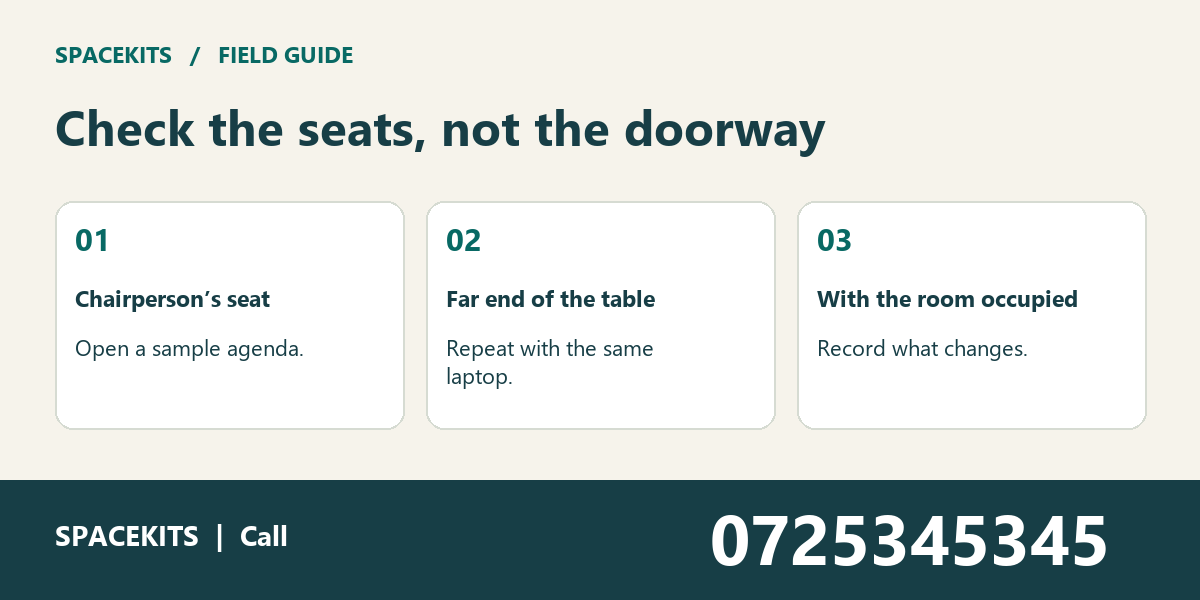
Compare two seats under the same conditions
Use the same laptop at the chairperson’s seat and the far seat. Record whether the page loads, whether a short test call stays connected, and whether another device sees the same issue.
Meeting room WiFi: what a useful result looks like
The useful unit of measurement in a meeting room is a seat doing a job. Give each important task an acceptance point.
Use a public sample agenda for connectivity checks. Private member records should not be projected, copied or shared simply to diagnose a room. A sample with the same normal access path is enough to test basic navigation. If private permissions are the actual concern, involve the authorised account manager and keep that check separate from the public page test.
Prepare for the next organiser as well as today’s meeting. Mark the intended staff and guest arrangements without publishing passwords. A replacement organiser should be able to repeat the comparison before guests arrive.
1. Meeting room WiFi: The chairperson gets a different result
The chairperson opens the agenda near the door. The secretary at the far end sees a loading screen.
Start the meeting room WiFi exercise by naming the question in full: can the team demonstrate opening the sample agenda and maintaining a short test call from the seats in use? That wording keeps the discussion tied to the task. A general impression from a meeting room used by a Kenyan group is useful background, but it does not establish what happened in this particular example.
Move the same laptop between the two seats and open the same sample page. Keep the network and door position unchanged. A difference between two people’s devices does not isolate a seat problem; moving one device is a cleaner comparison.
The first entry on the room readiness sheet should give the next reader a place to start. Write the seat and room layout beside the observation, then add the source used for comparison. Mark both seats on a plan rather than recording only the room name. If that final instruction cannot be carried out yet, leave the item open and say exactly what is missing.
2. An open door changes the test
During setup the door is propped open. During a private meeting it is closed and the remote participant keeps dropping out.
Before deciding what to change, separate what was observed from what someone expected. For meeting room WiFi, the useful comparison here is the same laptop at the chairperson’s seat. Make sure it addresses the same question as the original observation; otherwise a second result may introduce another difference instead of explaining the first.
Repeat the short test call with the door in its normal meeting position. Keep the caller and laptop unchanged. If the symptom returns only under one arrangement, give the installer both observations without assuming which material caused it.
A handover note can be short. Use three lines: what was reported, what was compared, and what the comparison established. Keep the meeting door in its usual position for acceptance. A colleague who receives that note should know whether to repeat a check or refer a specific question to the person responsible.
3. Meeting room WiFi: A call fails while the agenda loads
Both seats load the agenda but a remote attendee cannot hear the speaker. Staff immediately blame coverage.
Give the meeting coordinator a clean copy of the example. Ask them to identify the sample agenda without using the previous colleague’s private notes. If they cannot do that, pause before interpreting the result. An ambiguous starting point can make an otherwise careful comparison misleading.
Check the selected microphone, speaker and call permissions first. Use the same test call near the router if the problem persists. A working web page does not test the microphone. A muted device does not prove a wireless failure.
For this part of meeting room WiFi, record the outcome in factual language. Record whether the symptom is audio, video or disconnection. Keep the original observation visible alongside the new one. That lets someone reviewing the case later distinguish a confirmed change from a difference in how the two observations were made.
4. A full room behaves differently
Three staff members prepare in an empty room. When the group arrives, several people report intermittent delays.
This example is a useful test of the team’s assumptions about meeting room WiFi. Ask two colleagues to explain what the initial information proves. If their answers differ, identify the missing detail instead of choosing the explanation that sounds most confident.
Record the approximate number of active devices, the tasks in use and the time. Test ordinary activity without disrupting the meeting. A quiet setup test and a full-room test answer different questions. Repeat the same seat comparison under the relevant conditions.
Use the room readiness sheet to preserve the distinction. A note such as “checked” is hard to act upon; a note naming the comparison and its outcome is useful even after the original preparer leaves. Keep attendee names and private agenda details out of the support note. Record any open dependency with the person expected to resolve it.
5. Meeting room WiFi: Guests join the wrong network
The secretary is on the staff network while visitors use a guest connection. Their access to an internal agenda differs.
An earlier successful check can still be relevant without settling the present question. Look for a change in time, scope, location or responsibility. In meeting room WiFi, that change may explain why two apparently conflicting observations can both be accurate.
Use a public demonstration page to compare basic connectivity, then check access permissions separately with the organiser. Guest access restrictions may be intentional. Do not share staff credentials merely to make two results match.
Ask the meeting coordinator to state the current position in one sentence. Then ask what would cause that sentence to change. Label each observation with the network actually used. This gives the next reviewer a specific condition to investigate instead of a vague instruction to monitor the situation indefinitely.
6. The projector hides the laptop screen
A presentation freezes on the wall while the same document still responds on the laptop.
The important detail here is the boundary between an old arrangement and the current one. For meeting room WiFi, record when the new information became relevant and which earlier instruction it replaces. Without that distinction, two colleagues can follow different instructions while both believe they are using the latest record.
Check whether the laptop itself can navigate the file and access the test page. Note the display connection separately. A display problem can resemble a connection fault from the audience’s seats.
Once the responsible person confirms the change, check the working copy that the next person will use. Name the failing display step before changing the network. Do not assume that updating a private note also updates every place where the earlier arrangement was recorded or communicated.
7. Meeting room WiFi: Responsibility moves to a new organiser
The person who arranged the installation is absent at the next meeting. The replacement knows only that it was tested.
Use this final case as a handover exercise. The outgoing colleague should explain the current position without relying on labels such as “sorted” or “fine.” The receiving colleague should be able to identify the sample agenda, find the comparison and name the next action.
Have a colleague repeat the agreed agenda and call tasks using the room readiness sheet. Identify the support contact. A useful record tells the next organiser which seat, network and task were checked.
For meeting room WiFi, the handover is complete when the secretary and the person at the far end can complete the agreed meeting task. Leave credentials out of the shared room instructions. If another decision is still needed, state who owns it and how its outcome will return to the current record. That is a more useful finish than merely crossing an item off a list.
A practical meeting room WiFi worksheet
Keep the room readiness sheet short enough to update while the work is happening. Give each entry a reference that another colleague can find. Include the seat and room layout, the time or period of the observation, the person responsible for checking it and the next agreed action. Use the organisation’s normal storage and access arrangements.
For meeting room WiFi, add one column for evidence and another for the conclusion. Evidence describes what someone could check again; a conclusion explains what the team currently thinks it means. If the source changes, the explanation may need to change too. That is why an answer copied from an earlier record should not automatically become the answer for a new case.
For example, start with this observation: The chairperson opens the agenda near the door. The secretary at the far end sees a loading screen. Follow it with the specific comparison rather than a general assurance: Move the same laptop between the two seats and open the same sample page. Keep the network and door position unchanged. The entry now gives the next person enough context to continue without needing a separate conversation to discover what was originally meant.
Questions to settle before closing the review
Who can confirm the source for meeting room WiFi? For meeting room WiFi, start with the person responsible for the same laptop at the chairperson’s seat. A colleague can report a symptom or tell you what they saw without necessarily having authority to change the source or approve an action. Keep the report and the decision distinguishable.
What if meeting room WiFi leaves the result uncertain? Mark it as an open question, describe the missing information and agree on the next check. For meeting room WiFi, an incomplete but accurate room readiness sheet is more useful than a finished-looking entry that hides an assumption. Do not repeat an action merely to create a more convenient outcome.
When should the team repeat its meeting room WiFi review? Recheck it when the relevant seat and room layout changes, when another source contradicts it or when the receiving colleague cannot reproduce its meaning. Use the sample agenda and the original comparison as the starting point rather than trying to reconstruct the whole history from memory.
Meeting room WiFi: a worked handover note
Draw one row of seats down each side of a rectangle. Put the presenter at the short edge, the secretary at their normal seat and the router at its actual location. Mark a successful task with the task name rather than a general tick. A seat marked “agenda opened” has not necessarily passed the remote call check. Give the organiser a copy that leaves out passwords and private meeting information; the sketch only needs enough detail to repeat the location comparison.
For a second practice exercise, give the receiving colleague the case titled “A call fails while the agenda loads” without its conclusion. Ask them to identify the original observation, the comparison and the action owner. Then compare their answer with the decision recorded above. A difference in interpretation is a reason to clarify the note while the person who prepared it can still explain the evidence.
For more examples, explore the Spacekits installation and connectivity guides. Take the room readiness sheet to your next review so the discussion starts with a specific case.
Ask an installer to assess the affected seats before ordering a booster. A good handover repeats the same task from the same chair after the work. Contact Spacekits on +254742648998 with the room layout, number of seats and the result that staff need to reproduce. Ask the secretary to keep that note for handover.
Need CCTV, WiFi or Starlink installation?
SpaceKits helps homes, offices, shops and businesses plan CCTV, extend WiFi coverage and install Starlink in Kenya. Tell us your location and property type for a practical next step.
Request a QuoteChat on WhatsApp