

Need Starlink Installation or Network Optimization?
We help homes, offices, apartments, and businesses with Starlink installation, WiFi coverage improvement, and professional setup in Kenya.
Request Installation Chat on WhatsAppA Starlink installation checklist in Kenya helps customers avoid weak signal, unstable mounting, poor cable routing, and disappointing WiFi coverage. Starlink can work well when the kit has a clear view of the sky, a stable mounting point, proper cable handling, reliable power, and a good router location. When any of those basics are ignored, the customer may blame the internet even though the installation is the real issue.
Talk to Spacekits
Need Starlink help for your home or business?
Talk to Spacekits before you buy or book installation. We help with kit supply, mounting, activation, router placement, WiFi coverage, and written quotes.
Spacekits helps customers plan better Starlink setups with accessories, mounting guidance, and practical installation support. This checklist is useful before ordering a mount, scheduling installation, or deciding where the kit should be placed.
1. Confirm clear sky view
The first thing to check is obstruction. Starlink needs a clear sky view. Trees, roofs, walls, nearby buildings, water tanks, and tall poles can interfere with performance. Before mounting the kit permanently, test the likely location and check whether the dish has enough open sky.
If the site has many obstructions, the better solution is usually a higher and more stable mounting point. Do not rush to drill holes before confirming the best position.
2. Choose the right mounting position
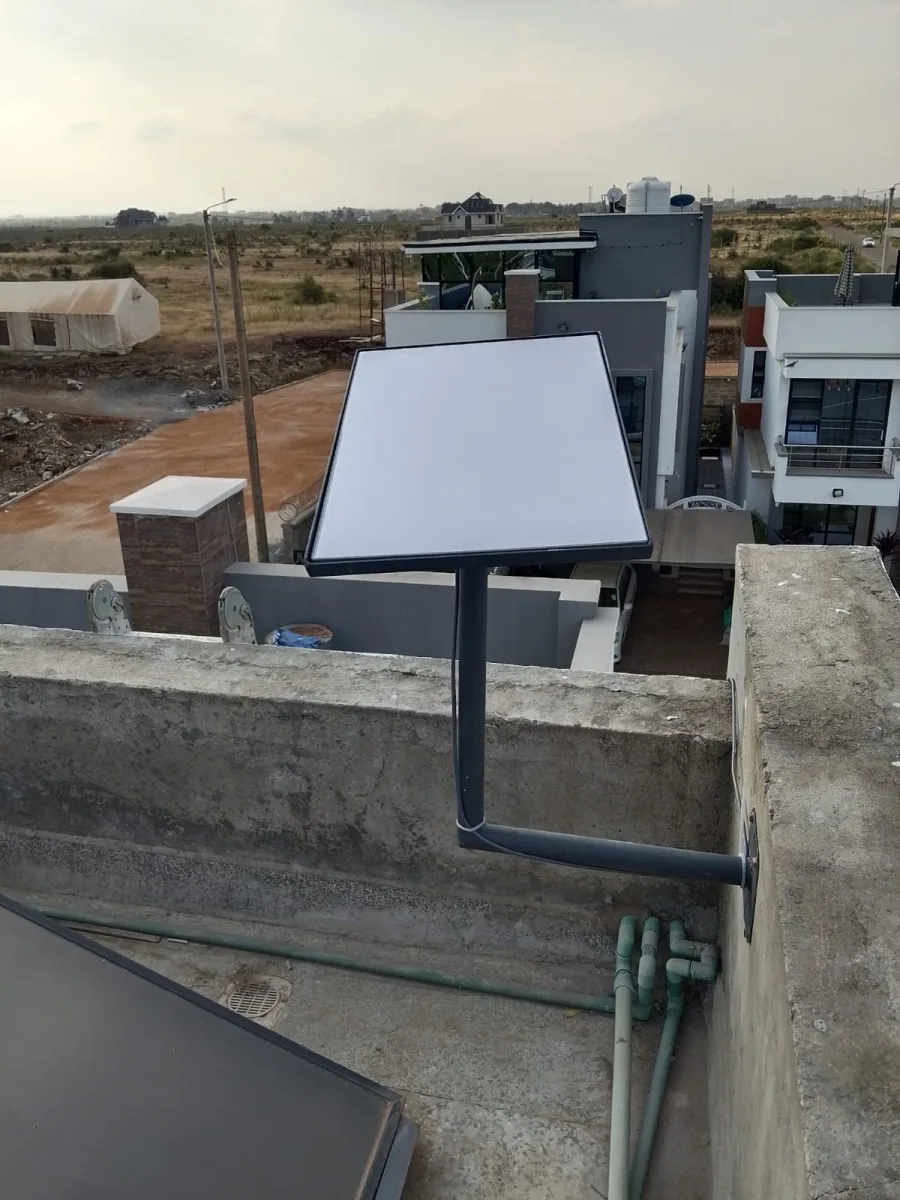
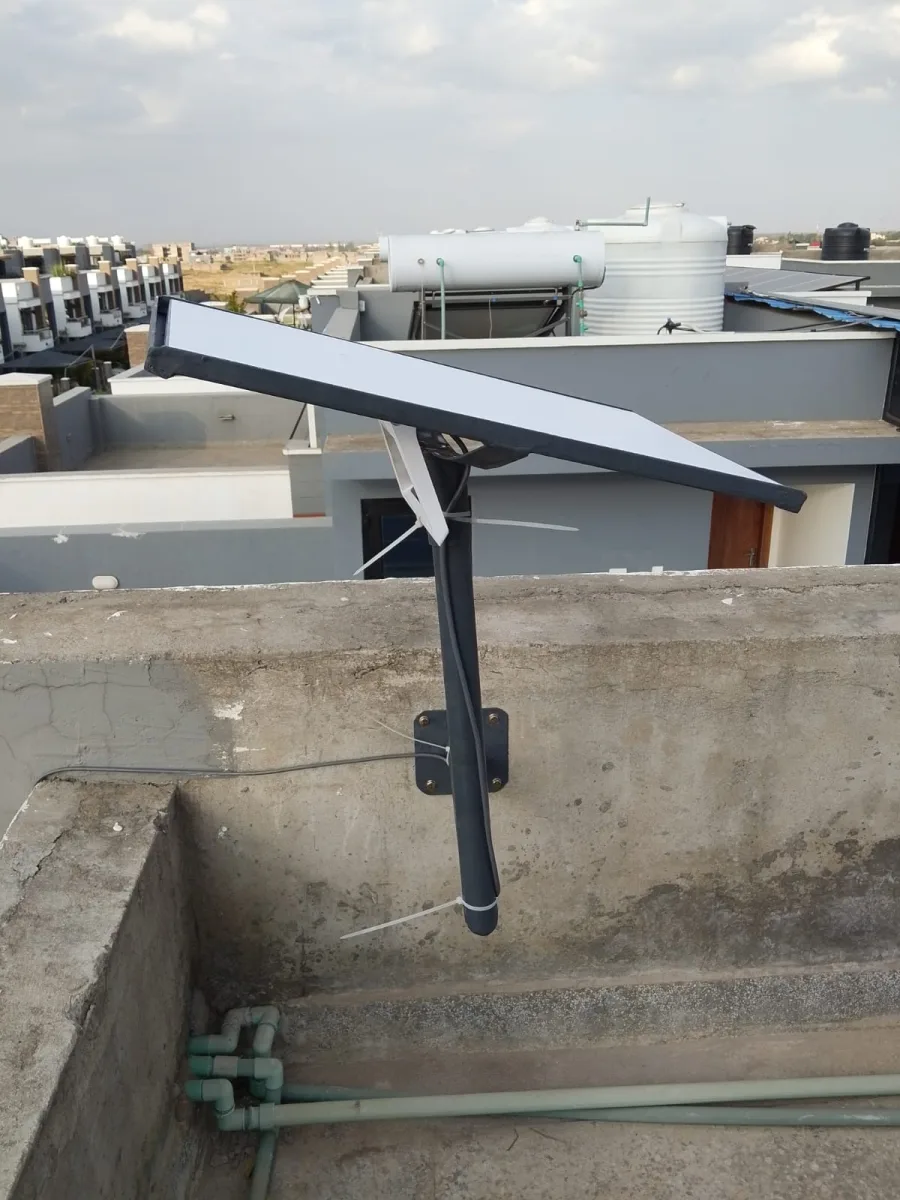
A good mounting position should be stable, safe, and practical for maintenance. The kit should not be placed where people can knock it, where rainwater can pool around cables, or where wind can shake the mount. A roof edge, wall bracket, pole, or dedicated stand may be better depending on the building.
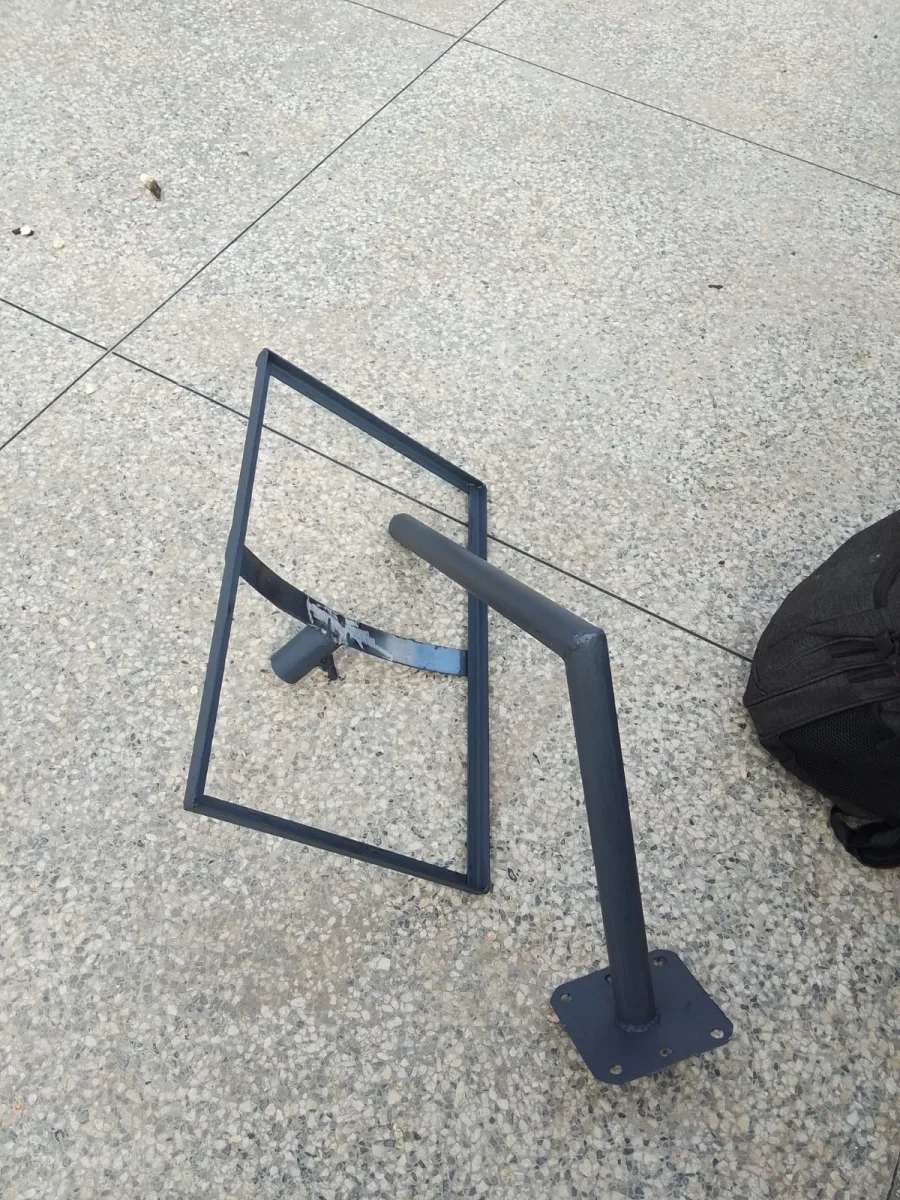
For customers using the newer kit, review the Starlink Gen 3 mounting stand if you need a direct ordering option for a stable setup.
3. Plan cable routing before installation
Cable routing should be planned before mounting. The cable should reach the router location without tension, sharp bends, exposed trip points, or poor entry points into the building. If a cable must pass through a wall, the entry should be neat and protected from water.
Bad cable routing can create long-term problems. A cable that is pulled too tightly, pinched, exposed to damage, or routed through a wet area can affect reliability and create maintenance costs later.
4. Confirm power availability
Starlink needs reliable power. Before installation, confirm where the router and power supply will sit. Avoid placing power equipment where it can be exposed to water, dust, or accidental disconnection. For businesses and rural users, backup power may be important if uptime matters.
If the site has frequent power interruptions, the customer should plan for a UPS or backup power option. Strong internet still depends on stable power.
5. Place the router carefully
The Starlink kit may get a good satellite connection, but indoor WiFi can still be weak if the router is badly placed. Thick walls, metal doors, long corridors, multiple floors, and large compounds can reduce WiFi coverage. Place the router centrally where possible and avoid hiding it behind heavy furniture or inside enclosed cabinets.
Large homes, offices, guest houses, apartments, and compounds may need additional networking equipment to distribute WiFi properly. The outdoor Starlink signal and the indoor WiFi coverage should be treated as two separate parts of the setup.
6. Test speed and stability
After installation, run speed tests and also test normal usage: browsing, video calls, streaming, uploads, and business apps. A single speed test is useful, but it does not show the whole experience. Test from different rooms and different devices.
If speeds are good near the router but weak in other rooms, the problem may be WiFi coverage rather than Starlink itself. If performance drops when the wind moves the mount, the installation may need better stabilization.
7. Check for safe mounting and weather exposure
Kenyan installations can face sun, rain, wind, dust, and vibration. The mount should be strong enough for the site. Fasteners should be tight. The dish should not wobble. Cables should be secured and protected where necessary.
A stable installation is especially important for rural homes, farms, lodges, construction sites, offices, and properties where maintenance visits are not convenient.
8. Prepare for future maintenance
Do not mount the kit in a place that is impossible to access safely. The installation should allow inspection, cleaning, cable checks, and future adjustment if needed. A difficult installation may look neat on day one but become expensive when something needs attention.
Common mistakes to avoid
- Mounting before checking obstructions
- Using an unstable stand or weak pole
- Routing cables through wet or exposed areas
- Placing the router in a corner with poor WiFi coverage
- Ignoring backup power for business-critical locations
- Assuming one router will cover a large compound
- Failing to test performance after installation
Final thought
A good Starlink installation in Kenya starts with planning. Confirm sky view, choose a stable mount, route cables properly, protect power equipment, place the router well, and test the real user experience after installation.
For customers who need mounting accessories, see the Starlink Gen 3 mounting stand or visit Spacekits for more Starlink setup support.
Need Starlink Installation or Network Optimization?
We help homes, offices, apartments, and businesses with Starlink installation, WiFi coverage improvement, and professional setup in Kenya.
Request Installation Chat on WhatsApp