
Need Starlink Installation or Network Optimization?
We help homes, offices, apartments, and businesses with Starlink installation, WiFi coverage improvement, and professional setup in Kenya.
Request Installation Chat on WhatsApp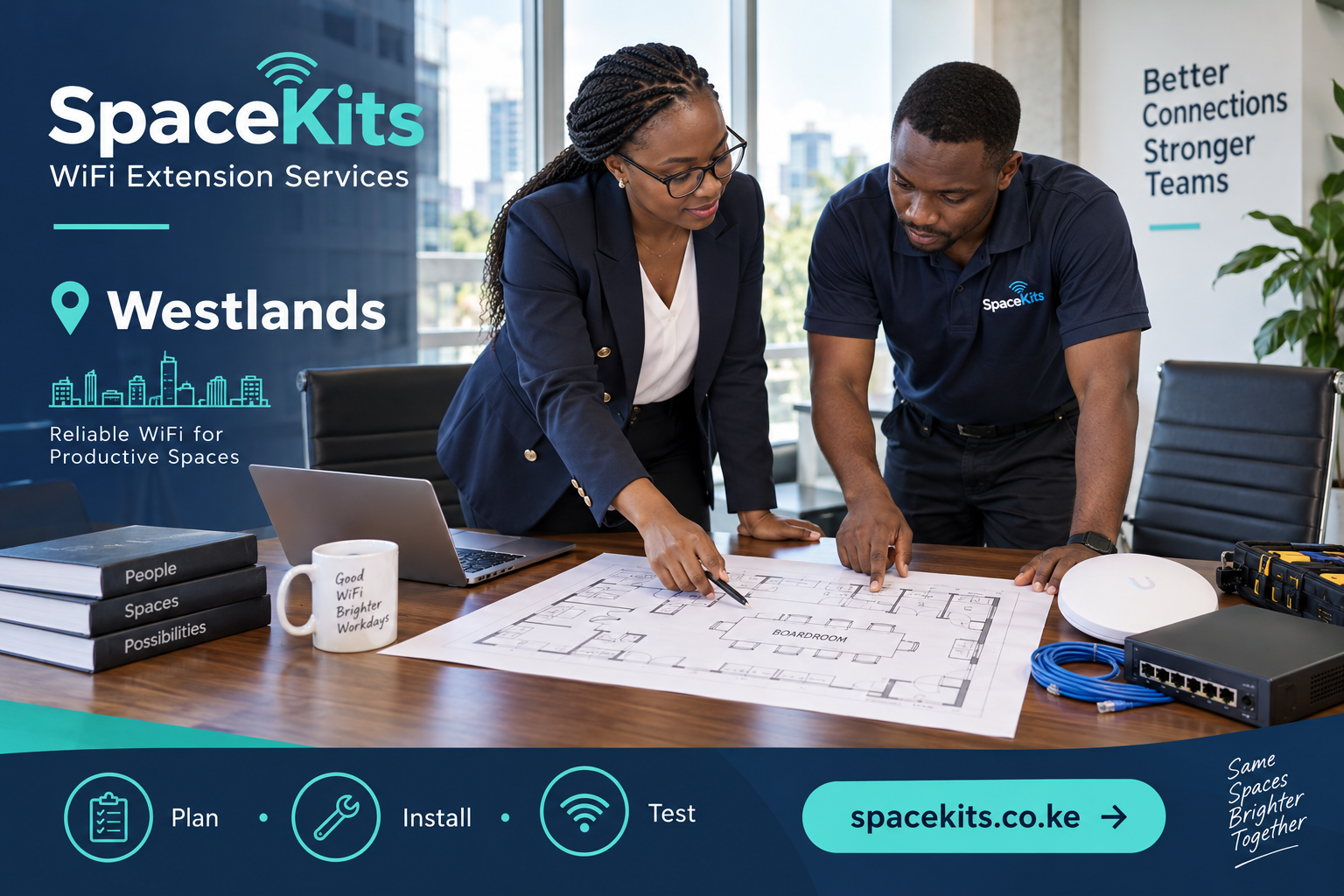
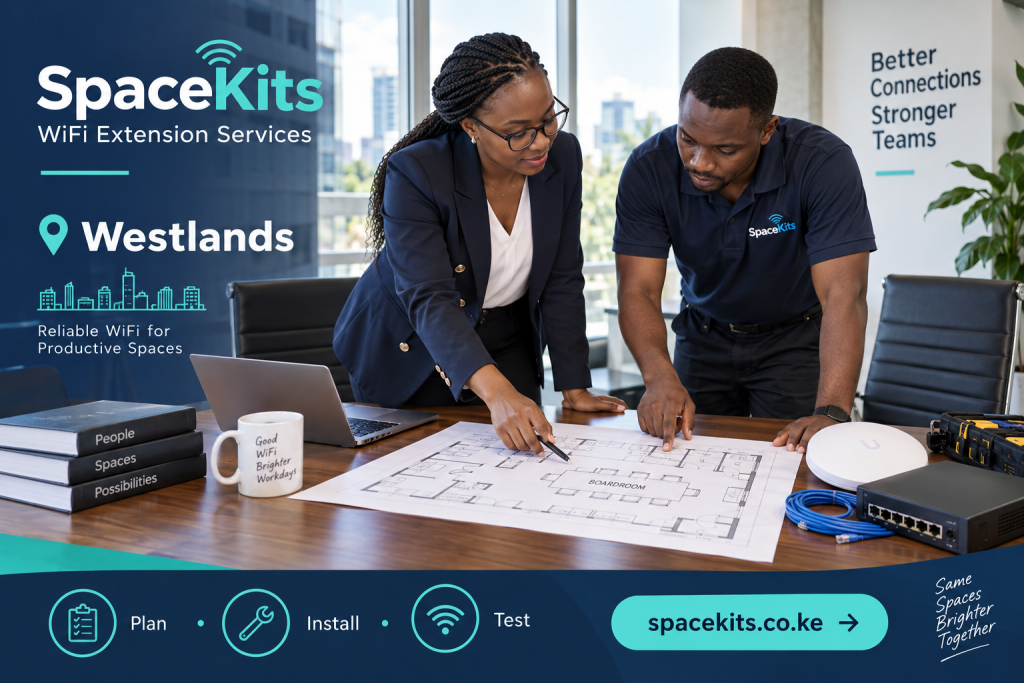
WiFi extension services in Westlands should begin with a clear office problem: a meeting room that drops calls, desks that cannot reach shared tools, or visitors competing with staff for the same wireless connection. Buying another router before identifying that problem can add equipment without improving the working day. A useful installation starts with an assessment, chooses suitable links between rooms, and ends with practical tests at the desks where people work.
Talk to Spacekits
Need Starlink help for your home or business?
Talk to Spacekits before you buy or book installation. We help with kit supply, mounting, activation, router placement, WiFi coverage, and written quotes.
This guide explains how to commission an office WiFi assessment, compare proposals, manage installation disruption, and accept the finished work. It is intended for office managers, business owners, administrators, and tenants in Westlands sub-county. It does not assume every building has the same layout. Partitions, neighbouring networks, existing cabling, equipment ownership, and permission to access ceiling spaces all change the right solution.
SpaceKits can discuss a WiFi extension enquiry and the information needed for a site-specific quotation. Start with the location, the internet connection already installed, the number of working rooms, and the tasks that currently fail. Confirm the proposed scope and appointment availability directly. Equipment, cabling, configuration, and ongoing support should be identified separately so you understand what the quotation covers.
1. Define the office outcome before choosing equipment
Write down what a successful working day should look like. For a meeting room, that could mean a laptop can join a video conference from the far end of the table while another colleague shares a document. At reception, it might mean a visitor can use an internet-only connection without joining the staff network. In an accounts office, the priority may be reaching a printer or business application reliably from a fixed desk.
These outcomes are more useful than asking for the strongest router. A router is only one part of the connection. The internet service brings connectivity into the premises; Ethernet cables or wireless links carry it around the office; access points connect nearby wireless devices. A weakness in any one of those parts can interrupt a task. Replacing an access point cannot repair a provider outage, and buying a faster internet package does not automatically remove an internal dead zone.
Use room names that staff recognise. Label the reception counter, boardroom, open workspace, manager’s room, and any annex on a simple sketch. Mark the router, switches, network sockets, power sockets, and existing access points. You do not need an architectural drawing to begin. A clear sketch with approximate distances and obvious barriers gives an installer a much better starting point than a verbal request for coverage everywhere.
Rank the rooms by importance. A rarely used store may not need the same wireless service as the boardroom. Separate essential coverage from optional expansion so that the first proposal can show a practical baseline and any additional work. This makes it easier to manage a budget without concealing compromises inside a vague promise of whole-office WiFi.
2. Arrange a useful Westlands site assessment
For WiFi extension services in Westlands, an assessment should reflect the occupied office rather than an empty demonstration. Explain when the main problems occur and whether the office can be inspected during a representative working period. An early morning walk-through may reveal the layout but miss congestion during meetings or lunchtime downloads. If a peak-time visit is impractical, keep a brief incident record for the technician.
Record the room, approximate time, affected device, activity, and whether other devices had the same problem. Avoid putting passwords, customer files, or confidential screenshots into the enquiry. A note saying that two laptops lost their calls in the boardroom while reception continued working is already valuable. It points toward a local issue without claiming to prove its cause.
Make access arrangements before the visit. Identify who can open the communications cabinet, authorise tests, and explain which equipment belongs to the internet provider. If ceiling spaces or shared risers might be involved, ask the building manager about access conditions. An installer should not have to guess whether a cable can cross a communal passage or whether an existing socket belongs to another tenant.
Ask what the assessment will produce. Useful outputs include a room-by-room observation summary, proposed access-point positions, the intended connection between those access points and the router, and unresolved questions. A recommendation should explain why the design suits the observed problem. A list of product names alone does not show how the proposed network will work in your office.
3. Separate internet performance from wireless coverage
Begin diagnosis near the main router using an agreed device and a repeatable task. Where suitable equipment and permission are available, a wired test provides a useful comparison with WiFi. Repeat a comparable test in the affected room. Keep the time, device, and activity similar enough that the results can be interpreted. A fast test on a new phone and a slow test on an old laptop do not isolate the room as the cause.
If both wired and wireless connections struggle close to the router, investigate the incoming service, router load, or other shared limits before extending coverage. If the connection is usable near the router but deteriorates behind several partitions, an internal coverage problem becomes more plausible. If only one laptop struggles in several rooms, its wireless adapter, settings, software, or application may need attention.
Signal bars are not a complete performance report. A device can have a strong connection to a nearby extender while the extender has a weak connection back to the main router. The visible bars describe only part of the route. Similarly, a high headline download result does not prove that video calls will remain stable when several people upload files at the same time.
Ask the technician to explain any measurements in business terms. Throughput describes how much data is being transferred; delay and variation in delay affect interactive work; repeated losses or reconnections can interrupt applications. The acceptance target should relate to your actual tasks and service plan rather than an arbitrary number copied from a product box.
4. Choose between an extender, mesh, and wired access points
A conventional wireless extender can help a modest problem area when it can be positioned where the main signal is still usable. Putting it inside the dead zone often gives it a poor connection to repeat. The best location is not necessarily halfway by distance; walls and other obstacles change the radio path. Positioning should be checked rather than chosen because a convenient socket happens to be available.
A mesh system can provide coordinated management across compatible units. Its usefulness depends on placement, supported features, the link between units, and the client devices. Some systems use wireless links, while others allow Ethernet between nodes. Mesh does not remove the physical effects of walls, and it does not guarantee that every phone will change access points at exactly the ideal moment.
Wired access points use a network cable back toward the router or switch. For a fixed office with suitable cable routes, this can make the link between rooms more predictable. It also allows access points to be placed near the people they serve instead of wherever they can still hear another wireless unit. Cabling requires planning, permission, termination, testing, and neat finishing, so its installation scope needs to be explicit.
The strongest proposal may combine these approaches. Fixed desks and meeting-room equipment may benefit from Ethernet, while phones and laptops use nearby WiFi. Ask the installer to justify each wireless hop and each additional device. More equipment is not automatically a better network; unnecessary overlapping radios or poorly placed repeaters can make troubleshooting harder.
5. Plan capacity around simultaneous work
Count active devices and activities, not simply employees. One colleague may bring a laptop and phone, a meeting room may contain conferencing equipment, and a shared printer or camera system may also use the network. Some devices are mostly idle; others transfer data continuously. A useful capacity discussion separates those behaviours instead of multiplying a generic bandwidth figure by every device in the office.
List your busiest realistic combination of tasks. For example, a team meeting may overlap with cloud backups, file synchronisation, visitor access, and online training. This is an illustrative planning scenario, not a claim about a particular Westlands business. The installer can use your actual pattern to assess whether the incoming connection, router, switch, access points, or wireless channel use is the likely constraint.
Discuss whether scheduled transfers can happen outside the busiest period. Moving a large backup can sometimes improve interactive performance without changing the coverage design. Where supported, traffic management may help prevent one activity from consuming all available capacity, but it cannot create more bandwidth than the internet service provides. Any prioritisation should be documented and tested with the applications that matter.
Leave reasonable room for foreseeable change. If a new team or training room is already planned, mention it before the quote is finalised. Ask which parts of the initial design can be reused and which would need replacement. A spare cable route or an appropriately selected switch may be more useful than buying extra access points that have no immediate role.
6. Treat guest access as a separate design decision
A guest network should have a clear purpose: visitors need internet access, while staff need approved business resources. A second network name by itself does not prove that guests are isolated from office devices. The router, access points, switches, and configuration all need to support the intended separation. Ask for a demonstration using a guest device and a representative staff resource.
Decide how visitors receive access and who maintains it. A receptionist may need an easy way to share guest details without revealing staff credentials. Avoid displaying administrative passwords on a public counter or sending them through a broad group chat. Administration access and ordinary WiFi access are different permissions and should not be treated as interchangeable.
Shared printers and presentation screens deserve specific attention. A visitor may need to present in the boardroom while still being restricted from other office resources. That requirement needs a deliberate design; simply opening the entire staff network is not a sensible default. Explain the workflow to the installer and agree which connections are permitted.
At handover, test what should work and what should not. The guest device should reach the internet if that is the agreed service, but it should not gain unintended access to staff storage or management pages. Record any limitations of existing hardware. If proper separation requires additional equipment, that should appear as a clear option rather than an undocumented assumption.
7. Inspect the physical installation plan
Ask to see the proposed cable route before drilling begins. A neat route avoids door pinch points, loose floor crossings, and locations where cleaners or furniture movement will disturb connections. Cables should not be hidden in a way that prevents future inspection. Where the installation crosses fire barriers or shared building infrastructure, the appropriate building requirements and competent trades must be considered.
Power is part of the design. Some access points receive power over Ethernet from a compatible switch or injector; others use a local adapter. Compatibility matters, including the supported power method and the available power budget. The installer should select and verify suitable equipment rather than assuming that any network socket can supply power.
Consider where equipment can remain ventilated and accessible. A switch buried under paperwork or an access point locked inside a metal cabinet may be easy to hide but difficult to maintain. Mounting orientation and placement should follow the selected manufacturer’s guidance. The final position should balance radio performance, access for servicing, and the practical use of the room.
Agree how the premises will be left. Include cable labels, faceplates where relevant, removal of packaging, and a record of any unfinished work. If furniture must move or a ceiling panel must be opened, decide who is responsible. These details reduce misunderstandings and make it easier to distinguish a complete installation from equipment that has merely been plugged in.
8. Compare WiFi extension services quotations fairly
Two quotations may use different hardware but still solve the same problem, or use similar hardware while covering very different work. Compare scope before total price. Ask whether the assessment, equipment supply, cabling, termination, configuration, testing, travel, and handover are included. Confirm applicable taxes and whether any recurring subscriptions or support fees apply.
The equipment description should identify the proposed model or a clearly defined specification. A phrase such as powerful router leaves too much uncertainty. Ask whether the equipment is supplied new, who owns it, what warranty applies, and who handles a fault claim. Warranty cover for equipment is not necessarily the same as support for configuration or a return visit.
Require a clear statement of exclusions. Repairing the internet provider’s service, replacing an unsafe electrical outlet, or opening inaccessible building routes may be outside the WiFi installation scope. Exclusions are useful when they are known in advance. They become a problem when a buyer discovers them only after a system has failed acceptance tests.
Compare the completion criteria as carefully as the products. One proposal might promise only that devices connect, while another includes testing in named rooms with representative workloads and a documented handover. Ask each provider to explain how a failed test will be handled, how changes are priced, and when the installation is considered complete.
9. Plan the change window and a return path
An office network change should have a named coordinator and an agreed start time. Tell staff which services may be interrupted and how they should report problems. Avoid beginning a router replacement immediately before a critical online meeting. Even straightforward changes can expose old passwords, unsupported equipment, or undocumented dependencies.
Before work begins, record the existing arrangement and retain an appropriate configuration backup where the equipment supports it. This should be handled securely by the authorised administrator. The purpose is to make recovery possible if the new design does not behave as expected. A backup that nobody can locate or use is not a practical return path.
Make changes in stages where feasible. Establish the incoming connection, then the wired links, then access points, then client testing. If every part is changed at once, it becomes harder to identify the source of a new fault. Staging also allows the team to preserve essential work while less critical areas are being completed.
Agree who can approve an extension to the work window or an unplanned purchase. The installer should not have to negotiate scope with every employee. A single authorised contact can evaluate a newly discovered cable fault or hardware limitation and record the decision. This keeps the change controlled without turning every minor adjustment into an office-wide interruption.
10. Run acceptance tests where people actually work
Prepare a short test sheet before installation day. Include each priority room, a representative device, the task to perform, the expected result, and space for observations. A test should be understandable to the person signing off. It is more useful to confirm that a boardroom call remains usable during a document upload than to record a technical number without an agreed interpretation.
Repeat the earlier baseline tests under comparable conditions. Note the time and any differences in occupancy or internet service performance. Test the far seat in the meeting room, the reception desk, and the workspace behind the problematic partition. Do not accept a demonstration performed only beside the new access point if the original problem was elsewhere.
Test movement where it matters. If staff regularly walk between rooms while using a phone application, try that workflow using the actual supported devices. Roaming behaviour depends partly on the client, so an installer should explain any observed pause or reconnection rather than promising seamless movement on every device. Fixed desktop work may need a different acceptance test from a mobile call.
Check essential shared resources and guest restrictions. A network can pass an internet speed test while failing to reach the office printer or exposing an unintended management page. Include both positive and negative checks. Record exceptions with a responsible person and a follow-up date so that outstanding work does not disappear into a general statement that the WiFi is working.
11. Ask for an office-friendly handover
The handover should show the route from the incoming service to the router, switches, access points, and important wired devices. A simple labelled diagram is sufficient for many small offices. Match the diagram to physical labels so that a future technician can identify a cable without disconnecting every device in the cabinet.
Keep administrative access under the business’s control. Agree how credentials will be transferred securely and who is authorised to use them. If a cloud management account is involved, establish ownership and recovery arrangements. Avoid leaving the only working administration method tied to an unknown personal account or an employee who is about to leave.
Document support boundaries. Staff should know who handles an internet-provider fault, a WiFi configuration issue, an equipment warranty claim, and a business-application problem. These can look similar to the person experiencing a failed connection. A short triage guide helps the office report the right symptoms to the right contact.
Include a basic maintenance plan. Record equipment models, installation locations, firmware management responsibility, and the process for approving future changes. Maintenance should be proportionate to the office rather than a complicated document nobody uses. The goal is to keep the network understandable after the installer has left and after the staff who commissioned it have changed roles.
12. Review the first working week
The first week reveals patterns that a short installation visit may miss. Ask staff to report the room, time, device, and activity when an issue occurs. Keep the same simple format used before the upgrade. Compare the new observations with the original problem rather than treating every unrelated website delay as evidence that the installation failed.
Look for repeatable patterns. If several users struggle only in one room, inspect that part of the network. If everyone loses access together, examine shared components and the incoming connection. If one application fails while other tasks continue, investigate the application path as well. Good records help a support provider narrow the next test instead of repeating general resets.
Avoid moving access points casually after acceptance. A unit relocated behind a cabinet or unplugged to charge a phone may change coverage significantly. Explain the reason for its chosen position to the people using the room. If furniture or partitions change, treat that as a reason to review the design rather than assuming that the previous coverage map still applies.
Close the review with a short list of completed outcomes and remaining actions. If all agreed rooms and tasks pass, retain the records with the equipment information. If an issue remains, assign a next step and clarify whether it is within the original scope. This turns WiFi extension services into an accountable office improvement rather than an open-ended sequence of equipment purchases.
A worked example: one boardroom, two different causes
Consider an illustrative office where video calls fail in the boardroom. In the first scenario, the same laptop works well beside the main router and on a temporary wired connection, but struggles behind the boardroom partition. A properly positioned wired access point may address the coverage limitation, subject to an approved cable route and testing. The important evidence is the comparison across locations and connection methods.
In a second scenario, the call also fails beside the router whenever a large upload begins. Adding a boardroom extender may improve signal bars without addressing the shared bottleneck. The next investigation concerns upload capacity, traffic management, router behaviour, or the incoming service. The visible symptom is similar, but the appropriate work is different.
Use this distinction when reviewing a quotation. Ask which observations support the proposed remedy and what test will show that it worked. You do not need to become a network engineer. You need a clear connection between the office problem, the proposed installation, and the evidence used to accept the result.
Frequently asked questions
Can we keep our current internet provider?
Often the internal WiFi can be assessed independently of a provider change. Compatibility, ownership, and configuration of the existing equipment need checking. Ask whether the proposed work leaves the provider’s router in place, adds access points, or changes routing responsibilities. Do not assume that a new internet subscription is required simply because one room has poor coverage.
Will a WiFi extender increase our internet package speed?
It cannot raise the capacity purchased from the provider. It may improve the connection available in a previously weak area, but the final experience depends on the incoming service, the link between devices, congestion, and the client. Treat product speed labels as equipment capabilities under stated conditions, not guaranteed internet performance at every desk.
Should every desk use WiFi?
No single method suits every device. Fixed equipment may benefit from Ethernet while mobile devices need wireless access. A mixed design can reduce wireless demand and improve predictability for selected tasks. The decision should account for available ports, approved cable routes, mobility needs, and the cost of maintaining the installation.
Can the assessment provide a fixed price immediately?
A firm quotation depends on the information available and the scope agreed. Unknown cable routes, inaccessible spaces, or uncertain equipment compatibility may require further inspection. Ask which assumptions affect the price and how changes will be approved. This is more useful than relying on a generic online figure for every Westlands office.
Request a Westlands WiFi extension assessment
Prepare your room sketch, the main symptoms, current equipment models, and preferred work window. Contact SpaceKits to discuss WiFi extension services in Westlands and request a scope-based quotation. State whether the enquiry concerns an occupied office, a new fit-out, or an upcoming expansion. Confirm availability and the assessment arrangements before planning staff downtime.
For a smaller coverage purchase, see the related Westlands WiFi extender guide. For placement principles, consult TP-Link’s range-extender placement guidance alongside the instructions for the exact equipment selected. The useful result is a network that supports agreed work in agreed rooms, with clear ownership and a handover your team can use.
A practical enquiry worksheet
Before requesting a quotation, write one paragraph describing the existing connection and one paragraph describing the result you need. Include the router model if known, the rooms affected, the normal devices, and the important simultaneous activities. Mark anything uncertain as unknown rather than guessing. The installer can then identify which questions require inspection and which can be resolved from the brief.
Keep the initial information non-sensitive. There is no need to include administrator passwords, private files, or customer records in a general enquiry. A floor sketch and a concise symptom record are more useful than a collection of confidential screenshots. Share precise access arrangements privately when coordinating the authorised site visit.
Ask for three clear statements in the proposal: what will be installed, what will be tested, and what remains outside the scope. Equipment names explain the components, but the installation method and acceptance conditions explain the service. A buyer should be able to connect each major cost to an outcome or necessary part of the work.
When comparing proposals, check whether both include the same finishing, labels, configuration, and handover. Confirm equipment ownership, recurring charges, applicable taxes, and support terms. A difference in total price may reflect a difference in scope rather than a cheaper version of the same result. Ask for clarification before treating the figures as directly comparable.
Reserve time to witness the acceptance checks. Use the priority locations and representative devices that were agreed at the start. If a result is affected by the incoming service or a device limitation, record that separately. An honest exception with a next step is more useful than a broad claim that every possible problem has been solved.
After the visit, store the final diagram and equipment information where the authorised owner can find them. Keep administrative credentials secure and maintain a simple fault diary if issues recur. Record the room, time, device, and task rather than immediately resetting the whole network. Those details help support distinguish a local connection issue from a shared service or application problem.
Finally, review the installation when the premises change. A new partition, relocated desk, additional user, or different activity can change the requirement. The original tests remain valuable evidence of the completed work, but they do not replace a fresh assessment of a materially different layout. Good records make that next assessment quicker and more focused.
Need Starlink Installation or Network Optimization?
We help homes, offices, apartments, and businesses with Starlink installation, WiFi coverage improvement, and professional setup in Kenya.
Request Installation Chat on WhatsApp