
Salon WiFi testing starts where the receptionist works. If a booking calendar loads beside the router but stalls at the till, a fast speed test in the back office won’t tell you whether a customer can book her next appointment before she leaves.
Use a test account or demonstration screen. For a salon using Prim, choose one familiar action, such as opening the appointment calendar. Repeat it on the same device beside the router and at reception. Keep the device on WiFi rather than letting mobile data quietly take over.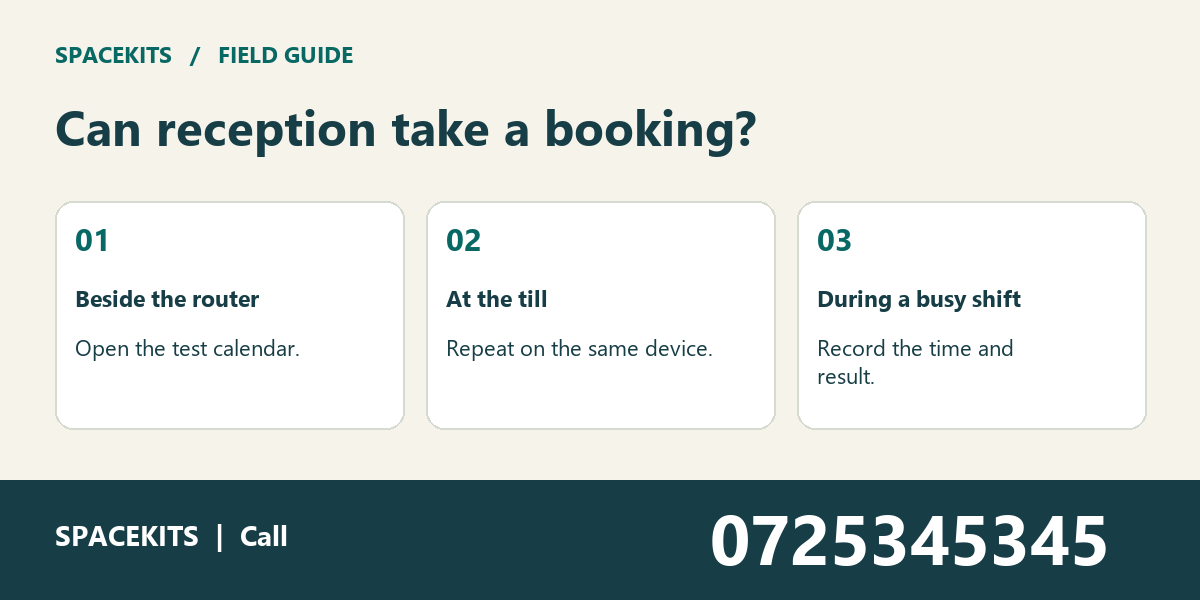
What changes when the salon gets busy?
Repeat the comparison during a normal shift. Note the time, location and result: “Calendar opened at reception at nine; timed out there at noon; opened beside router at noon.” That note gives an installer more to investigate than “internet is slow.” If only one device struggles, try another before blaming coverage.
Salon WiFi testing starts with a customer at the counter
Imagine that a client has finished her appointment and wants the same stylist next Saturday. The receptionist opens the calendar, but the screen is still loading when the next client reaches the till. A speed test performed earlier in the manager’s office looked fine. What would settle the question now is whether the receptionist can find a slot, select it and see the booking confirmed from the counter.
Write that sequence on your salon WiFi testing sheet. Choose a demonstration account or a booking that staff are authorised to use for training. For salon WiFi testing, verify: the confirmation appears, and the appointment is visible when the calendar is reopened. If the test involves only opening a public demonstration page, record that narrower result. A page loading successfully does not establish that a booking was saved.
Note what the receptionist normally does next. If she has to walk across the salon to finish a booking, the connection may technically work somewhere on the premises while failing at the actual point of service. Walk back to the till and repeat the task there. Give salon WiFi testing a clear purpose: the aim is for the receptionist to stay with the client and complete the appointment.
Salon WiFi testing setup
Pick a device that staff normally use for bookings. Charge it, connect it to the intended staff network and note whether mobile data is off for the test. A phone quietly switching to mobile data can make a weak spot appear to have been fixed. Restore the person’s usual settings afterwards; do not change the salon’s router settings as part of this first comparison.
For salon WiFi testing, choose two repeatable positions. “By the mirror” could mean several stations, whereas “on the reception counter beside the receipt printer” is specific. For the comparison point, stand in an accessible spot near the router. There is no reason to climb onto a shelf, move powered equipment or touch a rooftop installation. If the router is in a locked room, ask the responsible person for a suitable test location.
Use one calendar view throughout salon WiFi testing. Comparing a fresh login at one location with a page that was already open at another introduces another variable. A useful note might read: “Staff tablet, booking calendar for next Saturday, first opened at reception and then beside the router.” Mention if the second attempt was faster because the page had already loaded once. Reverse the order on a later run if needed.
Salon WiFi testing when the booking screen stops
“Booking failed” covers several different events. Did the browser reach the login page? Did the calendar open but show no slots? Did the appointment appear to save but disappear when the calendar was refreshed? Those observations take the investigation in different directions. Record the last step that worked and the first step that did not. Leave the explanation blank until there is evidence for it.
Suppose the calendar opens at reception and staff can browse Saturday’s slots, but selecting one returns a message about permission. Try the same authorised demonstration task at the comparison point. If the message is identical, the appointment permissions or chosen slot deserve attention before the salon buys network equipment. Ask the person who manages the booking system to review the example without sharing another staff member’s password.
A different case is a spinning page followed by a connection error. Note the time and, if practical, the wording of the error. Open an unrelated public page on the same device and network. If it opens promptly, you have learned that the device could reach that page at that moment. You have not established that every route, account or service was working perfectly. Record that distinction after salon WiFi testing.
Salon WiFi testing with a second staff device
For salon WiFi testing, bring another device to reception. First confirm that it is using the same staff WiFi. Then try the same public demonstration page or equivalent approved task. Do not use a real payment or a real customer’s appointment as a test transaction. If the second device has different permissions, compare a step that both devices are allowed to perform.
If the second device works beside the first, check the first device’s connection and browser before assuming that the whole room lacks coverage. An old saved network name, a browser session awaiting login or a device-specific setting can change the result. Record what you can see. Avoid deleting accounts, clearing stored data or resetting equipment just to see whether the problem goes away.
If both devices work beside the router but struggle at reception, mark that pattern on a simple floor sketch. Include the counter, walls, doors and large fixtures between the two positions. The sketch alone cannot prove that a particular wall, mirror or cabinet is responsible. Buying an extender at this point would still be a guess.
Salon WiFi testing at peak hours
An empty salon before opening is a useful baseline. A working salon is the relevant acceptance test. Repeat the comparison when reception is handling ordinary bookings and staff are using their usual devices. Avoid creating artificial traffic that interrupts appointments. The test should reveal what happens under real working conditions without making those conditions worse for customers.
Before salon WiFi testing begins, agree who will record the results. A receptionist helping three people should not also have to write a technical report. A colleague can record the time, position, device and outcome while the receptionist performs the normal task. Use simple outcome labels such as completed, delayed or failed, then add a short explanation of what the label means in that instance.
Compare like with like at the end of the day. A failed attempt at reception on Saturday and a successful attempt beside the router on Monday leave both time and place uncertain. A pair of tests carried out close together provides a stronger comparison. If the problem is intermittent, retain the successful examples too. They help the installer see when the issue is absent rather than assuming it happens continuously.
Salon WiFi testing notes for your installer
Here is a fictional example: “At noon, two staff devices could not open the demonstration calendar at the front counter. Both opened it beside the router. With the devices back at reception, one timed out again. The office computer continued working. We did not change any equipment.” This account tells support what was observed, which comparison was made and what the team left unchanged.
A less useful note says: “The satellite connection is bad. Please replace everything.” It names a cause before checking it and gives the technician no location or repeatable task. Replace the diagnosis with observations. If staff noticed the issue after the counter moved, include that fact and the previous counter position. A change in timing is worth investigating even when it does not prove a cause.
Share only relevant salon WiFi testing notes. Crop customer names and appointment details from any screenshot. Never include a staff password, WiFi password, payment reference or a client’s contact information in a general enquiry. A sketch, a fictional appointment and a precise description of the failed step are usually more informative than a photograph of a screen full of private bookings.
Discuss salon WiFi testing with the installer
When reception alone has trouble, ask for an assessment of the route between the existing network equipment and the working counter. Identify where staff can place equipment, whether the premises are rented and who can approve any proposed cable route. An installer needs those practical details to suggest a solution that the salon can actually use, not just one that looks suitable on a diagram.
If several devices fail in several rooms at the same time, widen the investigation. Record whether equipment remained powered and whether staff could open any unrelated websites. If the booking service alone fails across otherwise working connections, involve the booking provider as well. These are routes for investigation, not diagnoses. The next person should know which observation supports each next step.
Request a written description of the proposed work. It should distinguish what will be assessed, what equipment is included, where it would go and which task will be repeated afterwards. A promise of stronger WiFi means little unless the installer and salon agree where it needs to work. For this example, the reception counter is the acceptance point, even if another room produces the most impressive test result.
Repeat salon WiFi testing after the installation
After installation, repeat salon WiFi testing with the original booking sequence and device. Use the same counter position and network. Confirm that the demonstration appointment can be selected and that its saved state can be verified. If only a public page was tested originally, repeat that test and identify separately what remains to be checked in the actual booking workflow.
Ask a receptionist who did not supervise the installation to try the task. Their experience may reveal a practical issue: the device works when held near the doorway but not when resting beside the printer, or the staff network name is unclear. Those are useful findings before the installer leaves. Record the exact condition rather than asking a colleague to stand in an inconvenient spot for every future booking.
Keep a brief handover note with the property or salon manager. Include the working network name, support route, tested locations and any open question. Store credentials through the salon’s approved method rather than printing them on the note. Set a reminder to repeat the reception check during the first ordinary busy shift. Quiet salon WiFi testing cannot reproduce every condition of a Saturday afternoon.
Salon WiFi testing questions from reception
Do full signal bars mean the booking system is fine? No. The display describes one aspect of the device’s wireless connection. It does not confirm that a particular service is reachable, that an account can make a booking or that the appointment was saved. Check the actual task and verify its result before telling a customer their appointment is confirmed.
Should we move the router ourselves before asking for help? Start by recording the existing arrangement. If equipment is mounted, requires new cabling or is outside an accessible staff area, have the appropriate professional assess the change. A test from two accessible positions gives useful information without disturbing the setup that other staff are relying on during the shift.
What makes the test complete? The team can name the location, reproduce the booking task and explain the outcome. If a fault remains, it has a named next action. If the task works, the handover records when and where that result was achieved. That gives tomorrow’s receptionist something more useful than yesterday’s assurance that everything seemed fine.
If the problem affects several devices at reception but not near the router, ask for a coverage assessment. If both locations fail, start with Spacekits troubleshooting support. Bring the two results when you call +254742648998; they help the technician decide what to test first. Keep the original comparison handy.
Need CCTV, WiFi or Starlink installation?
SpaceKits helps homes, offices, shops and businesses plan CCTV, extend WiFi coverage and install Starlink in Kenya. Tell us your location and property type for a practical next step.
Request a QuoteChat on WhatsApp