
Need Starlink Installation or Network Optimization?
We help homes, offices, apartments, and businesses with Starlink installation, WiFi coverage improvement, and professional setup in Kenya.
Request Installation Chat on WhatsAppIf your Starlink shows suspended in Kenya, do not rush to replace the router, dish, cable, or mount. A suspended Starlink service is often an account or billing issue, not an installation fault. The right first step is to check KYC verification, payment status, subscription plan, service address, account status, and reactivation requirements.
Talk to Spacekits
Need Starlink help for your home or business?
Talk to Spacekits before you buy or book installation. We help with kit supply, mounting, activation, router placement, WiFi coverage, and written quotes.
Spacekits supports Kenyan Starlink users with installation, setup, mounting accessories, troubleshooting guidance, and practical checks for homes, shops, offices, farms, schools, churches, lodges, and business sites. This guide explains what to check when Starlink stops working because the account appears suspended or inactive.
What suspended usually means
A suspended Starlink account normally means the service is not currently active for the account, plan, payment, or verification state. It is different from a weak WiFi signal, bad router placement, obstruction, damaged cable, or poor mounting position. Those installation problems can affect performance, but they usually do not create an account suspension message.
That distinction matters. If the issue is account suspension, moving the dish or buying a new mount will not solve it. If the issue is obstruction, paying again may not solve it. Start by separating account status from hardware and installation status.
1. Check KYC verification
Some Starlink users may be asked to complete account verification or KYC checks. If verification is pending, incomplete, mismatched, or rejected, the service may be restricted until the account details are corrected. Check the account dashboard and any messages from Starlink for identity, address, or account verification requirements.
Make sure the account name, contact details, service location, and payment information are consistent. If documents or account information are required, submit clear and accurate details. Do not guess or use mismatched information because that can delay reactivation.
2. Confirm payment status
A suspended service can also come from a failed, delayed, or incomplete payment. Check whether the subscription payment went through, whether the card or payment method is valid, and whether any balance is pending. If the payment failed, update the payment method and retry from the official account dashboard.
For businesses, schools, churches, farms, lodges, and offices that depend on Starlink daily, payment monitoring should be part of the routine. A missed payment can interrupt internet even when the installation is physically fine.
3. Confirm the service plan
Starlink has different plans and account states. A user should confirm the active service plan, billing date, location settings, and whether the plan is paused, inactive, or waiting for reactivation. If the kit was bought from another person, also check whether the kit was transferred properly and whether the account is under the correct owner.
Second-hand kits can create confusion if ownership transfer was not completed correctly. Before paying for installation, confirm that the kit can be activated on the intended account and service location.
4. Check service address and location settings
If the Starlink kit is used in a different location from the configured service address or plan, the account may require plan or location updates. Users who move between sites should confirm whether their current plan allows that use. Homes, remote sites, construction areas, farms, and businesses should keep the service location and plan aligned with how the kit is used.
This is especially important when the kit is moved from one town to another or when it is used for a business site after being activated for a different location.
5. Restart and inspect the equipment
Even when the account is the main issue, basic equipment checks are still useful. Confirm that the router has power, the cable is seated properly, the dish is connected, and the Starlink app can see the kit. Restart the system after account changes or payment updates.
If the account is active but the kit still does not work, then the issue may be obstruction, cable damage, router placement, power stability, or hardware fault. That is when installation troubleshooting becomes more relevant.
6. Look for obstruction separately
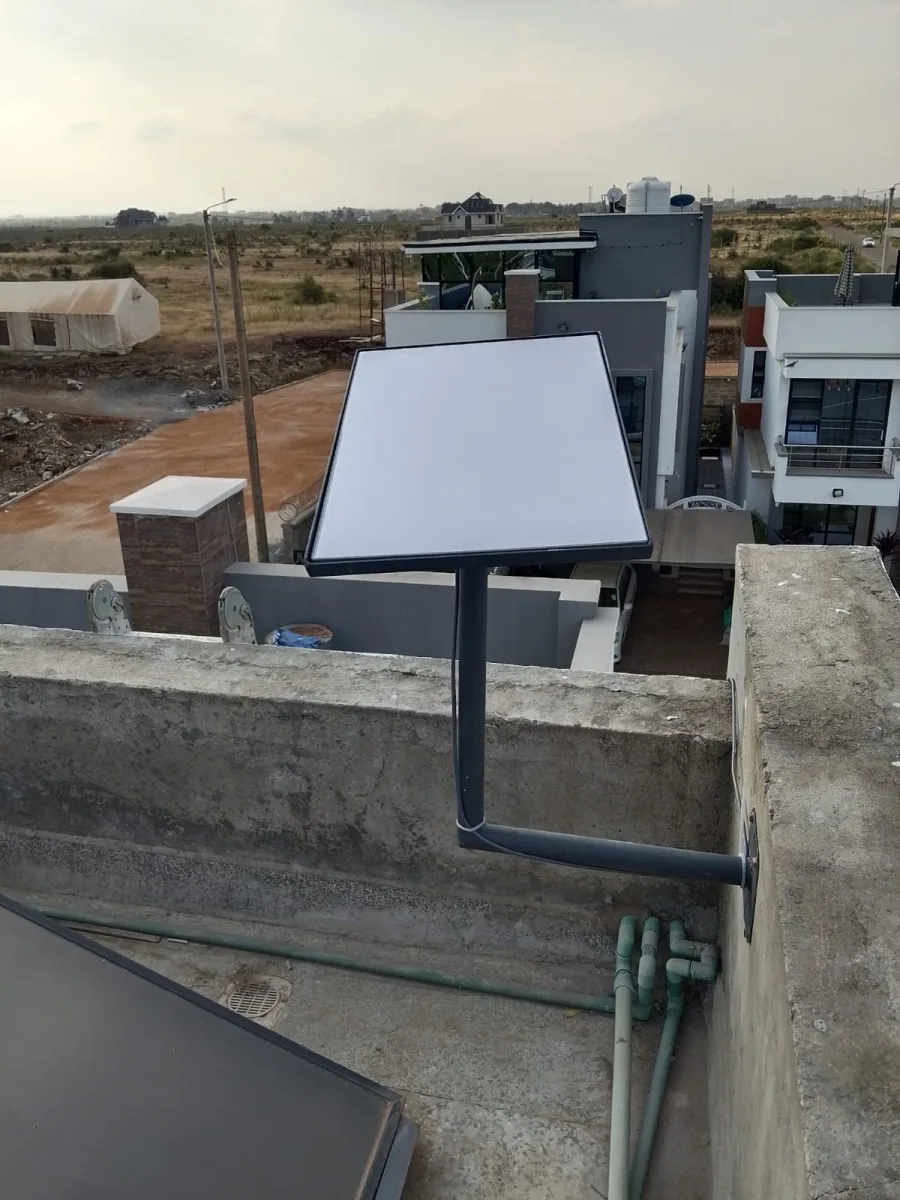
Obstruction is different from suspension. Trees, walls, roofs, water tanks, nearby buildings, and poor roof position can affect performance. If the account is active but service drops or speeds are poor, check the obstruction map in the Starlink app and review the dish location.
For installation planning, read the Spacekits guide on Starlink installation checklist in Kenya.
7. Check cable and router placement
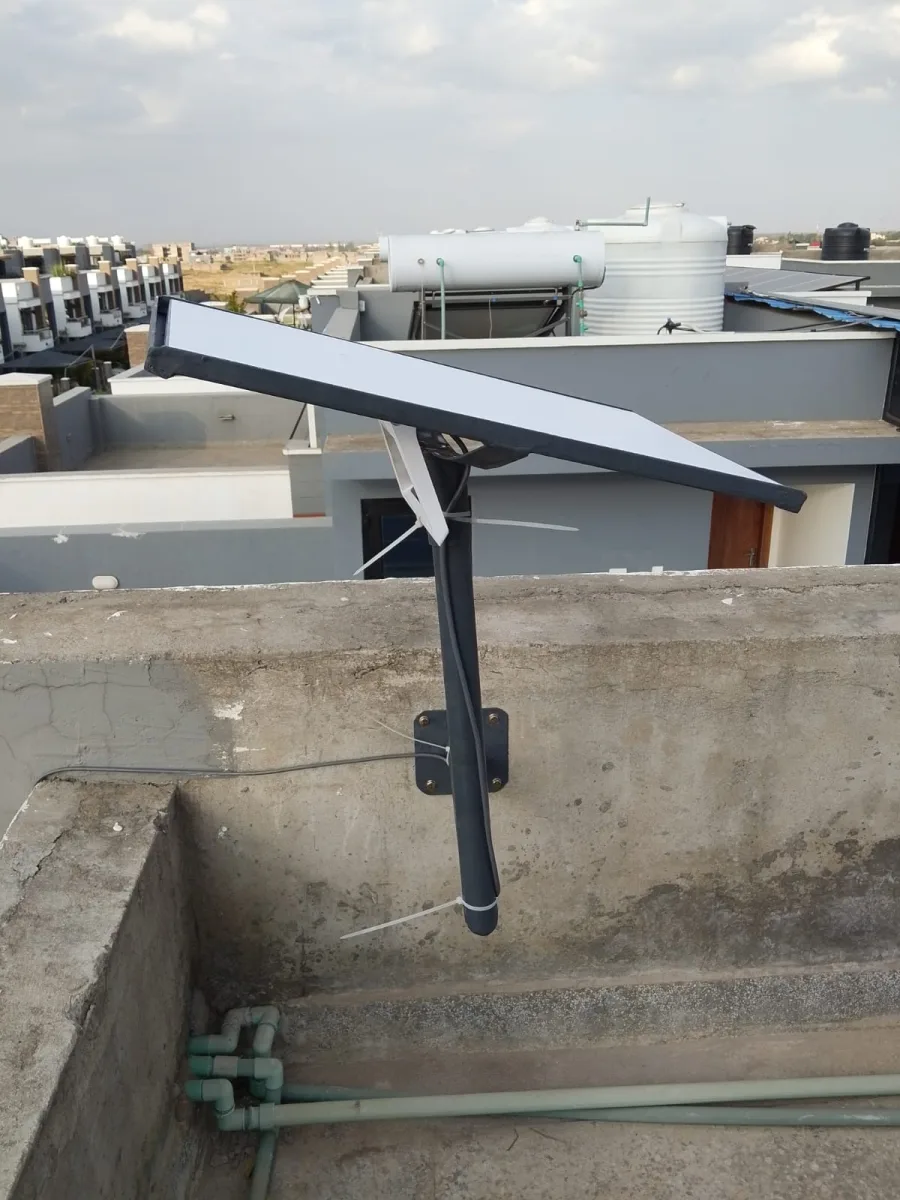
A damaged or badly routed cable can create connection issues, while poor router placement can make WiFi weak inside the building. Those problems can look like internet failure even when the Starlink account is active. Inspect cable routing, wall entry points, cable bends, router power, and indoor coverage.
If your issue started after moving the dish, changing the mount, or pulling the cable, inspect the physical installation carefully before assuming the account is suspended.
8. When to request help
Request help when the account status is unclear, the kit was transferred from another owner, payment has been made but service remains inactive, KYC verification is confusing, or the app shows conflicting information. You should also request help if the account is active but the dish still has obstruction, cable, router, or power issues.
Spacekits can help customers think through the correct path: account checks first, then installation checks, then network coverage checks. This avoids wasting money on the wrong fix.
For businesses, downtime has a cost
Businesses using Starlink for payments, CCTV, WhatsApp customer communication, cloud systems, stock records, bookings, or office work should not wait until the connection is down to review account status. Keep payment details updated, monitor renewal dates, and document who manages the account.
For offices, godowns, farms, schools, churches, lodges, and remote sites, it may also be worth planning backup power and a basic internet continuity checklist.
Common mistakes to avoid
- Replacing equipment before checking account status
- Ignoring KYC or verification messages
- Using mismatched account details after buying a second-hand kit
- Assuming a payment succeeded without checking the dashboard
- Moving the kit without checking service plan or location rules
- Confusing obstruction problems with account suspension
- Ignoring router power, cable seating, and physical installation checks
Final thought
If Starlink shows suspended in Kenya, start with account basics: KYC verification, payment status, service plan, service location, account ownership, and reactivation steps. After that, inspect power, cable routing, obstruction, and router placement.
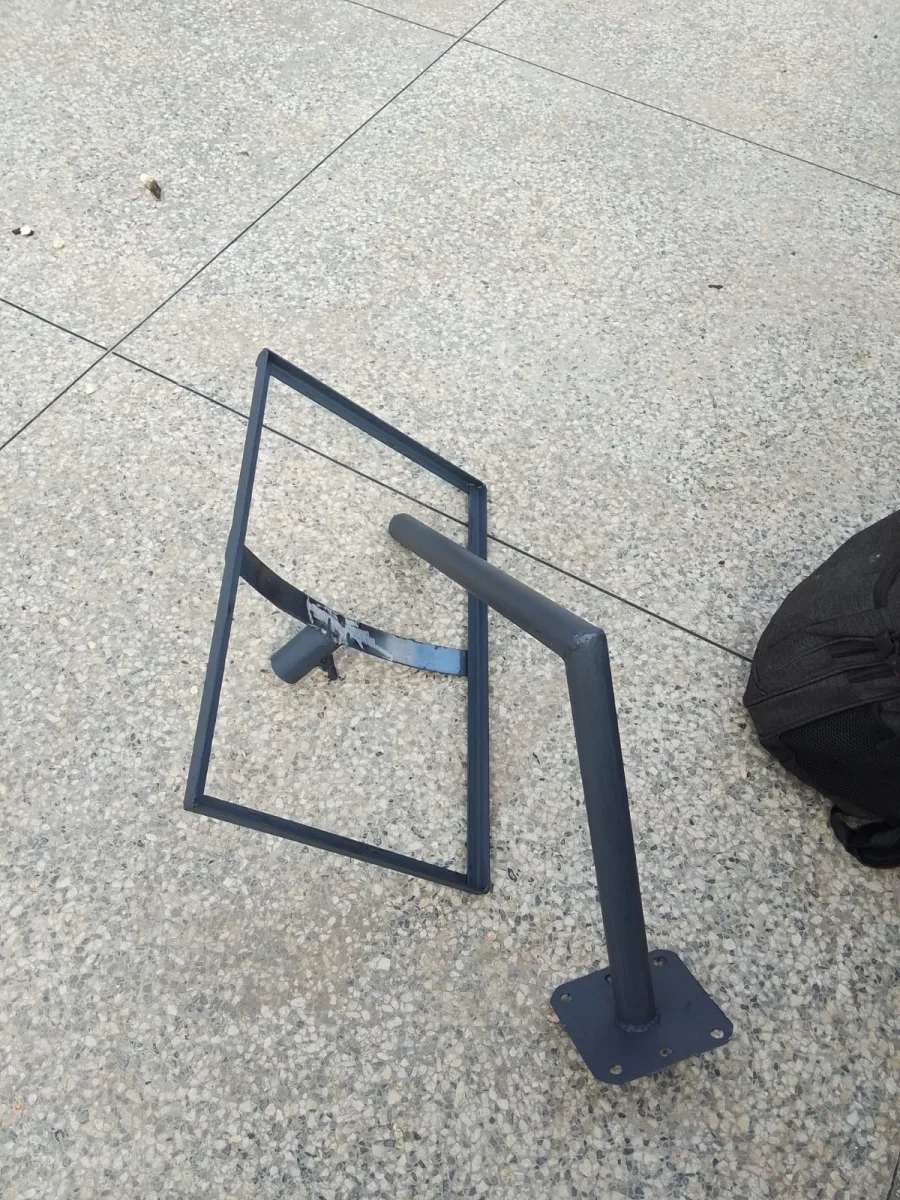
Visit Spacekits for Starlink installation and support guidance. If you need a stable Gen 3 mounting option, see the Starlink Gen 3 mounting stand.
Need Starlink Installation or Network Optimization?
We help homes, offices, apartments, and businesses with Starlink installation, WiFi coverage improvement, and professional setup in Kenya.
Request Installation Chat on WhatsApp