
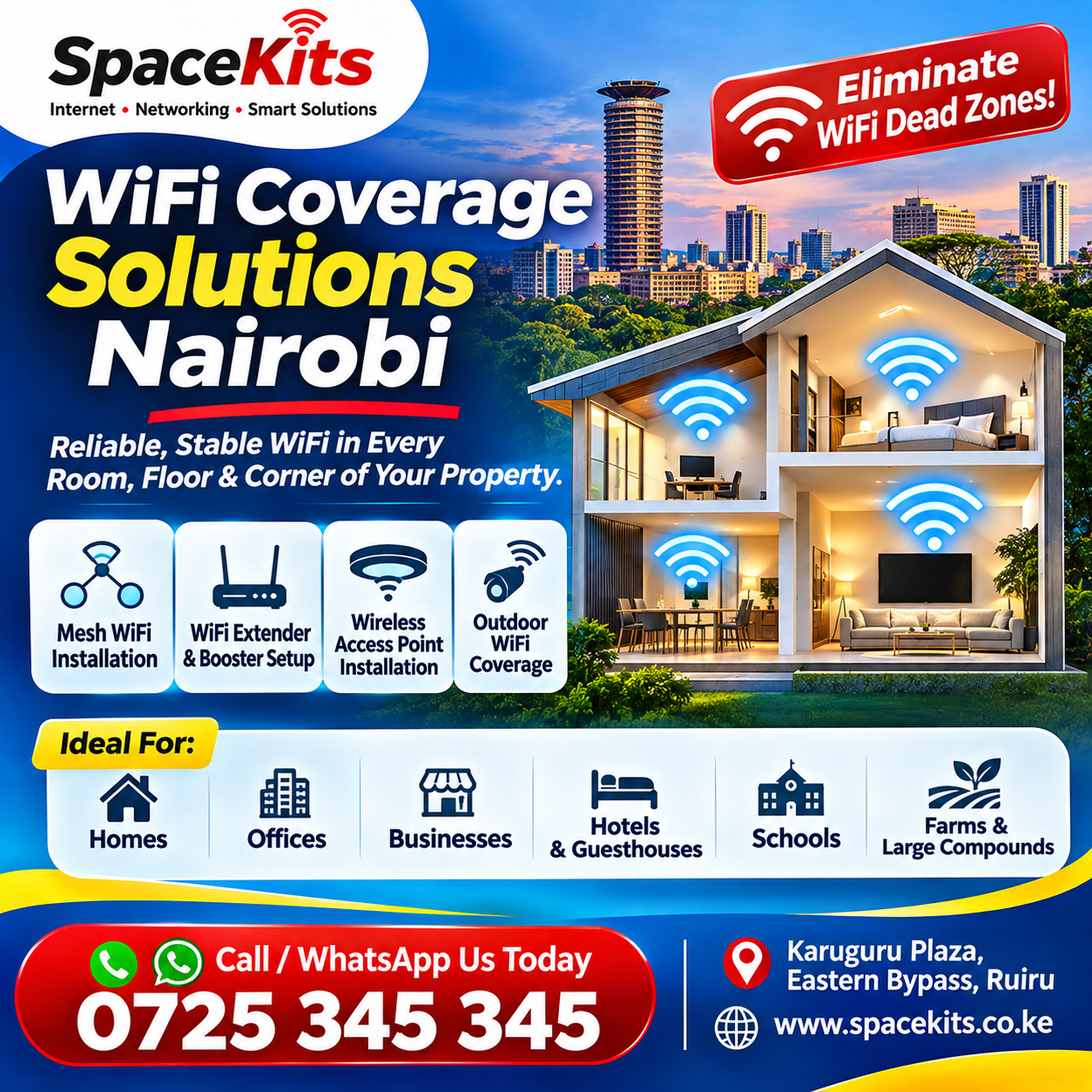
Looking for professional TP-Link WiFi Extender Installation Nairobi, Ruiru, Kiambu or anywhere in Kenya? SpaceKits Kenya provides WiFi range extender installation, TP-Link router configuration, WiFi booster setup, mesh WiFi solutions, network troubleshooting and whole-home wireless coverage services.
Is your WiFi not reaching all rooms? Does your internet work well in the living room but become slow in the bedroom, upstairs, kitchen or home office?
A properly installed TP-Link WiFi range extender may help improve wireless coverage in areas where your main router provides a weak signal.
At SpaceKits.co.ke, we help homeowners and businesses assess wireless coverage problems and select suitable networking equipment.
Whether you use Starlink, Safaricom Home Fibre, Zuku, Faiba or another internet provider, we can help you determine how to improve WiFi coverage throughout your property.
Our services cover Nairobi, Westlands, Kilimani, Karen, Runda, Lavington, Kasarani, Ruiru, Kamakis, Membley, Thika Road, Kiambu and surrounding locations.
Need TP-Link WiFi Extender Installation Near You?
Contact SpaceKits Kenya for professional installation and networking assistance.
Call / WhatsApp: +254742648998
Website: https://spacekits.co.ke
Office: Karuguru Plaza, Eastern Bypass, Ruiru, Kenya
Services: TP-Link Extender Setup | WiFi Boosters | Mesh WiFi | Router Configuration | Starlink WiFi Extension | Access Points
1. What Is a TP-Link WiFi Extender?
A TP-Link WiFi extender is a networking device designed to expand the coverage of an existing wireless network.
It connects to a compatible router and provides additional wireless coverage in an area where the original signal is weak.
For example, you may have a router installed in your living room that provides strong WiFi near the television and sitting area.
However, the wireless signal may become weak in a bedroom located behind several concrete walls.
A properly positioned TP-Link range extender can receive the existing WiFi signal and retransmit it toward that room.
This may improve connectivity for devices such as smartphones, laptops, tablets and smart televisions.
However, a WiFi extender does not increase the speed of your internet subscription.
The extender relies on the connection it receives from your router. If the original signal is extremely weak, the extended connection may also perform poorly.
This is why correct placement and configuration are important.
2. Why Choose Professional TP-Link WiFi Extender Installation?
Although many TP-Link extenders are designed for straightforward setup, installation problems can still occur.
Some customers connect the extender successfully but experience slow internet afterward.
Others position the extender too far from the router, preventing it from maintaining a stable connection.
A professional installation helps establish whether the equipment is suitable for the property and how it should be configured.
Correct equipment selection
Different TP-Link models offer different wireless capabilities and features.
The correct model depends on your existing router, required coverage, number of devices and network usage.
Suitable extender placement
The extender should be positioned where it receives a usable signal from the main router while providing coverage toward the target area.
Proper network configuration
The extender must connect to the correct network using appropriate settings.
WiFi coverage testing
The installer can check whether the target areas receive improved connectivity.
Troubleshooting
If the extender does not connect correctly, the technician can review the network settings, compatibility and device status.
Long-term usability
Customers should understand how to reconnect or manage their equipment when router settings change.
SpaceKits provides installation and networking assistance based on these practical requirements.
3. TP-Link WiFi Extender Installation Services by SpaceKits Kenya
SpaceKits handles a variety of TP-Link networking services.
TP-Link range extender installation
We assist with installing and configuring compatible TP-Link wireless range extenders.
TP-Link router configuration
Our networking services include reviewing router settings and wireless network arrangements.
TP-Link mesh WiFi setup
Customers can enquire about compatible mesh networking systems for larger properties.
TP-Link access point installation
Wired access points may be appropriate for offices and homes requiring additional wireless coverage.
Starlink WiFi extension
SpaceKits helps Starlink customers assess compatible WiFi expansion options.
Home WiFi troubleshooting
We handle enquiries involving weak signals, wireless dead zones and unstable local network connections.
Office WiFi installation
Business networks may require multiple access points, switches and suitable network configuration.
Outdoor networking
Customers with larger compounds can discuss outdoor-rated access points and other suitable connectivity solutions.
4. How to Set Up a TP-Link WiFi Extender Using the Tether App
The TP-Link Tether application supports configuration of compatible TP-Link range extenders.
The exact interface and available options depend on the extender model.
Step 1: Check equipment compatibility
Confirm that your particular TP-Link extender supports the Tether app.
The model’s documentation identifies the available setup methods.
Step 2: Install TP-Link Tether
Download the official TP-Link Tether app through your device’s supported application store.
Step 3: Power on the extender
For initial setup, plug the extender into an appropriate power outlet near the main router.
Wait for the device to finish starting.
Step 4: Add the extender
Open Tether and select the option to add a compatible range extender.
Follow the instructions displayed in the app.
Step 5: Select your home WiFi
Choose the correct existing wireless network.
Enter its WiFi password when requested.
Step 6: Configure wireless settings
Depending on the model, you may be able to set an extended network name or use compatible mesh-network settings.
Step 7: Complete the connection
Allow the device to apply the configuration and establish the network connection.
Step 8: Reposition the extender
Move the extender to a suitable location between the main router and the area requiring improved coverage.
Step 9: Check signal indicators
Use the extender’s indicators or supported app features to assess the connection.
Indicator meanings vary by model.
Step 10: Test connected devices
Connect a phone or laptop in the target room and verify that the network works as expected.
This procedure follows the general approach in TP-Link’s Tether setup guidance.
5. TP-Link WiFi Extender Setup Using a Web Browser
Some TP-Link extenders can also be configured using a web browser.
This method is useful when the customer prefers computer-based configuration or the app is unavailable.
Accessing the extender
Connect your phone or computer to the extender’s default wireless network.
For compatible models, the default network name may resemble TP-Link_Extender.
Opening the management page
TP-Link documents http://tplinkrepeater.net as a management address for supported models.
The address normally works when your device is connected to the extender’s network.
Creating management credentials
During initial setup, you may be asked to create a password for the extender’s administration interface.
Use a unique, secure password.
Selecting the host network
The setup interface searches for available wireless networks.
Choose your router’s network and provide the correct WiFi credentials.
Completing configuration
Follow the model-specific setup prompts and confirm that the extender connects successfully.
Afterward, position the extender appropriately and test wireless connectivity.
6. TP-Link WiFi Extender Setup Using WPS
Some TP-Link extenders support WiFi Protected Setup, commonly called WPS.
This option may allow the extender to connect to a compatible router without manually entering the wireless password during the initial pairing process.
Whether WPS is available depends on the router and extender.
Some routers have WPS disabled or do not support it.
When using this setup method, follow the exact instructions for both devices.
WPS should not be treated as a universal setup method.
Where available, the Tether application or web configuration interface may provide more visibility into the network settings.
7. Where Should You Place a TP-Link WiFi Extender?
Proper placement is one of the most important factors affecting extender performance.
A common mistake is placing the extender directly inside the room where the WiFi signal is already extremely weak.
The extender still needs a sufficiently strong connection to the main router.
Placement between the router and weak-signal area
An appropriate location may be approximately halfway between the main router and the area requiring coverage.
The actual position depends on walls, floors and signal conditions.
Avoid unnecessary obstacles
Thick walls, enclosed cabinets and large obstructions can interfere with wireless signals.
Check the signal indicator
Many TP-Link extenders include indicators that help assess the connection to the main router.
Refer to your model’s instructions to understand the indicator colours.
Test the actual target area
Successful setup does not automatically mean every room has adequate connectivity.
Check the areas where you intend to use your devices.
Consider wired access points
If the extender cannot receive a dependable signal in a useful location, a wired access point may be a better solution.
8. TP-Link WiFi Extender Installation for Two-Storey Houses
Two-storey homes frequently experience WiFi coverage problems because the signal must travel through floors and walls.
A router installed downstairs may not provide sufficient coverage upstairs.
Some properties can benefit from a range extender positioned in a suitable intermediate location.
Others may require mesh WiFi or an Ethernet-connected access point.
WiFi in upstairs bedrooms
The solution should be designed around the rooms requiring connectivity.
WiFi for home offices
Home offices may require more dependable performance than ordinary browsing.
WiFi for smart televisions
Streaming performance depends on both the internet connection and the local network.
WiFi for multiple household devices
The system should be selected according to the number of devices and expected usage.
SpaceKits can assess whole-home WiFi requirements for maisonettes and multi-storey properties.
9. TP-Link WiFi Extender Installation for Starlink
SpaceKits also provides Starlink installation services.
Some customers using Starlink experience weak WiFi coverage even when the satellite internet connection is working correctly.
A compatible TP-Link extender or networking solution may help improve coverage.
Compatibility with Starlink routers
Compatibility depends on the Starlink hardware generation, router settings and networking equipment.
Starlink WiFi in large houses
Larger properties may require mesh WiFi or additional access points.
Starlink WiFi for farms
Separate buildings may need dedicated networking infrastructure.
Starlink WiFi for hotels
Hospitality properties may require multiple access points rather than a single residential extender.
Starlink WiFi troubleshooting
SpaceKits can help assess the difference between a satellite connection problem and local WiFi coverage issues.
10. TP-Link WiFi Extender Installation for Safaricom Home Fibre
Safaricom Home Fibre customers may experience weak WiFi in distant rooms.
A compatible TP-Link extender may help expand the router’s wireless coverage.
Before installing an extender, it is important to confirm that the internet works adequately near the main router.
If the internet is slow even when connected directly to the router, the issue may not be caused by wireless coverage.
A range extender cannot repair a faulty connection from the internet provider.
SpaceKits handles networking enquiries for homes using Safaricom Home Fibre.
11. TP-Link WiFi Extenders for Zuku and Faiba Routers
Many TP-Link range extenders are designed to operate with compatible WiFi routers from different manufacturers.
This makes them a possible option for customers using Zuku, Faiba and other internet providers.
However, compatibility should be checked for the actual router and extender models.
Mesh-specific features may require compatible equipment within the relevant ecosystem.
12. TP-Link OneMesh and EasyMesh – What Is the Difference?
Some TP-Link devices support coordinated mesh networking features.
These can improve the way compatible network devices operate together.
TP-Link OneMesh
OneMesh is a TP-Link networking system supported by selected routers and extenders.
Compatible devices can participate in a coordinated network.
EasyMesh
EasyMesh is a standards-based approach supported by certain compatible networking devices.
Available features can depend on the device model and firmware.
Are OneMesh and EasyMesh interchangeable?
Do not assume that all devices supporting one system will work with every device supporting the other.
Compatibility must be checked using the actual model numbers and the manufacturer’s documentation.
Do I need mesh compatibility?
A standard extender may be sufficient for one weak-signal area.
For whole-home coverage, compatible mesh equipment may provide a more coordinated solution.
SpaceKits can help customers review their existing networking devices before selecting additional equipment.
13. TP-Link WiFi Extender Installation Cost in Nairobi, Kenya
The total cost depends on the hardware and installation scope.
The following are general budgeting ranges, not verified SpaceKits selling prices.
| Equipment or service | Indicative budget |
|---|---|
| Basic TP-Link WiFi extender | Request a quote |
| Dual-band TP-Link extender | Request a quote |
| Higher-specification extender | Request a quote |
| TP-Link mesh WiFi system | Request a quote |
| Professional installation | Quotation required |
| Additional network cabling | Quotation required |
| Office WiFi setup | Quotation required |
Prices vary by model, seller, warranty and installation requirements.
What affects installation costs?
- Extender model
- Existing router
- Property size
- Number of floors
- Required wireless coverage
- Installation complexity
- Additional cabling
- Number of connected devices
- Network troubleshooting requirements
- Property location
Contact SpaceKits for a quotation tailored to your setup.
14. TP-Link WiFi Extender Installation in Nairobi
SpaceKits accepts TP-Link networking installation enquiries throughout Nairobi.
Westlands
Office networks, apartments and business premises may require additional access points or extenders.
Kilimani
Apartment residents may need better WiFi coverage across bedrooms and working areas.
Kileleshwa
Homes and apartments may benefit from mesh WiFi or additional access points.
Lavington
Larger houses may require coordinated wireless coverage across multiple rooms.
Karen
Properties with extensive floor space or separate buildings may need more comprehensive network designs.
Runda
Multi-storey homes can benefit from professional WiFi assessment.
Parklands
Businesses and residential properties may require additional networking equipment.
Nairobi CBD
Offices may need wireless coverage improvements for working areas and meeting rooms.
Kasarani
Customers can enquire about WiFi extenders, router configuration and wireless troubleshooting.
Embakasi
Residential and commercial customers may need suitable network coverage solutions.
Additional locations
SpaceKits also accepts enquiries in South B, South C, Upper Hill, Lang’ata, Ngong Road, Roysambu, Buruburu, Donholm, Ruai, Utawala, Riverside, Gigiri and surrounding areas.
15. TP-Link WiFi Extender Installation in Ruiru and Kiambu
SpaceKits is located along the Eastern Bypass in Ruiru.
Customers in the surrounding areas can request TP-Link networking installation services.
Key locations include:
- Ruiru Town
- Kamakis
- Membley
- Kimbo
- Tatu City
- Juja
- Kahawa Sukari
- Kahawa Wendani
- Witeithie
- Thika Road
- Kiambu Town
- Ruaka
- Thika
- Kikuyu
- Limuru
Whether you need better WiFi upstairs or improved coverage in an office, share your location and property details when requesting a quotation.
16. Common TP-Link WiFi Extender Problems and Solutions
TP-Link extender connected but no internet
First establish whether the main router has a working internet connection.
An extender cannot provide internet if the original connection is unavailable.
TP-Link extender cannot find the router
Confirm that the main router’s wireless network is available and supported.
The extender may need to be placed closer during initial setup.
TP-Link extender has a red signal indicator
On many models, this indicates a weak connection to the router.
Check the model documentation and consider positioning the extender closer to the router.
TP-Link extender keeps disconnecting
Possible causes include interference, weak signal strength, incompatible settings or problems with the main router.
TP-Link extender is slower than the router
Some throughput reduction is normal with wireless repeating.
The extent depends on equipment capabilities, signal quality, network traffic and configuration.
TP-Link extender cannot access the internet after a password change
If the main router’s WiFi password changes, the extender may need to be reconfigured.
TP-Link extender does not cover upstairs
Concrete floors and other obstructions may make ordinary repeating ineffective.
Mesh WiFi or wired access points may be more suitable.
TP-Link Tether cannot find the extender
Check that your phone is connected to the relevant extender network and that the device supports Tether.
Follow the manufacturer’s troubleshooting guidance.
17. TP-Link WiFi Extender vs TP-Link Deco Mesh
Customers often ask whether they should purchase a range extender or a Deco mesh system.
These solutions address related but different requirements.
| Feature | TP-Link range extender | TP-Link Deco mesh |
|---|---|---|
| Main purpose | Expand existing WiFi coverage | Coordinated whole-home network |
| Common use | One or two weak areas | Multiple rooms and floors |
| Setup | Model-dependent | Deco app for supported systems |
| Expansion | Depends on model and compatibility | Add compatible Deco units |
| Wired backhaul | Available on selected models | Supported by many Deco systems |
| Typical budget | Often lower | Usually higher |
A range extender may be the more economical choice for a small coverage issue.
A mesh system may be preferable for a larger property requiring several coverage points.
The right decision depends on the actual network.
18. TP-Link Access Point Installation for Offices
Some businesses require more than wireless range extenders.
Office networks may need suitable access points connected through Ethernet cabling.
Office workstation coverage
Access points can provide WiFi to designated working areas.
Meeting room connectivity
Wireless coverage should be assessed where employees frequently use video conferencing and other applications.
Guest WiFi
Businesses may require separate visitor connectivity.
Network management
Certain business-grade TP-Link devices support centralized management features, depending on the product ecosystem.
Office expansion
Additional access points can be planned as an office grows.
SpaceKits can discuss business WiFi installation requirements and provide a project-specific quotation.
19. Our TP-Link WiFi Extender Installation Process
Step 1: Contact SpaceKits
Call or WhatsApp +254742648998.
Step 2: Explain your WiFi problem
Tell us which rooms have poor connectivity.
Step 3: Share your router information
Provide the internet provider and router model where known.
Step 4: Describe the property
Let us know the number of floors and approximate coverage area.
Step 5: Review suitable equipment
We assess whether an extender, mesh system or access point is appropriate.
Step 6: Receive a quotation
The quotation identifies the proposed equipment and installation work.
Step 7: Equipment installation
The agreed networking devices are installed and configured.
Step 8: Coverage testing
Connectivity is checked in the areas included in the installation scope.
Step 9: Customer handover
The customer receives basic information about the network and its management.
20. Frequently Asked Questions About TP-Link WiFi Extender Installation
How do I install a TP-Link WiFi extender?
Compatible TP-Link extenders can commonly be configured through the Tether app, a web browser or WPS. Follow the instructions for your specific model.
Can SpaceKits install my TP-Link WiFi extender?
SpaceKits accepts TP-Link WiFi extender installation enquiries in Nairobi, Ruiru and surrounding areas.
How much does TP-Link WiFi extender installation cost?
Costs depend on the device and installation requirements. Contact SpaceKits for a quotation.
Can a TP-Link extender work with Starlink?
Many standard extenders can connect to compatible WiFi routers, including certain Starlink setups. Check the specific hardware and configuration.
Does TP-Link work with Safaricom Home Fibre?
Compatible TP-Link extenders can generally be used with standard WiFi routers, subject to device compatibility.
Where should I place my TP-Link extender?
Choose a location where the extender receives a good signal from the router while helping cover the weak-signal area.
Why is my extender connected but the internet is not working?
The main router may lack internet access, or the extender may have a configuration or connection problem.
Can I use a TP-Link extender upstairs?
Yes, where wireless conditions permit. Larger multi-storey properties may need mesh WiFi or wired access points.
Can I install two TP-Link extenders?
Multiple extenders may be possible, but the network should be designed carefully to avoid poor performance.
Does a TP-Link extender increase internet speed?
It does not increase the bandwidth supplied by your internet provider. It may improve effective connectivity in weak-signal areas.
What is the TP-Link Tether app?
Tether is TP-Link’s application for setting up and managing compatible networking devices.
What is tplinkrepeater.net?
It is a management address documented by TP-Link for configuring supported range extenders through a web browser.
Can I extend WiFi to another building?
Separate buildings may require specialized wireless bridging equipment or suitable network cabling.
Is TP-Link Deco better for large houses?
A compatible Deco mesh system may be more suitable when several rooms and floors require coordinated coverage.
Do you provide TP-Link installation in Ruiru?
Yes. SpaceKits accepts WiFi installation enquiries in Ruiru, Kamakis, Membley and neighbouring areas.
How do I book TP-Link installation?
Call or WhatsApp SpaceKits on +254742648998.
21. Book Professional TP-Link WiFi Extender Installation in Nairobi Today
WiFi not reaching all rooms? Weak signal upstairs? Your TP-Link extender refusing to connect?
SpaceKits Kenya provides WiFi installation and networking support for residential and commercial customers.
We handle enquiries involving:
- TP-Link WiFi extender installation
- TP-Link WiFi booster setup
- TP-Link Tether configuration
- TP-Link router setup
- TP-Link Deco mesh WiFi installation
- Wireless access point installation
- Starlink WiFi extension
- Safaricom Home Fibre WiFi extension
- Office WiFi installation
- Whole-home WiFi coverage
- Network troubleshooting
Contact SpaceKits to discuss your current internet connection, networking equipment and the areas where you need improved wireless coverage.
SpaceKits Kenya – TP-Link WiFi Extender Installation Nairobi
Call / WhatsApp: +254742648998
Website: https://spacekits.co.ke
Office: Karuguru Plaza, Eastern Bypass, Ruiru, Kenya
Get Professional TP-Link WiFi Installation, Setup and Troubleshooting Support from SpaceKits Today!
Need CCTV, WiFi or Starlink installation?
SpaceKits helps homes, offices, shops and businesses plan CCTV, extend WiFi coverage and install Starlink in Kenya. Tell us your location and property type for a practical next step.
Request a QuoteChat on WhatsApp