
A website or WiFi problem can look identical to the person at the counter: the page spins and nothing happens. Then find out whether the failure follows a website, a device or the office connection.
Start with the public page that failed. For example, if the address was Awasa or Dereva, use that same address throughout the test. Do not enter customer details, make a payment or submit a form to test connectivity.
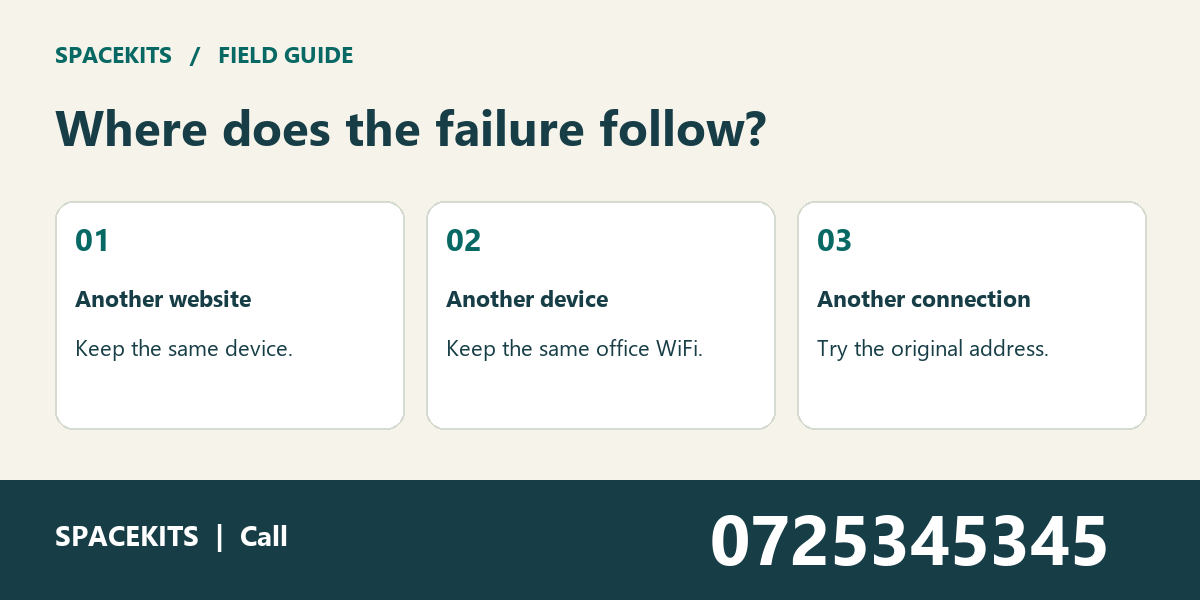
Change one thing at a time
First, open another public website on the same device. Second, ask a teammate to try the original address over the same WiFi. Third, if available, try that address on a separate mobile connection.
Website or WiFi problem: what a useful result looks like
A useful incident note describes a symptom before naming a cause. Begin at the last step the user actually completed.
Choose a test page that does not require signing in or entering customer details. Keep the test ordinary: opening a public page is enough to compare basic access. Do not treat a security warning as a hurdle to clear, and do not make a payment simply to see whether a site responds.
Time matters in a fault report. Two pages tested hours apart may have encountered different conditions. Compare them close together, write down which device and connection were used, and preserve successful results alongside failures. A support person can then decide what to check without relying on a diagnosis that nobody has established.
1. Website or WiFi problem: Only one address fails
A public website fails while other public pages still load on the same laptop. A teammate wants to reset the office router.
Start the website or WiFi problem exercise by naming the question in full: can the team demonstrate identifying whether the failure follows an address, a device or a connection? That wording keeps the discussion tied to the task. A general impression from a shared Kenyan office is useful background, but it does not establish what happened in this specific example.
Record the exact address and message. Test the same address from another device before changing the office connection. The successful pages establish that some internet access exists; they do not establish that the original site is healthy.
The first entry on the incident test sheet should give the next reader a place to start. Write the address, device and network beside the result, then add the source used for test. Keep the original address in the incident note. If that final instruction cannot be carried out yet, leave the item open and say exactly what is missing.
2. One laptop fails on every page
A teammate’s phone opens two public pages on office WiFi, but the laptop cannot open either.
Before deciding what to change, separate what was observed from what someone expected. For website or WiFi problem, the useful test here is a known working public page on the same device. Make sure it addresses the same question as the original result; otherwise a second result may introduce another difference instead of explaining the first.
Confirm the phone is not using mobile data. Check which network the laptop joined and whether it shows a sign-in prompt. A device-specific symptom calls for a device check before a building-wide restart.
A handover note can be short. Use three lines: what was reported, what was compared, and what the test established. Do not clear accounts or passwords as an initial experiment. A teammate who receives that note should know whether to repeat a check or refer a specific question to the person assigned.
3. Website or WiFi problem: The same address fails on mobile data
Two independent connections time out on the same public page while other pages load.
Give the office coordinator a clean copy of the example. Ask them to identify the original public page without using the previous teammate’s private notes. If they cannot do that, pause before interpreting the result. An ambiguous starting point can make an otherwise careful test misleading.
Compare the spelling and current public address, then record the time and error. Avoid entering details into lookalike sites. The pattern supports investigation of the site or route; it is not proof of who is assigned.
For this part of website or WiFi problem, record the outcome in factual language. Send the test to the right service contact. Keep the original result visible alongside the new one. That lets someone reviewing the case later distinguish a confirmed change from a difference in how the two results were made.
4. A public page opens but sign-in fails
The homepage responds, but a private account screen returns a permission message.
This example is a useful test of the team’s assumptions about website or WiFi problem. Ask two staff to explain what the initial information proves. If their answers differ, identify the missing detail instead of choosing the explanation that sounds most confident.
Use an authorised sample account if available and record the exact stage. Do not share another person’s credentials. The successful public page and failed private action concern different parts of the service.
Use the incident test sheet to preserve the distinction. A note such as “checked” is hard to act upon; a note naming the test and its outcome is useful even after the original preparer leaves. Route an account-specific message to the account administrator. Record any open dependency with the person expected to resolve it.
Website or WiFi problem at one counter
Imagine a shop with one laptop and two marked positions. From the counter, the public page fails twice. Beside the router, it opens twice. That is a useful result for a website or WiFi problem because it gives support a location to check. It is not yet a reason to blame the partition, replace the router or buy an extender. Those are possible actions that require a better understanding of the premises.
Mark the counter on a sketch. Show the normal position of the laptop and whether the door is usually open or closed. If a display stand has recently moved, note its old and new positions. Give the installer the results without promising which change will fix the fault. The next test should repeat the original task from the counter, not merely demonstrate a faster result from the manager’s desk.
Website or WiFi problem: read the browser warning
Sometimes the browser does not report a simple timeout. It may warn that it cannot verify the identity of the site. Stop at that screen. Check the address against a trusted reference and notify the right administrator; do not continue to a page that asks for credentials. A warning is useful information for the investigation, not an obstacle a staff member needs to defeat to finish the test.
Keep the website or WiFi problem report factual. Record the public address, time and wording of the message. If another device can open the same page, mention it without assuming the first device is safe to use for a private account. The devices may differ in time settings, software or network path. The person assigned for the device can check those possibilities without asking a cashier to change security settings at the counter.
Website or WiFi problem that clears itself
An intermittent website or WiFi problem often disappears before the installer arrives. A website or WiFi problem still deserves investigation. A timeline can show which tests were performed close together and which were performed hours apart. Mark the first failure, last observed failure and first confirmed success. Those are results, not precise start and end times unless someone actually saw the service change state.
For a fictional incident, a clerk records a failed public page at eleven, a successful test page shortly afterwards and a successful second attempt at the original address after lunch. That account leaves the cause open. It does establish that a general office outage was not demonstrated by the first result alone. Keep the record available so that a later incident can be compared with the same address and location.
Website or WiFi problem: handing over to support
Write four short lines: original task, first failing step, successful test and remaining question. The remaining question should identify something support can actually check. Is the specific address unavailable from more than one connection? Does the same laptop fail everywhere? Does the symptom appear only from the counter? Each question leads to a different practical next action and a different person who may be able to help.
When several staff are involved, name one contact for the next update. Otherwise the website provider may check an account problem while the installer assumes the site itself is unavailable. Share the minimum information each person needs. A public address and a description of a sample task can be enough; a private customer file or a staff password does not belong in a general troubleshooting message.
Website or WiFi problem: verify the repair
Return to the original location and task after an approved change. If the problem appeared only at the sales counter, a successful sample beside the router does not close the case. Use the same device if it is available. Record what happened at the counter, then repeat the test point. Ask the person who normally performs the task to confirm whether the result is usable during ordinary work.
A clean result from one visit is encouraging, but it is not a guarantee that an intermittent fault will never return. Give the office a short instruction for recurrence: record the time, note the active connection and repeat the public-page test. Keep the installer’s contact route with the incident record. That makes the next conversation specific even if a different staff member is working at the counter.
Website or WiFi problem: staff questions
What if everyone uses a different device? Begin with one device and one address so the test has a clear baseline. Add the second device only after recording the first result. Two different laptops, two different accounts and two different locations introduce too many changes to explain a result confidently.
Should the office restart everything? A restart can interrupt people who still have working access. Establish the scope first and ask the assigned person to decide what action is right. A failure limited to one public page is a poor reason to disrupt every device in the building.
What if the usual application needs a login? Separate the public access check from the authorised account check. A successful public page does not prove that the account can perform a specific action. Record the account-specific error through the approved support process without sharing anyone’s password.
Website or WiFi problem: next shift handover checklist
The final test of a website or WiFi problem report is whether a teammate can use it the next morning. Give them the address, location, test and latest result. Ask which action they would take if the fault returned. If they would start by resetting devices because the note says only “internet down,” improve the note before handing it over. A clear record can spare both support teams and customers an needless interruption.
Website or WiFi problem: an example support note
Use language such as: “The counter laptop could not open the public catalogue at ten this morning. Another public page opened on the same laptop. The catalogue also failed on a second device using mobile data. We did not test a private account.” That note gives support a starting point and leaves room for another explanation. If a teammate later confirms that the address has changed, add the new information with its time rather than deleting the original result. For more examples, browse the other Spacekits installation guides.
If several sites fail on office WiFi but open on mobile data, tell support whether the same symptom appears beside the router. Give Spacekits troubleshooting support the time, locations and test results. Call +254742648998 rather than sending passwords or screenshots containing customer information. Note whether the device was using mobile data.
Need CCTV, WiFi or Starlink installation?
SpaceKits helps homes, offices, shops and businesses plan CCTV, extend WiFi coverage and install Starlink in Kenya. Tell us your location and property type for a practical next step.
Request a QuoteChat on WhatsApp