
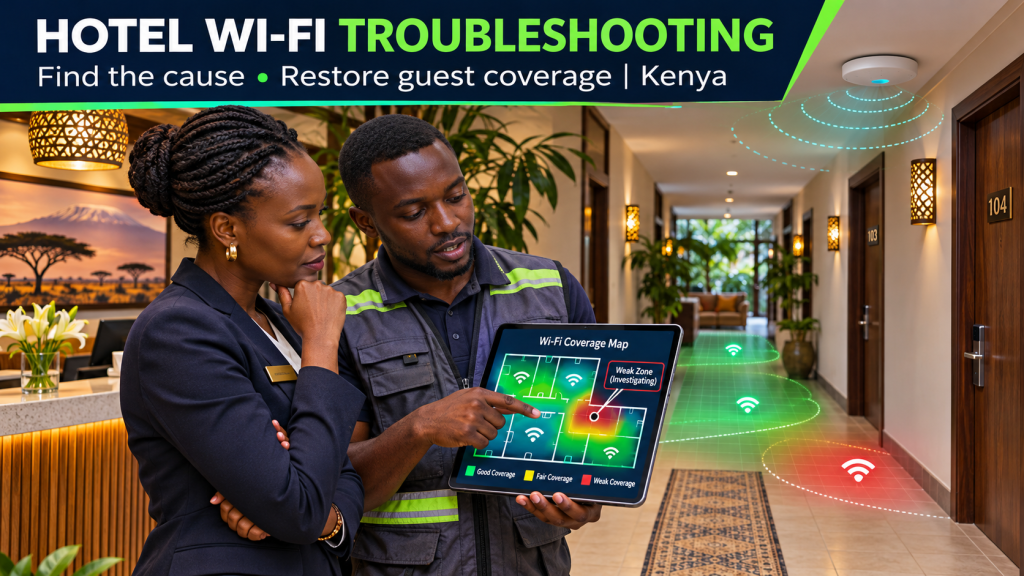
Hotel WiFi troubleshooting in Kenya starts by separating a weak room signal from a slow internet connection, login failure or overloaded network. When hotel guests say the WiFi is slow, the phrase can describe several different problems: weak signal in a room, a network that disconnects while walking, slow internet everywhere, a login page that never opens, or a system that works until the property fills up. These symptoms have different causes. Rebooting the router or buying another booster may hide a symptom for a short time while leaving the real fault in place. A useful troubleshooting process records where and when the problem occurs, checks the internet connection separately from local WiFi, and tests the guest experience in the exact spaces that matter.
This guide is for hotel owners, lodge managers, reception teams and facilities staff in Kenya who need a practical way to diagnose hotel WiFi before choosing a repair or upgrade. It covers a safe first-response checklist, how to distinguish an internet outage from a coverage issue, what to record during busy periods, common causes, and when to call an installer. For wider coverage planning, see our hotel WiFi extension guide. It explains network design choices for guest rooms and property-wide coverage.
Start with the symptom, not the equipment
Ask the person reporting the fault to describe exactly what happened. “WiFi is down” may mean their phone cannot see the network, the password is rejected, a sign-in page is missing, one app is unavailable or the whole internet service has stopped. Ask which room or location, what time, what device, whether other guests are affected and whether the issue continues after moving closer to an access point. These questions help identify whether the fault is local to a client, an access point, a part of the building, the internet connection or the guest authentication process.
Do not make changes before recording what the network was doing. Note the router and access-point status lights, alarms shown in a management app, power conditions, any recent maintenance and whether cables were moved. If safe and authorized, photograph relevant indicator lights and record the time. A reboot can clear useful evidence from a device log or temporarily recover service before an installer can identify the cause. Keep operational notes, then follow the hotel’s approved process for equipment changes.
Check the scope of the impact. Is it one guest device, one room, one wing, all guest WiFi, staff devices too, or internet access at the router itself? If a single guest is affected and other devices work in the same room, check the device’s WiFi setting, airplane mode, saved network profile, browser and captive-portal instructions. If all devices fail in one room but work in the corridor, suspect local coverage, interference or an access-point issue. If every area fails at once, look at the internet source, router, power or a central network component.
Use a calm, consistent script at reception. Confirm the network name, explain the login process, ask the guest to move closer to a nearby coverage point for a brief check, and note the result. Avoid asking guests to disable device security, install software or reveal sensitive information. Staff should not request a guest’s email password, banking code or other private credentials to troubleshoot WiFi.
Hotel WiFi troubleshooting checklist
- Confirm the affected area. Record room number, floor, lobby, restaurant, conference room, garden, cottage or other location.
- Confirm time and load. Note check-in period, event times, occupancy and whether many devices are being used.
- Test more than one device. Compare a staff device and a guest device where permitted; avoid relying on one phone.
- Compare near and far. Test near the router or a known access point, then in the affected area.
- Check the internet source. If authorized, test wired or near-router connectivity separately from distant WiFi.
- Check power and cabling visually. Look for unplugged adapters, damaged visible cables or recent moves; do not open electrical equipment.
- Review the guest login path. Confirm the network name, password, voucher or captive portal instructions.
- Check for recent changes. Ask about construction, new furniture, partitions, device swaps, password changes or ISP work.
- Record results before a restart. Capture symptoms and device status, then follow the hotel’s authorized recovery process.
- Escalate patterns. Repeated failures in the same rooms or at peak times need a site-level review.
This sequence is intended for observation and safe basic checks. Do not climb to ceiling equipment, handle live electrical wiring, reset managed switches without authorization, or factory-reset a router because it seems like a quick fix. An unplanned reset can remove the configuration needed for guest access, staff systems, CCTV, payment terminals or remote support. If equipment or cabling appears damaged, restrict access to the area and contact a qualified technician.
Separate the internet connection from the hotel’s WiFi
A hotel network has two related layers. The internet service brings connectivity to the property; routers, switches, access points, mesh nodes and cabling distribute it inside the property. If a device performs well close to the main router but poorly in a far room, the local distribution is a stronger suspect. If wired and wireless devices near the router all fail to reach websites, investigate the upstream service, router status, DNS or a broader outage before adding WiFi extenders.
Run a comparison at a known-good point. If the hotel has an authorized computer connected by Ethernet to the main network, compare a basic web request or approved speed check there with a WiFi test in the affected room. Keep the device, test service and time as consistent as possible. A wired result does not prove that every application is working, but it helps distinguish the internet source from a weak wireless hop. Record latency or packet loss if staff know how to collect it, but avoid presenting a single fluctuating test as a guaranteed service measure.
If the internet source is Starlink, fibre, fixed wireless or mobile broadband, note any provider status information, account notifications, service limitations and power state. For Starlink, identify the kit and router generation before inspecting ports or ordering adapters. Weather, obstruction, account plan, equipment faults and local network issues can cause different symptoms. Do not assume Starlink is at fault simply because it is the hotel’s provider; compare performance near its router and check the local distribution path.
For internet outages, use the provider’s normal support route and capture the service status, time, affected devices and router indicators. If connectivity has returned but guest WiFi remains poor in one area, the incident may have exposed a separate coverage issue. Keep those fault descriptions separate so the hotel does not repeatedly call the ISP for an in-building access-point problem.
Diagnose weak signal in guest rooms
Weak WiFi in a room often relates to distance, building materials, access-point placement, interference or a failed link to the access point. Concrete and stone walls, metal doors, mirrors, tiled bathrooms, lifts, water tanks and metal roofs can alter wireless propagation. A corridor access point may reach room doors but not reliably serve the far side of each bedroom. A router placed inside an office or cabinet may work for reception while leaving guest floors underserved.
Walk the affected route with a device and note where the signal changes. Record whether the network disappears, remains visible but cannot connect, or stays connected with poor performance. Check rooms both near and far from the access point. A floor plan with marked access points, walls and complaint locations can reveal a pattern. If a group of adjacent rooms fails while neighboring rooms work, inspect that zone’s access point and cable path rather than replacing every network device.
Placement changes should be planned and tested. Moving an access point a few metres may improve line of sight, but the new location could leave another room worse. Avoid putting a wireless repeater deep inside the dead zone: it needs a healthy source signal to relay. If an access point uses wired Ethernet, verify the cable and switch port before assuming its radio has failed. If multiple devices in the same zone have weak signal, a survey may be needed to decide whether a new wired access point, a mesh node or a properly designed wireless link is suitable.
Do not treat the signal bars on one phone as an accurate site survey. Client devices have different antennas and radio power. Repeat the check with more than one device and test at different times. A room may show a strong signal but still have a slow backhaul or an overloaded access point. Conversely, a lower signal bar can still provide adequate service for common tasks if interference and capacity are reasonable.
Investigate intermittent disconnections
Disconnections that occur while a guest walks through a hotel can be related to roaming between access points, overlapping coverage, different network names, weak backhaul, power interruptions or client behavior. Ask whether the connection fails while stationary, after a period of inactivity, or only when moving between specific areas. Compare several devices. If phones disconnect at the same doorway, a coverage or roaming review is more likely than a problem with every handset.
Check whether access points broadcast the intended network name and whether a recent password change or security setting was applied consistently. A guest’s device may remember an old network profile or automatically join another saved network. Staff can guide a guest to forget and reconnect only if the guest agrees and can re-enter the current credentials. Do not request access to the device beyond what is necessary.
Review power and cabling history. An access point that reboots under load, a loose connector or an unstable power supply can cause short drops. Note whether device status logs show restarts or link changes. If the equipment is managed, use its supported dashboard and export relevant logs before changing settings. Replacing a suspected cable or power adapter should be done with an appropriate tested component and documented for later maintenance.
Roaming can depend on both the WiFi system and the guest device. A phone may hold onto a distant access point longer than expected, while another device changes sooner. A new access point should not be added at random to force handoff; poorly planned overlap can create additional interference. A trained installer can review radio settings, coverage overlap and client experience across the affected route.
Slow WiFi only at busy times
If service is acceptable early in the morning and degrades during check-in, meals, conferences or holidays, the network may be reaching its capacity. The bottleneck could be internet bandwidth, too many active clients on one access point, a shared wireless backhaul, radio interference or an application using substantial capacity. A larger internet package might help if the upstream connection is saturated, but it will not fix a busy access point or a poor link between buildings.
Record the pattern over several days. Include occupancy, events, time, affected areas, number of connected devices if known, which services are slow and whether staff systems are impacted. Ask whether video calls, streaming, backups, CCTV cloud uploads or software updates coincide with complaints. This does not mean hotels should block guest activity arbitrarily; it helps identify whether the system needs more capacity, better distribution or traffic policies.
Compare an off-peak and peak test in the same rooms. If every area including near the router slows down, review the internet service and overall usage. If only rooms served by one access point degrade, review client density and that access point’s uplink. If wireless mesh nodes are linked through the same congested radio used by guests, the backhaul may be competing for airtime. A wired connection between access points can sometimes improve predictability when the building supports cabling.
Capacity planning should reflect the guest experience the hotel intends to offer. A conference room where attendees join video calls may need different planning from a corridor or staff store. Ask a qualified installer to estimate access-point placement, user density, backhaul and network management. Avoid accepting unsupported claims such as a fixed number of users per access point without considering device activity, equipment capability and site conditions.
Guest network login and captive portal problems
A guest may see the WiFi network but be unable to reach the internet because they have not completed the hotel login step. Some systems use a password, voucher, room-number code or captive portal that opens in a browser. If the portal fails to appear, check the hotel’s instructions, whether the guest device is connected to the correct network and whether a secure browser or VPN is interfering with the redirect. Staff should give simple, approved instructions rather than ask guests to turn off essential security protections.
Confirm that the current guest credentials have not expired and that the correct access policy is active. If the login works for some guests but not others, note device type, operating system, network name and portal behavior. If all new guests fail while already connected devices continue to work, the portal or authentication service may be the issue. If the portal loads but rejects a valid code, verify the code-generation process and any expiry settings with the system administrator.
Keep staff WiFi and guest WiFi instructions distinct. Staff should know the correct guest network name and how to issue access, but should not reveal internal network credentials. If a hotel uses vouchers or rotating codes, document how to revoke access and what to do when the front desk system is temporarily unavailable. Recovery procedures should preserve separation between guests and business systems.
When changing a guest portal or password, communicate the update to reception, housekeeping and event teams. Check printed cards, QR codes, booking information and conference signage so old details are not still being distributed. After the change, test with a new device that has not previously joined the network.
Outdoor WiFi, cottages and conference-room issues
Problems around a pool, garden, restaurant terrace, event lawn, car park or detached cottage often come from distance and obstruction. Foliage, walls, metal roofing and changing weather can affect the signal or wireless bridge. A device installed indoors may not be suitable for outdoor exposure. Before troubleshooting, identify whether the outdoor access point is receiving a healthy wired or wireless backhaul and whether it is powered correctly.
For two buildings, a point-to-point wireless bridge must have a suitable path and alignment. Branches, new construction, roof changes or a shifted mount can interrupt a previously stable link. Check the equipment’s supported status rather than attempting to realign rooftop hardware without proper training and safe access. A cable route may be a better long-term option if it can be installed safely and with appropriate protection.
Conference rooms may have many attendees connecting simultaneously, often while using video meetings and shared presentations. Check the access point’s user load, wired uplink, room layout and nearby networks. A guest network that works in bedrooms may not be designed for an event with a dense crowd. If conference performance matters, include it in the network plan and define the expected use in advance.
Restaurants and bars may have changing occupancy, staff handhelds, payment terminals and guest devices in the same space. Ensure operational devices have appropriate network access and are not dependent on a guest login portal. If the POS terminal drops when staff move around, investigate its assigned access point, roaming behavior and network separation before changing the guest WiFi password.
What not to do during a hotel WiFi fault
- Do not factory-reset the router as a first response. It can erase settings for guest login, staff networks, access points and support.
- Do not add random repeaters. They may create overlapping networks, weak relay links or interference.
- Do not share staff credentials with guests. Use the approved guest access method.
- Do not repeatedly change passwords without notice. This can disconnect legitimate devices and complicate incident review.
- Do not climb onto roofs or ceilings to inspect devices. Arrange safe, qualified access.
- Do not handle exposed or damaged power wiring. Keep the area safe and contact a qualified person.
- Do not blame the internet provider without a comparison test. Local WiFi and upstream service are different layers.
- Do not promise a guest an exact restoration time until the cause and repair plan are confirmed.
During a service interruption, communicate clearly. Tell guests what is known, which areas or services are affected, and when the front desk will provide another update. Avoid claiming that a fix is complete until it has been tested in the affected location. If the hotel has an alternative guest service or a mobile-work area, explain its availability without promising that it will meet every user’s needs.
Build a useful WiFi incident log
A short log can turn repeated complaints into actionable evidence. Record date, time, property area, network name, issue type, device category, number of reports, occupancy or event context, basic checks performed, equipment indicators and the time service recovered. Note whether the problem affected guests, staff, payments or cameras. Keep personal guest information out of the log unless the hotel’s policy requires a specific record and staff are authorized to handle it.
Use consistent categories: no network visible, connection rejected, portal failure, weak signal, intermittent drop, slow performance, wired link down or internet unavailable. This helps compare incidents across weeks and identify a pattern such as the same corridor, access point or time of day. If the hotel uses a management dashboard, reference the relevant device name or ticket without copying unnecessary sensitive logs into an unsecured spreadsheet.
After an incident, note what restored service and whether the fix was verified. If a restart helped, record which device was restarted and how long it took to recover. A temporary workaround is not the same as a permanent repair. A technician can use the incident history to decide whether to inspect cabling, replace equipment, change configuration, adjust capacity or survey the area.
Review the log during a regular operations meeting. If complaints cluster around one part of the property, request a coverage assessment. If they track full occupancy, discuss capacity. If they occur after power cuts, consider the condition of power protection and the recovery sequence. Patterns are often more useful than a long list of unrelated speed-test screenshots.
When to call a professional WiFi installer
Call a qualified network technician when the problem affects multiple rooms, repeatedly returns, involves ceiling or roof equipment, crosses between buildings, affects business systems, or requires changes to a managed router, switch or access point. Professional help is also appropriate when the hotel needs guest isolation, portal configuration, VLANs, coverage mapping or a documented network plan. Avoid making a complex commercial network depend on consumer troubleshooting steps.
Prepare the technician visit with the incident log, property floor plan, router and access-point models, internet provider, Starlink kit generation if applicable, known network names and the affected room list. Include any recent configuration changes and indicate whether the issue coincides with power interruptions, renovations, events or peak occupancy. Do not send passwords through unsecured channels; provide authorized access through the hotel’s normal credential process.
Ask for the scope of work before approving equipment changes. A useful assessment should identify the observed fault, proposed repair, devices or cables involved, likely service interruption, test locations, configuration backup or handover and any follow-up needed. If new hardware is recommended, ask for exact make and model, compatibility, current stock, warranty, installation and support terms. A generic promise to “boost the signal everywhere” is not a measurable troubleshooting plan.
After repair, test the same spaces that generated complaints and include both near and far points. Verify guest login, staff connectivity and any agreed business applications. Record the change and retain an updated network map. If performance varies under load, arrange a follow-up during a busy period rather than deciding solely from a quiet-hour visit.
How WiFi troubleshooting leads to the right upgrade
Not every recurring fault requires more hardware. A failed cable, incorrect access-point configuration, poor placement, outdated credentials or faulty power supply may be corrected without redesigning the whole property. Conversely, a hotel with no access point near a distant wing may need a planned expansion. Evidence helps choose the smallest effective intervention rather than buying equipment because the label says “booster.”
If the internet source is sound but coverage is weak in a limited area, a carefully placed extender may help if it receives a stable source signal. A compact property may suit a mesh system where nodes can communicate reliably. Multiple guest rooms or dense public areas may be better served by wired access points. Outdoor spaces and cottages may need weather-rated access points, cabling or a point-to-point bridge. These approaches have different equipment, installation and management requirements.
Our WiFi extender and mesh buying guide covers questions to ask when comparing equipment. For a hotel-focused extension plan, see Hotel WiFi Extension in Kenya. If Starlink is the internet source, consult the Starlink WiFi extender installation guide and verify the exact router generation before purchasing accessories.
For a larger upgrade, evaluate guest and staff network separation, capacity at peak occupancy, central management, backup power needs, maintenance, warranties and the hotel’s ability to support the design. A coverage map should state which rooms and common areas are included. The installer and property manager should agree on how the result will be checked, such as connectivity in named locations and access to the services the hotel relies on.
Questions to ask before accepting a repair quote
- Which fault did the assessment identify, and what evidence supports that diagnosis?
- Will the repair address the internet source, cabling, WiFi coverage, guest login or device configuration?
- Which exact models and quantities are included, and are they available now?
- Will the work require a service interruption, and how long is that expected to last?
- Which rooms and shared spaces will be tested afterward?
- Will guest WiFi remain separate from staff devices, payment systems and CCTV?
- What warranty, support route and maintenance information are included?
- What network map, device labels or administrator handover will the hotel receive?
Written answers make it easier to compare options and set expectations. If the assessment cannot yet identify the root cause, ask for a diagnostic visit or staged investigation rather than buying several devices blindly. The hotel can choose whether to proceed once the scope, cost and expected outcome are clear.
Hotel WiFi troubleshooting FAQs
Why is the hotel WiFi slow in one room but fine in reception?
The room may be beyond the useful coverage of the nearest access point, separated by dense walls or served by a faulty or congested link. Compare more than one device and test near the access point. A floor-plan review can show whether the room needs a new planned access point or cable repair.
Why does hotel WiFi stop working only at night?
Evening occupancy can increase demand on the internet connection and access points. Check whether the issue is property-wide or limited to certain rooms, and compare it with occupancy, streaming or event schedules. A logged peak-time pattern helps identify capacity constraints.
Should staff reboot the router when guests complain?
Only follow the hotel’s approved recovery process. First record the symptoms and device indicators because a restart can erase useful evidence or disrupt bookings, payments, cameras and guest logins. If the same problem returns, request a diagnosis rather than repeating reboots.
Will a WiFi extender fix slow hotel internet?
Only if the underlying problem is local coverage and the extender has a reliable source connection. It will not fix an upstream internet outage, a saturated service or a faulty router. Compare near-router performance with the affected room before choosing equipment.
Why can guests see the WiFi name but not connect?
Possible causes include an incorrect password, expired voucher, captive portal issue, device profile, access-point configuration or a service limit. Check whether the same guest credentials work on another device and whether the portal loads. Keep internal staff credentials private.
Why does hotel WiFi drop when guests move between rooms?
Roaming behavior depends on the access-point layout, system settings and guest devices. If several devices drop at the same location, the overlap or handoff needs assessment. Adding random repeaters may worsen the experience.
Can Starlink be the cause of weak WiFi in the rooms?
Starlink may be the internet source, but room-level WiFi also depends on the router, access points, cabling and building layout. Compare the connection near the Starlink router with performance in affected rooms and verify the equipment model.
What information should a hotel give a WiFi installer?
Share a floor plan, router and access-point models, internet service type, affected rooms, times, occupancy patterns, recent changes and test results. Mention critical systems and whether guest and staff access must remain separate.
Request hotel WiFi troubleshooting support
If the same hotel rooms or guest areas repeatedly lose WiFi, share the location, room pattern, router model and issue log with SpaceKits. Explain whether the problem is weak signal, login failure, disconnection or slow service across the whole property. The team can discuss whether the next step is a coverage assessment, equipment check, access-point installation, cabling review or Starlink-to-WiFi distribution plan. Confirm current availability, scope, cost and support arrangements in writing before scheduling work.
For a practical diagnosis, contact SpaceKits through its website or call +254 742 648 998. Keep the incident record available so the technician can focus on repeated patterns rather than starting from a vague “WiFi is slow” report. Good troubleshooting restores service with less guesswork, protects the hotel’s operations and helps guests understand what to expect.
Need CCTV, WiFi or Starlink installation?
SpaceKits helps homes, offices, shops and businesses plan CCTV, extend WiFi coverage and install Starlink in Kenya. Tell us your location and property type for a practical next step.
Request a QuoteChat on WhatsApp