
Need Starlink Installation or Network Optimization?
We help homes, offices, apartments, and businesses with Starlink installation, WiFi coverage improvement, and professional setup in Kenya.
Request Installation Chat on WhatsAppStarlink slow Wi-Fi in Kenya can have several different causes, and the right fix starts with identifying which part of the connection is struggling. A laptop in a distant bedroom, a busy local network, an obstructed terminal, and a service issue can produce similar complaints. Before buying another router or changing plans, compare devices, locations, and test conditions. A few organised checks can make your next support conversation much more useful.
Talk to Spacekits
Need Starlink help for your home or business?
Talk to Spacekits before you buy or book installation. We help with kit supply, mounting, activation, router placement, WiFi coverage, and written quotes.
If you need local help, the Spacekits repair and troubleshooting service is a starting point for physical installation and home-network assessment. Call 0725345345 with your kit model, location, app message, and a short description of when the problem happens. Share useful observations rather than account passwords, and explain whether every device is affected or only a particular room.

Describe your Starlink slow Wi-Fi symptoms
Describe Starlink slow Wi-Fi by separating buffering, delayed page loading, dropped calls and complete disconnections. They are not identical symptoms. If a television buffers while a phone beside it works normally, the television or its local connection deserves attention. If all devices lose access simultaneously, investigate the shared parts of the system before blaming individual applications.
For your Starlink slow Wi-Fi report, write down when the problem started and anything that changed near that time. Examples include moving furniture, adding a router, changing a plan, relocating the terminal, or installing new work software. A change is not proof of the cause, but it gives the investigation a sensible starting point and prevents useful context from being forgotten.
Keep the description specific. Record the affected room, device, approximate time, and application. “Video calls freeze upstairs after dinner” provides a testable pattern. “Starlink is always bad” does not distinguish weak room coverage from simultaneous household usage or a broader service issue.
Check app alerts before fixing Starlink slow Wi-Fi
Begin a Starlink slow Wi-Fi investigation with status information and alerts in the Starlink app. Record the exact wording rather than paraphrasing it from memory. An account notice, hardware alert, or obstruction message points toward a different next step. Use the official Starlink Help Center to find guidance that matches the message and your equipment.
Do not assume every offline state is a Wi-Fi problem. A device can connect to the local wireless network while the internet service itself is unavailable. Conversely, the service may be working while one device struggles to reach the router. Recognising that distinction prevents repeated password changes or unnecessary equipment purchases.
If the app identifies a service-side or account issue, follow the official support route. Local installation support can help explain physical setup and network observations, but it cannot promise to reverse account restrictions or resolve satellite-network conditions. Keep the responsibilities clear so the issue reaches the party able to address it.
Starlink slow Wi-Fi: compare the router and affected room
When measuring Starlink slow Wi-Fi, use one device and keep the test method consistent. First test close to the router, then repeat in the room where you experience the problem. Note whether other users are active and whether large downloads are running. The purpose is to compare locations fairly, not to collect the highest possible result.
Starlink’s Wi-Fi improvement guidance highlights router placement and barriers. If performance changes sharply between nearby and distant positions, investigate indoor distribution. A router hidden in a cupboard or separated from users by dense walls may deserve attention before the service plan is changed.
Check Starlink slow Wi-Fi on another device in the same locations. If one device consistently performs differently, note its age, connection type, and relevant software. Do not immediately reset every device in the house. A focused comparison helps establish whether the symptom belongs to a particular device or the shared network.
Starlink slow Wi-Fi: understand the speed test
The official slow-speed troubleshooting guide describes checks that distinguish router-to-internet performance from device-side connections. Use the tests available in your app and label the results clearly. A test that includes weak Wi-Fi cannot, on its own, show the full capability of the service reaching the router.
Avoid comparing unlike results when investigating Starlink slow Wi-Fi. A wired desktop in one room and a phone using Wi-Fi in another room are not equivalent test conditions. Record which connection was used, where the device was located, and when the test occurred. This small amount of context makes screenshots substantially more useful for support.
Remember that a speed result is a momentary measurement. Repeat a modest number of tests under comparable conditions and look for a pattern. Constant testing can itself consume bandwidth and distract from the activities you want to improve. The objective is evidence that supports a decision, not a folder full of unexplained screenshots.
Starlink slow Wi-Fi during busy household periods
Check what else is using the connection when Starlink slow Wi-Fi appears. A cloud backup, console update, camera upload, or large file transfer can coincide with a meeting or stream. You do not need to monitor everyone’s private browsing to investigate this; simply identify scheduled or obvious high-volume tasks.
Temporarily pause a nonessential transfer you control and repeat the relevant activity. If a work meeting improves, discuss a sensible schedule for large background jobs. This is a low-cost operational adjustment, not proof that the subscription is inadequate. Observe the result before making a larger purchasing decision.
For shared properties, record the number of active users during the problem period. A test in an empty building says little about a busy evening. If the network needs to support many simultaneous users, ask for an assessment based on that real workload and the property’s service requirements.
Starlink slow Wi-Fi and possible obstructions
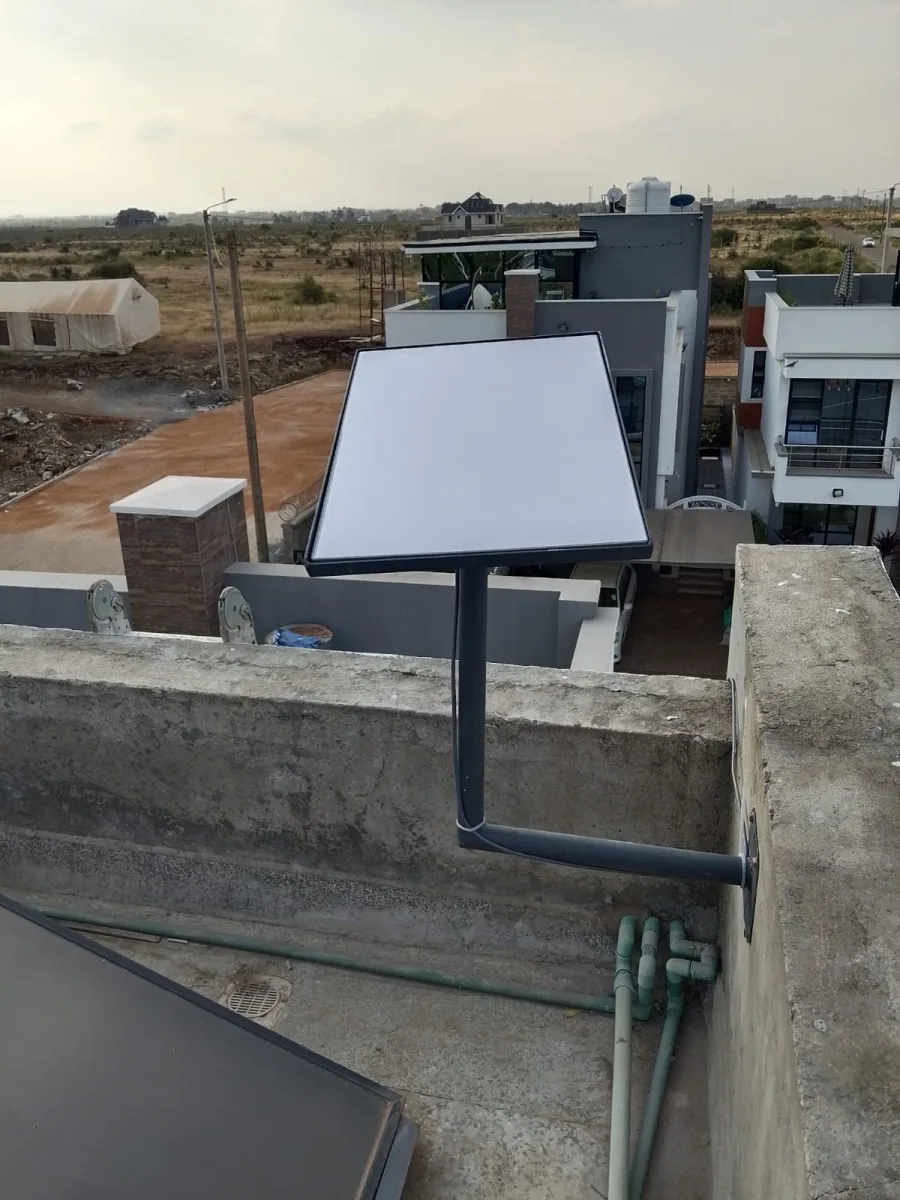
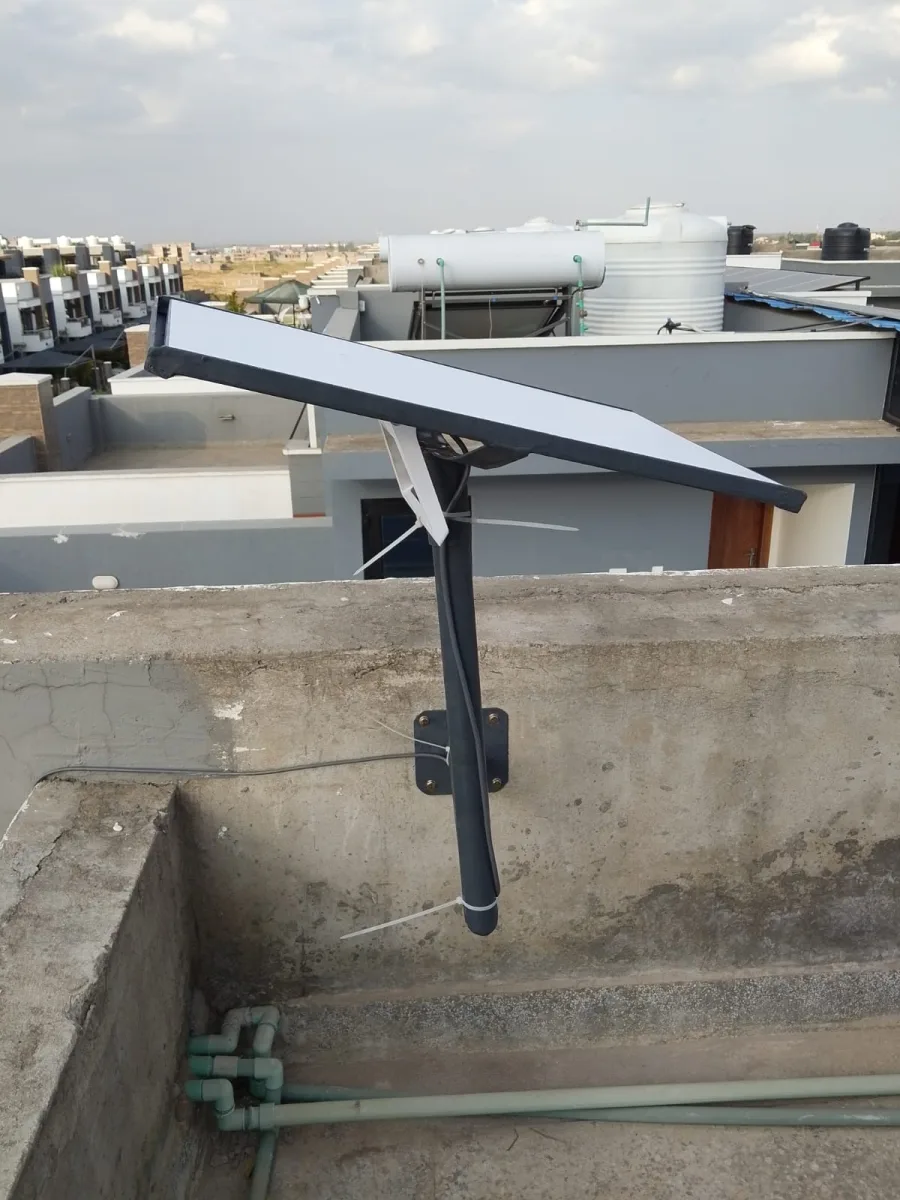
If the app reports obstruction-related interruptions, review the mounting environment with a qualified installer. Starlink’s official obstruction-fixing guidance discusses relocating equipment or addressing the obstruction. It also advises professional help where installation or clearing work cannot be done safely.
Record property changes that coincide with Starlink slow Wi-Fi symptoms. New construction, vegetation growth, or an object near the terminal may be relevant. Report what you can observe from a safe place. Do not climb onto an unfamiliar roof, cut branches near hazards, or loosen a mounting system simply because a speed test looks disappointing.
Ask the installer to explain the proposed correction and any effect on cabling or access. A relocation may solve one issue while creating a new distribution or maintenance challenge if poorly planned. Agree on the revised position, required accessories, and verification steps before physical work begins.
Review networking equipment linked to Starlink slow Wi-Fi
If you use an additional router, mesh system, switch, or access point, document how it connects. A simple diagram or written list helps the installer understand the path between the terminal and affected device. Include model names where possible and note which equipment was added most recently.
Starlink’s third-party router troubleshooting guidance recommends comparison with Starlink equipment where possible. For a business or complicated network, have the responsible technician perform any isolation test. Unplugging unfamiliar equipment can interrupt services or make the original layout difficult to restore.
Avoid buying a second extender just because the first one did not solve the problem. Review placement and the connection between devices before adding more hardware. Every extra component should have a defined purpose, compatible configuration, and a clear place in the network rather than becoming another unexplained link in the chain.
Starlink slow Wi-Fi: power and cable symptoms
Record whether interruptions coincide with power changes or equipment restarts. If several devices lose power together, tell the installer. A connectivity investigation should include the stability of the local setup, not just wireless signal strength. Do not open power supplies or attempt improvised electrical repairs.
From an accessible location, note obvious signs such as a loose indoor connection or a cable trapped under furniture. Follow the model-specific instructions before handling connections. Weather exposure, damaged accessories, or repeated physical stress should be assessed by an appropriate technician, particularly where equipment is mounted outside or at height.
If backup power is involved, identify every device it supports. The terminal may remain powered while a separate router or access point switches off. That can look like an internet failure from the user’s perspective. Ask for the entire connection path to be included when assessing backup coverage and expected runtime.
Improve coverage after locating Starlink slow Wi-Fi
When evidence points to indoor distribution, begin with the layout. Mark rooms that work well and rooms that do not. Include separate floors and detached buildings. This gives a coverage assessment a clear target and helps you decide whether relocating a router is enough or additional infrastructure is needed.
The Spacekits Wi-Fi extension and mesh service can help turn those observations into a proposal. Ask how the suggested equipment connects, where it will be placed, and which rooms will be tested. Avoid accepting a shopping list without an explanation of how it addresses the measured problem.
Agree on success criteria before the change. A stable work call from the study or reliable access in a guest room is more meaningful than a promise of perfect Wi-Fi everywhere. Keep the original test record so you can compare the same device and activity after the improvement.
Build a useful Starlink slow Wi-Fi support report
Include your location, kit model, affected devices, app status, start date, and recent changes. Add a small number of labelled test results, stating the room, time, and connection method. Mention whether the symptom affects every application or only one service. These details help support staff decide what to investigate first.
Separate observed Starlink slow Wi-Fi symptoms from guesses about the cause. “The app shows an obstruction alert” is an observation; “the terminal is broken” is a conclusion that needs evidence. Describing what happened clearly reduces the risk of unnecessary replacement parts or a site visit that lacks the right equipment.
Keep sensitive information out of shared screenshots. Crop account details and private messages before sending them through an ordinary support channel. Use the official account interface for account-specific requests, and never disclose a password simply to prove ownership in a general chat.
What to check after a Starlink slow Wi-Fi repair
After a Starlink slow Wi-Fi repair, repeat the original activity in the original problem area. Use the same device where possible, then verify other priority rooms. Ask what changed and whether any temporary configuration needs to be revisited. Keep a concise handover note so future troubleshooting begins from the actual installed arrangement.
If the symptom continues, report the result rather than repeating a sequence of unrelated resets. Explain which checks improved, which did not, and whether the pattern changed. This helps distinguish a partial improvement from a completely different issue and gives the next support step a stronger evidence base.
When to escalate Starlink slow Wi-Fi problems
Once you have a clear app message, comparable results, and an affected-device list, repeated experiments may add little value. Contact the appropriate support channel with that evidence. If the issue involves mounting, damaged cabling, or unfamiliar electrical equipment, request an assessment instead of attempting a repair based on a general online checklist.
For an office or guest property, nominate one person to coordinate the investigation. Several people changing settings independently can erase useful evidence and create additional problems. Record each agreed change and its outcome, and make sure staff know which temporary arrangements are in place.
If an essential task cannot wait, use an available alternative connection while the fault is investigated. Keep the workaround separate from the diagnosis: successfully completing a call on another connection does not establish which Starlink component caused the original interruption. Clear observations still matter when deciding the permanent fix.
Starlink slow Wi-Fi: 9 essential checks before your next step
Use this starlink slow wi-fi checklist to turn the guide into a practical conversation with your installer or service provider.
- Write down the precise symptom and when it happens.
- Record the current app status and alerts.
- Check whether one device or every device is affected.
- Compare the same device near the router and in the problem room.
- Label each test by connection method, location and time.
- Check whether background transfers coincide with the problem.
- Review obstruction alerts with an appropriate installer.
- Document power and third-party equipment symptoms.
- Send a concise evidence report to the right support channel.
Example: turn a complaint into a useful support record
Imagine a home where a laptop struggles during calls in an upstairs room, while browsing beside the main router appears normal. The first Starlink slow Wi-Fi report should identify the laptop, room, time and activity. It should also say whether another device has the same problem and whether the app shows any alert. This is more useful than reporting that the entire service is always slow.
Run a simple comparison using the same device and the same ordinary task in both locations. Record the result without changing router settings between the checks. If the difference follows the room, describe that pattern to the installer. If it follows only one device, include that observation instead. Neither result proves a final diagnosis, but both help narrow the next investigation and reduce unnecessary equipment purchases.
Now add the timing. Note whether the issue happens when other household members are active, during a particular work application or after a power interruption. Keep any relevant test results labelled with the device and location. A Starlink slow Wi-Fi investigation becomes harder when unrelated screenshots are mixed together or when several people change settings without recording what they did. Nominate one person to keep the record if the connection is shared.
Finally, ask the support provider to explain the proposed next step and how its effect will be checked. If the suggestion is to change local coverage equipment, agree to repeat the original upstairs task afterwards. If the app points to an account or service issue, contact the appropriate official support channel. Keep passwords, account identifiers and private customer details out of public screenshots. The aim of this example is a clear Starlink slow Wi-Fi support handover, with enough evidence to guide action and a consistent way to assess whether the original problem has improved.
Frequently asked questions
Does Starlink slow Wi-Fi mean I need a new router?
First compare devices, room locations, app alerts, and test types. A new router may help an identified local-network problem, but it will not automatically resolve account issues, obstructions, or service-side conditions.
Why is Wi-Fi good downstairs but poor upstairs?
The layout and barriers may affect the local wireless connection. Test with the same device in both places, then assess router placement and distribution. Avoid assuming the subscription is the cause before checking the indoor network.
Can Spacekits guarantee a particular speed after repair?
No unconditional speed promise covers every service condition. Ask for an agreed scope, documented checks, and a clear explanation of remaining limitations. The goal is to identify and address the actual fault.
Get Starlink slow Wi-Fi help with the evidence ready
Contact Spacekits support or call 0725345345 with your observations. Spacekits is an independent installation and support provider. A structured description, a few comparable tests, and the exact app status make it easier to decide whether you need a local network adjustment, a physical installation review, or official Starlink account support.
For equipment selection, browse Starlink kits and accessories in Kenya, including the kit, mounting and networking items needed for your site. Confirm compatibility and request a written quotation before ordering.
Distinguish network access from application support
For managed hotspots, Pawa Wi-Fi and MikroTik billing software is an example of an access and billing layer that should be considered separately from radio coverage. A valid subscription and a strong wireless signal are different checks. For custom portals, Zama web portal and business software development illustrates another application-side support route. If one portal fails while other websites work, provide the application maintainer with the error details rather than assuming the Starlink terminal needs replacement.
Related Spacekits guides
- starlink installation cost in Kenya
- Starlink Mini vs Standard Kenya
- Starlink home plans Kenya
- Starlink for lodges and Airbnb in Kenya
Useful links for Starlink slow Wi-Fi
Use these Spacekits pages to turn your Starlink slow Wi-Fi research into equipment, installation and support decisions.
- Products — Spacekits Starlink kits and accessories
- Buy — Spacekits Starlink buying guide
- Pricing — Spacekits Starlink packages and pricing
- Install — Spacekits Starlink installation services
- Residential — Spacekits residential Starlink installation
- Support — Spacekits Starlink repair and troubleshooting
- Coverage — Spacekits Starlink installation coverage
More online tools for work and business
If your connection supports business or administrative work, include the relevant applications in your connectivity requirements. Explore these providers separately and confirm their current features, prices and suitability.
Need Starlink Installation or Network Optimization?
We help homes, offices, apartments, and businesses with Starlink installation, WiFi coverage improvement, and professional setup in Kenya.
Request Installation Chat on WhatsApp