
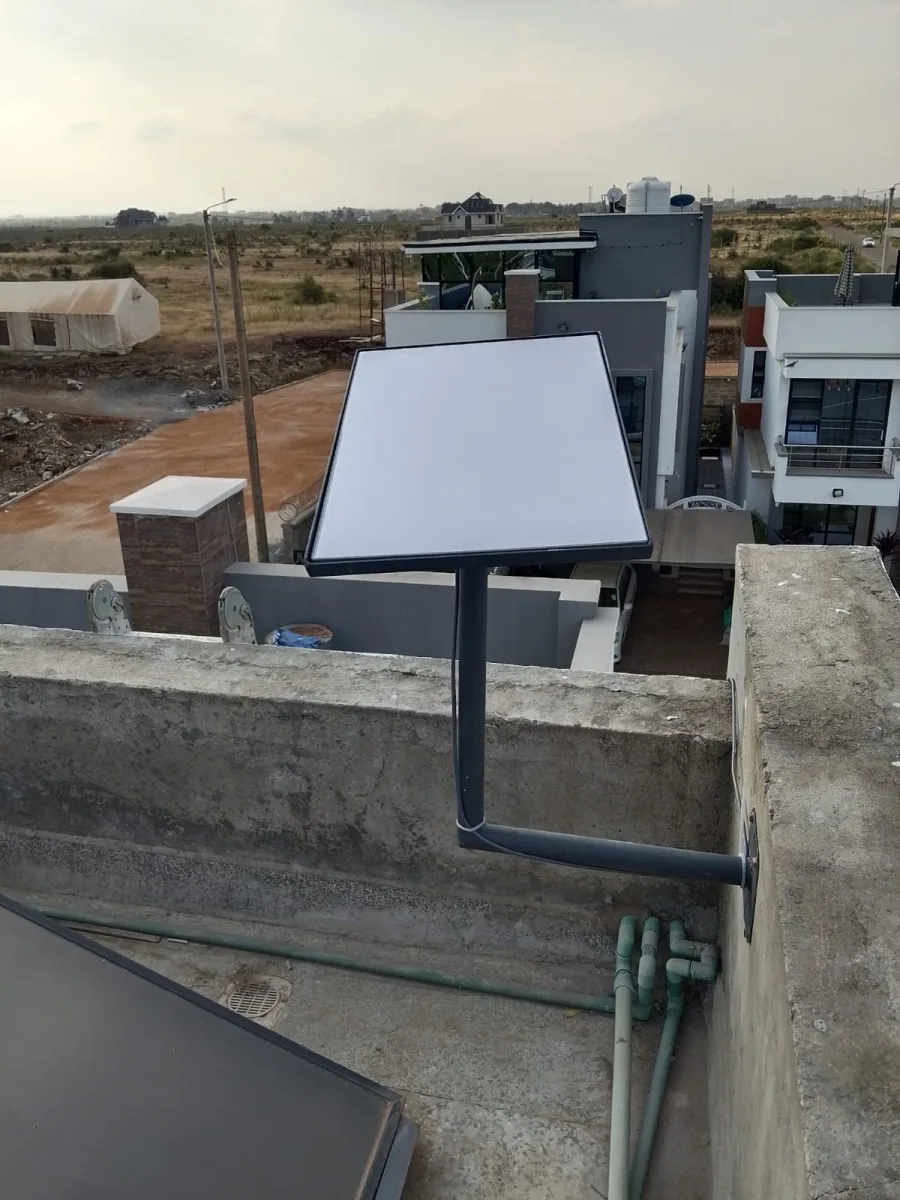
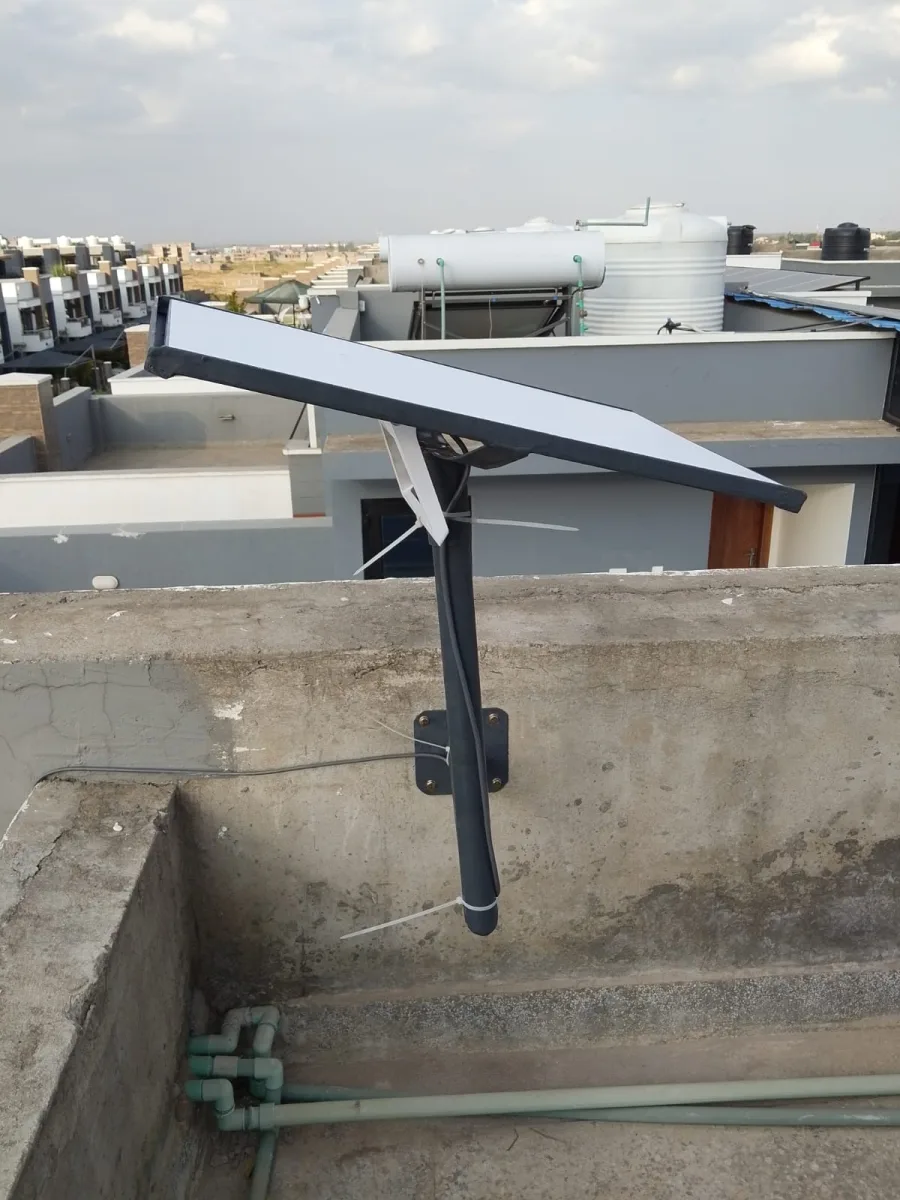
Need Starlink Installation or Network Optimization?
We help homes, offices, apartments, and businesses with Starlink installation, WiFi coverage improvement, and professional setup in Kenya.
Request Installation Chat on WhatsAppHome office connection checks help you identify practical problems before an important working session. Start from the desk you normally use, with doors and equipment in their usual positions. Test an ordinary browser task and a work call rather than judging everything from one result beside the router. Keep a brief record of recurring problems so another household member can describe the same issue accurately. Review regularly.
Talk to Spacekits
Need Starlink help for your home or business?
Talk to Spacekits before you buy or book installation. We help with kit supply, mounting, activation, router placement, WiFi coverage, and written quotes.
Record the location, device and approximate time if a task fails. Compare another device where practical, then review the internet fault log guide. Clear observations help support investigate without relying on guesses about which component caused the interruption.
1. Make home office connection checks repeatable
Home office connection checks are most useful when they begin with the activity that matters to your work. Choose an ordinary browser task, a work call or another authorised action you regularly perform. Record the device, room and approximate time. Repeating a familiar activity gives support a clearer reference than a collection of unrelated test results gathered under different conditions.
Start home office connection checks at your usual desk. Keep doors, furniture and equipment in their normal arrangement so the observation reflects a real working session. If you move beside the router during investigation, label that as a separate comparison. A successful check in a different room does not establish that the workspace where the problem occurs is ready for the next meeting.
Before home office connection checks, note what has changed since the last successful working period. Examples include a moved desk, a replacement device, a different room arrangement or a newly used application. A change is not proof of the cause, but it gives the person assessing the issue useful context. Avoid presenting an assumption as a confirmed diagnosis.
Keep the process short enough to repeat. A few clearly described observations are often more useful than many screenshots with no explanation. Decide what question each check addresses and stop when further testing would interrupt work unnecessarily. The purpose is to prepare an accurate support request and identify practical differences, not to turn every household member into a network specialist.
2. Distinguish one application from a wider problem
If a particular website or application stops responding, record the activity that failed and whether another ordinary online activity still works. This distinction helps route the question. One failed page does not by itself establish that the whole connection is unavailable. Similarly, a page that opens successfully does not prove that every application or work call will behave normally.
Use home office connection checks to describe the scope of the symptom. Note whether the problem affects one device, several devices, one room or more than one location. Do not alter several settings while gathering these observations. Changing the environment repeatedly makes it harder to tell which condition produced a result and whether the original issue is still present.
For employer-managed software, follow the organisation’s support process. Account access, application availability and local connectivity can involve different responsible teams. Explain the observations without sharing passwords or confidential documents. If a work application requires an approved connection method, do not disable that method merely to complete an informal test or make a page appear to work.
When home office connection checks point to an application-specific issue, retain the connection observations and contact the appropriate provider or workplace support team. They may ask for further information using their approved process. Keep that request separate from a general installation assessment so both parties understand what has already been checked and which question remains unresolved.
3. Compare locations without losing the original context
A comparison between the normal desk and another safe working location can help describe a room-related difference. Use the same device and an equivalent ordinary task where practical. Record that the location changed. Do not conclude that equipment replacement is required solely from the comparison; it is one observation for a more complete assessment.
Home office connection checks should identify the exact workspace rather than simply saying upstairs or outside. A support contact may not know the layout. A brief sketch can show the desk, router and rooms between them without revealing private household details. Note whether the room is part of the main building or a separate workspace that needs its own assessment.
If another authorised device is available, compare its experience carefully. Different devices can have different software, settings and capabilities, so the comparison is not a controlled laboratory test. It can still show whether the complaint is limited to one device. Record the difference plainly and let the relevant support person decide which further checks are appropriate.
Return to the original workspace for the final observation after any agreed change. Home office connection checks should demonstrate what happens where the work is actually done. Keep a note if the final assessment occurred under different conditions, such as an open door or a quieter household, so the result is not mistaken for a complete answer to every situation.
4. Observe busy periods and household use
During home office connection checks, write down when the issue tends to appear. A problem during a regular afternoon call may deserve a different comparison from one that occurs immediately after equipment is moved. Include ordinary household activity where relevant, but avoid assuming another person’s device is responsible without evidence. The useful observation is the timing and the work affected.
Schedule home office connection checks around a representative working period when possible. If several household members normally use online services at the same time, explain that context to the assessor. Do not deliberately create disruptive traffic or interrupt someone else’s work without agreement. A realistic description of simultaneous use is more useful than an artificial test nobody can interpret.
Record whether the symptom is continuous or intermittent. “The call disconnected twice during this session” is more precise than “the internet is always bad.” Note the approximate time and what other activities were affected. If the issue cannot be reproduced during a visit, keep the earlier observations available while clearly stating that the current test did not show it.
Use home office connection checks to build a small pattern over time rather than repeating the same unsuccessful action continuously. If a familiar check fails again, add a concise entry and follow the support process. Repeated resets or repeated test calls may interrupt work while providing little additional information. Agree the next step with the appropriate support contact.
5. Keep equipment observations safe and simple
Record which equipment is involved and where it is located using information accessible during normal use. You can describe a visible indicator or an ordinary message without opening equipment or touching unfamiliar connections. Do not climb to reach a dish, remove protective covers or handle electrical work as part of a routine home-office check.
For home office connection checks, photograph only accessible equipment when an image will help explain the question. Keep private documents, screens and account details out of the frame. If a photograph cannot be obtained safely, provide a written description instead. A professional assessment can address installation locations and work that is unsuitable for an informal household check.
Follow the provider’s documented instructions for any approved restart or basic action. Record what you did and when. Avoid making multiple changes in succession without checking the result of each authorised step. If the equipment is managed by another person or organisation, confirm who is responsible before changing its configuration or interrupting other users.
Home office connection checks should preserve useful context for support. Keep notes about recent equipment moves, authorised replacements and service changes. Do not publish account numbers or credentials in a general checklist. The support contact can explain what information is required and which channel to use for account-specific details.
6. Prepare an effective support request
Begin the request with the failed activity and its effect on work. Include the usual desk location, affected device, approximate time and whether other devices or activities were affected. Describe the checks already completed and their results. This lets the recipient understand the situation without first asking you to reconstruct a long sequence of informal experiments.
Attach the relevant home office connection checks rather than an unfiltered collection of files. A short timeline can be useful: the activity worked earlier, the issue appeared during a later session, and a comparison from another room behaved differently. Mark uncertain details as uncertain. Clear limitations are more useful than a confident explanation that the evidence does not support.
Identify the service you are requesting. An application provider may help with an account or page error, while an installer may assess local coverage and equipment arrangement. Ask the recipient to explain the next step and any information still needed. Where responsibilities overlap, keep each response with the same incident notes so repeated questions are easier to answer.
Before ending the conversation, record the agreed next action and who owns it. Home office connection checks should lead to a practical decision, such as a further observation, an authorised configuration review or an assessment visit. If there is no confirmed appointment or resolution date, record a review date instead of presenting an assumption as a promise.
7. Confirm the result after an agreed change
Repeat the original ordinary activity from the normal workspace after the approved work is complete. Use the usual device where possible. A different test may demonstrate something useful, but it should not replace the activity that originally failed. Record both the successful result and any limitation in the conditions under which it was checked.
Home office connection checks after a change should include the places that matter to your actual work. If you alternate between a desk and a meeting corner, explain that during the assessment. Do not assume a successful result in one location settles a complaint in another. Keep the final notes specific enough for someone else to understand what was verified.
Ask for a plain-language explanation of any changed arrangement. Record the support contact and the agreed first response if the issue returns. Keep this information accessible to authorised household members who may need to describe a problem while you are away. Store credentials separately through the approved method instead of adding them to the shared troubleshooting notes.
Review the result during a subsequent normal working session. Home office connection checks do not need to become an endless monitoring routine, but a brief follow-up can reveal whether the original symptom recurs. If it does, add the new observation to the existing record and contact support with the context of the previous work.
Example: a work call fails at the usual desk
Consider a fictional home office where a work call becomes unreliable at the usual desk, while ordinary browsing elsewhere in the home appears normal. The person records the time, device and affected activity. They follow workplace rules for the calling application and avoid sharing confidential meeting content. A comparison using the same authorised activity provides another observation without proving a single cause.
The home office connection checks show that the desk was recently moved to a different room. The support request includes that change and a simple layout description. A provider assesses the relevant arrangement and explains any proposed work before it is approved. The final check repeats the ordinary activity at the new desk rather than relying solely on a result beside the router.
If the symptom does not appear during the visit, the notes say so. The user and provider agree what to record if it returns and how to request further help. This example illustrates a method for gathering useful evidence. It does not promise that one room comparison can identify every application, device or connection problem.
A short log for home office connection checks
Use a few consistent fields: date, approximate time, location, device, activity, observed result, comparison and next action. Keep the description factual. An entry such as “work call disconnected at the desk; ordinary browsing still opened” gives a clearer starting point than an unexplained speed result or a broad statement that nothing works.
Do not collect more personal information than the support question requires. Home office connection checks can describe an application without copying confidential messages or meeting details. Refer to the approved support ticket where appropriate. Keep the log available to the people responsible for the connection, and follow workplace instructions for information related to employer-managed systems.
Review older entries when a pattern becomes apparent or an assessment is arranged. Separate observations made before and after an approved change. If the setup has changed substantially, mark that context so an old complaint is not assumed to describe the current arrangement. A concise, current record is easier to use than a long unstructured history.
Frequently asked questions
Does a single speed result explain every problem? No. A measurement taken at one moment and location does not describe every device, application or working condition. Home office connection checks should include the actual activity that matters to your work and enough context for the result to be interpreted.
Should I change the service plan immediately? Ask for an assessment of the observed problem before assuming a different plan will solve it. Local coverage, device behaviour, application issues and service conditions are distinct questions. Confirm current options and prices directly with the provider when a change is proposed.
Can I test using confidential work material? Use ordinary authorised activities and follow your employer’s rules. Do not share private documents or credentials merely to demonstrate a connection symptom. Home office connection checks should provide useful observations while keeping business information in the approved channels.
What if the problem happens only occasionally? Keep a short log of the time, location and failed activity. Record any useful comparison and recent change. Intermittent symptoms may not appear during a visit, so clear notes help support understand the complaint. Agree the next action instead of repeatedly changing settings without a plan.
Before repeating home office connection checks
Decide what new information the next check will provide. Repeating a failed activity without changing the question can consume time without clarifying the issue. Home office connection checks should have a purpose, a recorded result and a sensible stopping point. Share those notes when asking for further assistance.
Keep the agreed support instructions near your ordinary work notes. If another household member needs to help describe the problem, they should be able to find the relevant location, equipment description and contact. Clear preparation makes home office connection checks easier to explain even when the person who first noticed the issue is unavailable.
Get help with your workspace
List the online services essential to your work. If you use Saseni or explore Zama, test only authorised, ordinary activities and keep confidential information out of screenshots. A problem affecting one website should be reported separately from a complete connection outage.
Avoid changing several settings simultaneously. Explain recent room changes, moved equipment or additional users when requesting help. The Spacekits coverage guide provides a practical starting point for room checks. Keep support instructions accessible to everyone sharing the workspace. For an assessment, call 0725345345 and describe the affected room, failed activity and checks already completed.
Need Starlink Installation or Network Optimization?
We help homes, offices, apartments, and businesses with Starlink installation, WiFi coverage improvement, and professional setup in Kenya.
Request Installation Chat on WhatsApp