
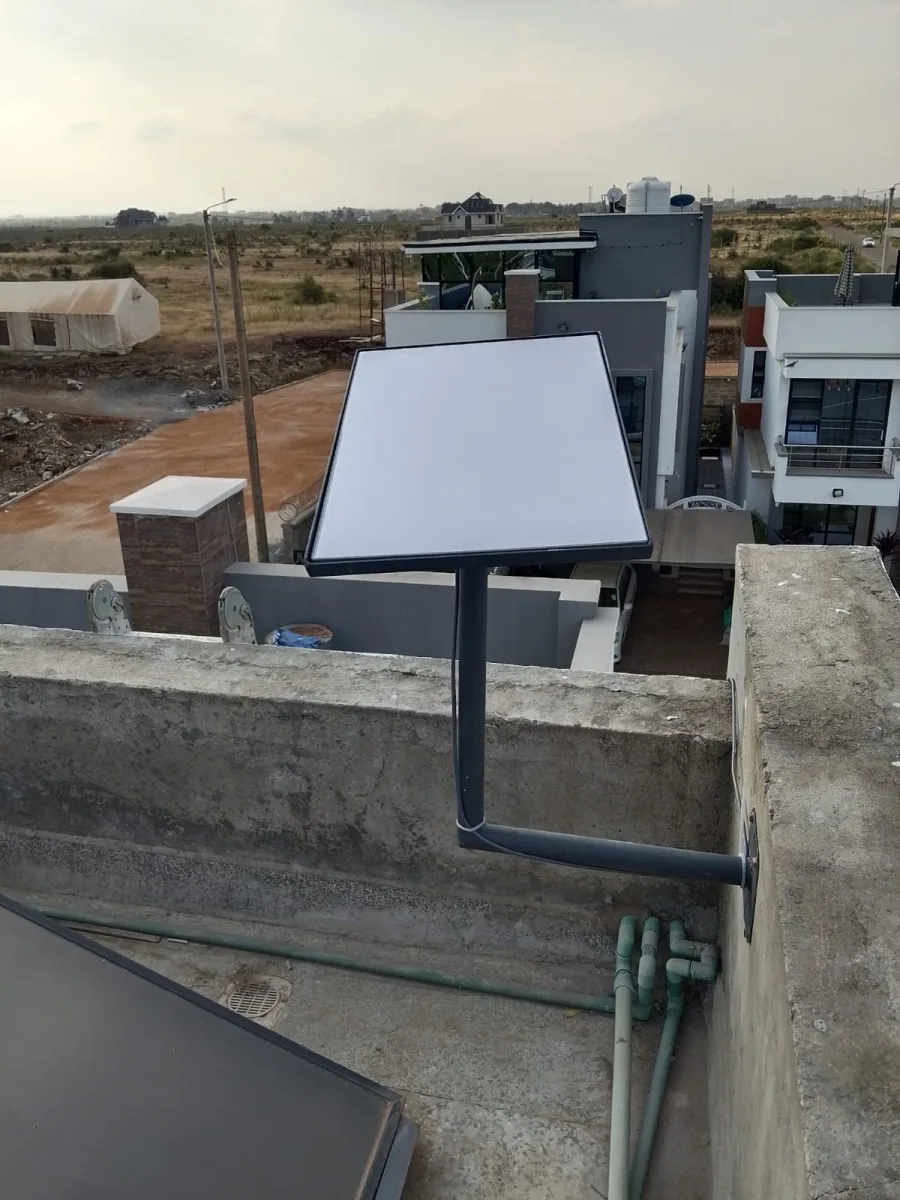
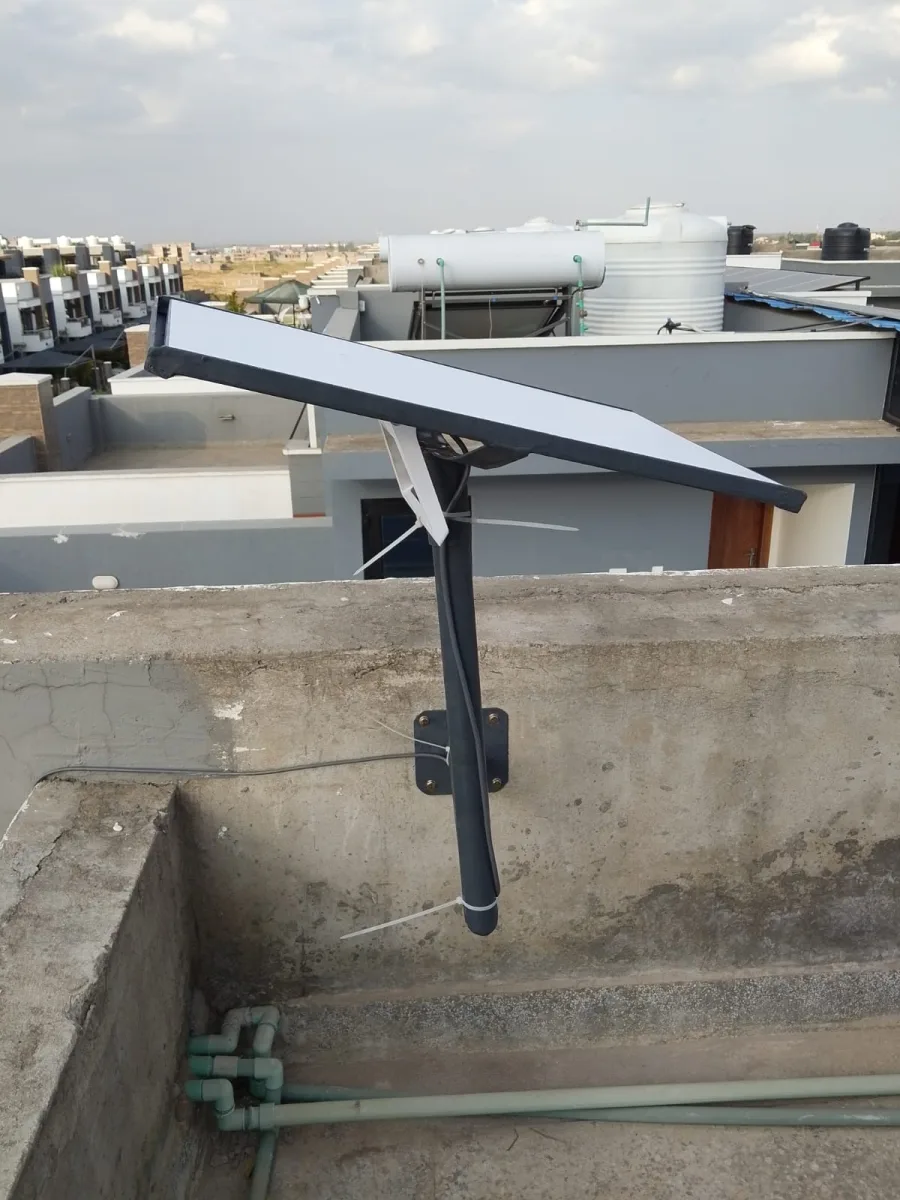
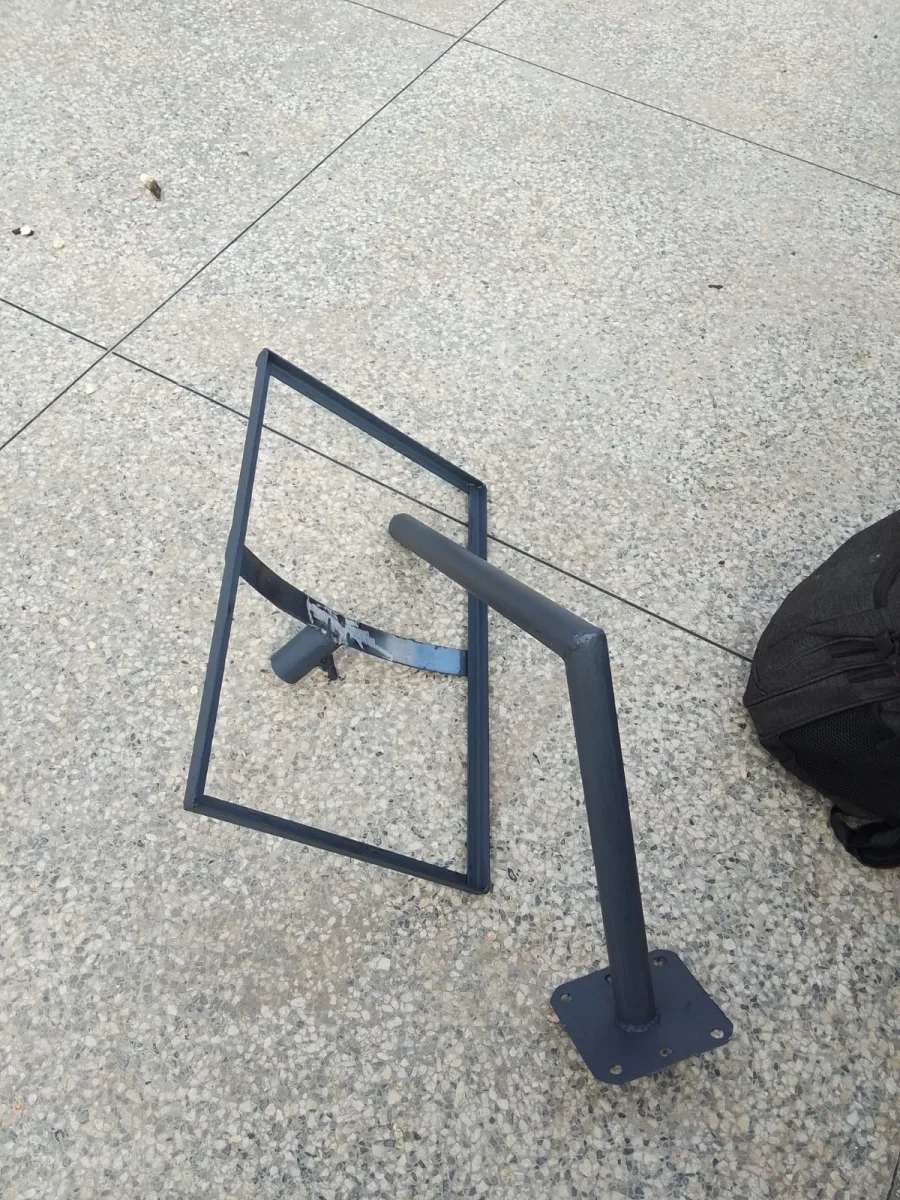
Need Starlink Installation or Network Optimization?
We help homes, offices, apartments, and businesses with Starlink installation, WiFi coverage improvement, and professional setup in Kenya.
Request Installation Chat on WhatsAppWeak Starlink WiFi needs a location-based review. If your internet works near the router but becomes unreliable in another room, start by mapping where the problem happens. That pattern gives your installer more useful information than a single speed-test result. It also helps you avoid buying extra equipment before understanding the coverage problem.
Talk to Spacekits
Need Starlink help for your home or business?
Talk to Spacekits before you buy or book installation. We help with kit supply, mounting, activation, router placement, WiFi coverage, and written quotes.
For Starlink Wi-Fi extension in Kenya, Spacekits offers coverage planning, mesh setup and access-point support. Begin with the rooms and activities that matter most, then ask for a design suited to your building rather than a generic list of devices.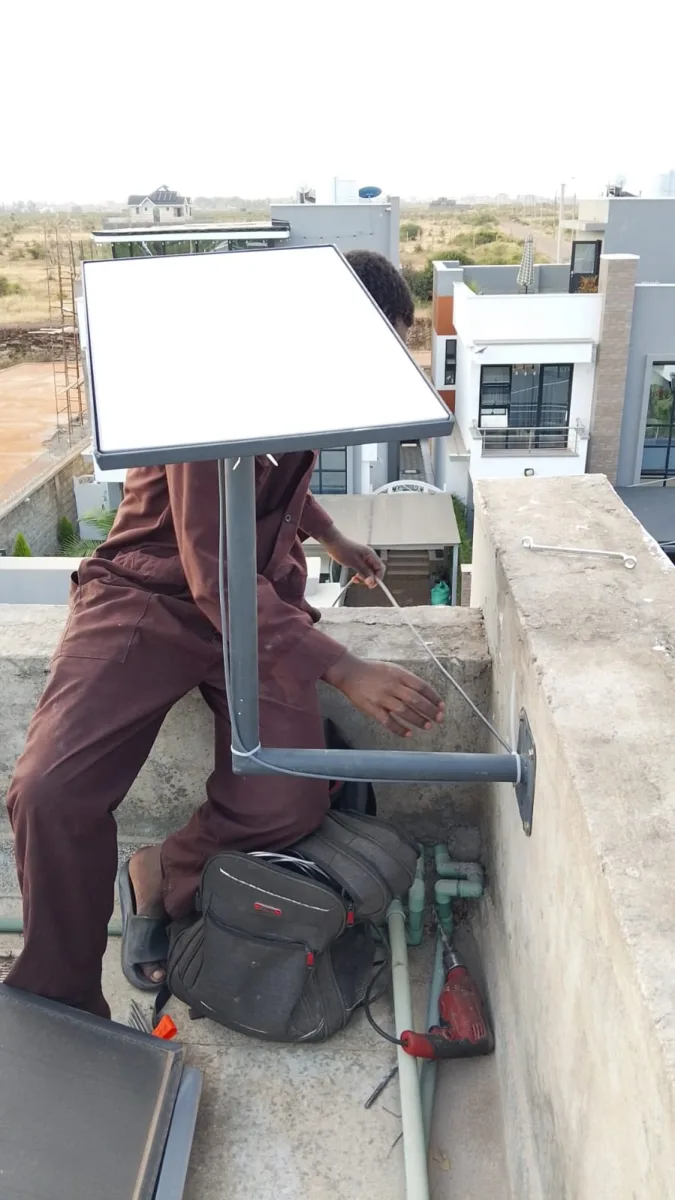
Make a room-by-room problem list
Walk through the property using the same phone or laptop. Note where pages load normally, calls become unstable or the connection drops. Repeat the check during your usual working hours. Record the room, approximate time and task rather than relying on memory.
Include the places that are easy to overlook: a reception desk, upstairs office, guest room or outside workspace. In a shared property, ask other users whether they notice the same problem in the same area.
Separate coverage complaints from wider outages
When reporting a fault, explain whether every device is affected or only one, and whether the problem occurs throughout the building. Share any app messages with the technician. These observations help guide troubleshooting, although they do not establish the cause by themselves.
If the whole connection is unavailable, start with Starlink troubleshooting support. If the issue is concentrated in particular rooms, ask for a coverage review as part of that assessment.
Design around the work people actually do
A household mainly checking messages may have different priorities from a team uploading files and joining meetings. Writers managing projects through Saseni’s writing orders platform, for example, should include their regular workstations when testing connectivity. Do the same for any other online service your team depends on.
List the busiest times and the areas used simultaneously. This gives the installer a clearer brief than requesting the strongest possible Wi-Fi without explaining the workload.
Ask for a clear equipment and placement plan
Before approving an upgrade, ask which locations need additional coverage, where proposed devices will sit and how they will connect. Discuss cable routing and power availability at each proposed point. Ask which existing equipment can be retained and which items are optional.
For a new setup, include these questions in your installation enquiry so coverage is considered before the main equipment is placed.
How should I check the finished upgrade?
Repeat the original room-by-room checks and try the activities that previously failed. Ask the installer to explain any remaining limitations and record where additional work might be needed. One successful test beside the router does not answer every room’s coverage question.
1. Describe weak Starlink WiFi by location and activity
Begin with a short list of the places where the problem occurs. Name the room, the device and the activity affected. A report that a laptop loses a meeting connection in the upstairs office gives a reviewer more direction than a statement that the whole system is bad.
When reporting weak Starlink WiFi, distinguish an observation from an explanation. You may know that a call drops in one room without knowing why. Record what you can reproduce and let the assessment determine the cause. This avoids buying equipment on the basis of an untested assumption.
Include locations that work normally. A useful report describes both the affected areas and the places where the same device performs as expected. That comparison helps the installer decide which part of the setup needs closer investigation.
2. Repeat a consistent room check
Use the same phone or laptop and the same ordinary activity as you move between priority rooms. Note the approximate time and whether other users were active. Keep the conditions as comparable as practical, rather than changing the device and test at every location.
A weak Starlink WiFi review is easier to interpret when the observations follow one format. Write down the room, task, result and any visible message. Repeat an unclear result before treating it as a reliable pattern, and explain any change in conditions.
3. Check whether one device or several are affected
Ask other users whether they see the same behaviour in the same location. If practical, compare another ordinary device without changing the wider setup. Record the result rather than assuming that one phone’s experience represents every device in the property.
For weak Starlink WiFi, this comparison helps frame the next question. A problem limited to one device may need a different investigation from a pattern affecting several devices in one room. These observations guide assessment; they do not by themselves prove a particular fault.
Keep recent changes in the report. Mention a new device, a moved router or newly added networking equipment where relevant. The timing of a change can be useful context, even when it is not the eventual explanation for the problem.
4. Separate room coverage from a wider service problem
Check whether the issue occurs throughout the property or mainly in a particular area. If the same activity fails beside the main router and in distant rooms, report that pattern clearly. If it works in one location but not another, include that comparison.
Do not label every interruption as weak Starlink WiFi. The support team needs to know whether the connection itself is unavailable, whether one activity fails or whether the concern is concentrated in certain rooms. Use visible app messages and the timing of the issue to support your description.
For a broad outage, use the existing troubleshooting support route. Explain what you observed and follow the advice appropriate to the actual equipment rather than changing several settings at once.
5. Prepare a coverage brief before buying extras
Make a simple room list or sketch showing where reliable use matters most. Include reception, workstations, guest rooms and any detached building in the requirement. Mark optional areas separately so the supplier understands the priority if the work must be staged.
When assessing weak Starlink WiFi, ask the provider to explain the proposed equipment positions and the area each item is intended to serve. Discuss access, power and any cable work that would be needed. A list of device names alone does not explain the design.
Ask which existing equipment can be retained and what limitations remain. If the proposed upgrade excludes an outdoor sitting area or a detached office, record that clearly. This gives you a meaningful scope against which to review the finished work.
6. Test weak Starlink WiFi under representative use
Explain when the property is busiest and which activities overlap. A household with evening calls may need a different discussion from a reception desk used throughout the day. Describe the workload rather than asking for an undefined maximum performance level.
A weak Starlink WiFi assessment should record whether tests were performed during light use or a typical busy period. If an empty property is being prepared for guests, acknowledge that limitation and agree how issues discovered during normal occupancy will be reported.
Do not turn one successful result into a promise that every future condition will be identical. The purpose of the review is to check the agreed locations and establish useful observations. Ask the installer to explain remaining limitations in plain language.
7. Compare the finished upgrade with the original problem list
After the agreed work, return to the same priority rooms with the ordinary device and activity used earlier. Record what improved, what remains unclear and what was outside the scope. This is more useful than testing only beside newly installed equipment.
If weak Starlink WiFi remains in a named location, discuss it before treating the requirement as complete. Write down the next action and who will follow up. If the location was excluded from the original work, request a separate assessment rather than assuming it was already covered.
Keep the equipment locations, support contact and test notes together. The installation handover checklist explains how to document completed work and unresolved questions for future support.
A practical weak Starlink WiFi example for a home office
Imagine a household where ordinary browsing works in the sitting room but calls are unreliable in an upstairs workspace. The homeowner repeats the same task on the same laptop in both rooms and notes the times. Another household member records whether a second device shows the same pattern.
The homeowner then shares the room layout, existing equipment positions and observations with the installer. This gives the weak Starlink WiFi enquiry a clear purpose: assess the upstairs work area and explain an appropriate coverage plan. It does not assume in advance which device must be purchased.
After the agreed improvement, the homeowner repeats the original upstairs task and records the result. Any remaining concern is added to the handover note. The example illustrates a review method, not a guarantee that every property will need the same equipment or achieve the same outcome.
Questions to ask about weak Starlink WiFi
Should I move equipment myself?
Explain the current positions and your concern to the provider before making changes that affect the installation. Ask what can be checked safely and what requires a visit. Keep a record of any agreed change so later observations can be compared meaningfully.
Will extra devices solve every issue?
Do not assume so. The appropriate response depends on what the assessment finds. Weak Starlink WiFi in one room, a device-specific problem and a broader service interruption are different reports. Start with the evidence and request a plan suited to the actual situation.
What if only one online activity is affected?
Describe the activity, device, location and approximate time. Say whether other ordinary tasks work at the same time. That detail helps support understand the scope of the problem without prematurely attributing it to the whole network.
Can one plan cover a main house and a detached office?
The property layout needs assessment. Share the building positions, intended use and available access. Ask which areas the proposed work includes, how additional equipment would connect and what limitations remain. Keep those answers in the written scope.
Keep useful records when weak Starlink WiFi returns
Compare the new concern with the earlier notes. Identify whether the affected location or activity is the same and mention changes made since the last review. This helps the support team understand whether it is investigating a recurring pattern or a different problem.
Keep the report short and specific. Include the property, affected rooms, devices, timing and visible messages. Avoid a long sequence of unrelated screenshots when a concise description explains the issue. Share account-sensitive information only through the appropriate provider process when required.
For a new property, include coverage requirements in the installation preparation brief. Planning the working rooms before the main equipment is placed makes the later weak Starlink WiFi review more focused.
Plan improvements around the next real task
Choose the activity that matters most to the affected user, such as a work call or a reception task, and include it in the acceptance discussion. A practical test should answer a practical question. Record the result in language the user and installer both understand.
Review weak Starlink WiFi concerns again when the property layout or workload changes. Adding a new office, opening guest rooms or moving regular workstations may create a different requirement. Update the room brief and request a suitable assessment instead of assuming the previous scope automatically covers the new use.
Before requesting another visit for weak Starlink WiFi, bring together the original brief, recent observations and the equipment details you already have. This gives the provider a clear starting point and helps distinguish unfinished work from a new requirement. Ask for the proposed next step to be explained before approving additional equipment.
Request help with weak Wi-Fi
Call 0725345345 or WhatsApp Spacekits with your location, building layout and affected rooms. Include your current kit details so the team can discuss suitable next steps.
Weak Starlink WiFi review after a room changes
A room that worked well before a new partition or furniture arrangement may need another assessment. Record what changed and when weak Starlink WiFi was first noticed. The timing is useful evidence, but it does not prove the cause by itself. Give the provider the observations and let the investigation determine the next step.
Repeat an ordinary task from the affected location and compare it with a suitable nearby location using the same device where practical. Record the room, approximate time and result. Avoid changing several settings at once, because that can make it difficult to understand which action affected the experience.
Keep weak Starlink WiFi reports specific
A report that identifies an interrupted call in the rear office is more useful than a general complaint that the connection is poor. Ask whether other people were affected and whether ordinary browsing still worked. These facts help distinguish a room-level pattern from a single application or device issue.
If weak Starlink WiFi affects only a newly occupied area, compare that area with the original installation scope. The provider may need to assess an additional requirement rather than correct a previously tested one. Keeping the room plan current makes that discussion clearer for both the customer and installer.
Review the support recommendation
Ask the provider to explain the proposed action and the result it is intended to improve. A recommendation for additional equipment should relate to the observed layout and need. Do not buy a device solely because another property used it successfully; compatibility and placement still need assessment.
When addressing weak Starlink WiFi, agree how the result will be checked. Repeat the original affected activity from the relevant room after the authorised change. A better result beside the router does not answer a complaint about a separate office or guest room.
Document an agreed temporary arrangement
If the issue cannot be resolved immediately, record any temporary working arrangement and its limits. Staff should know which location or task remains affected. Weak Starlink WiFi should not be marked as fully resolved merely because a user can work from a different desk for the day.
Give the outstanding action an owner and a review date. This keeps the issue visible when staff change shifts or the main contact is away. A short, accurate record helps the next person follow up without restarting the entire investigation.
Close the weak Starlink WiFi review
Record what was changed, where the result was tested and whether the ordinary task succeeded. If the provider confirmed a cause, note it accurately. If the problem simply stopped occurring, preserve that uncertainty rather than inventing a technical explanation.
Use recurring weak Starlink WiFi reports to improve the coverage plan. A pattern of complaints from the same area may justify a focused assessment, while unrelated application errors may need a different support route. The goal is to make the next decision from useful evidence rather than repeating the same guess.
Keep the current room plan and support contact with the handover record. That gives future staff a practical reference and makes it easier to identify a new requirement when the premises change again.
Need Starlink Installation or Network Optimization?
We help homes, offices, apartments, and businesses with Starlink installation, WiFi coverage improvement, and professional setup in Kenya.
Request Installation Chat on WhatsApp