Need Starlink Installation or Network Optimization?
We help homes, offices, apartments, and businesses with Starlink installation, WiFi coverage improvement, and professional setup in Kenya.
Request Installation Chat on WhatsAppOn-site diagnosis for mounting, cable, power, obstruction and Wi-Fi faults
Talk to Spacekits
Need Starlink help for your home or business?
Talk to Spacekits before you buy or book installation. We help with kit supply, mounting, activation, router placement, WiFi coverage, and written quotes.
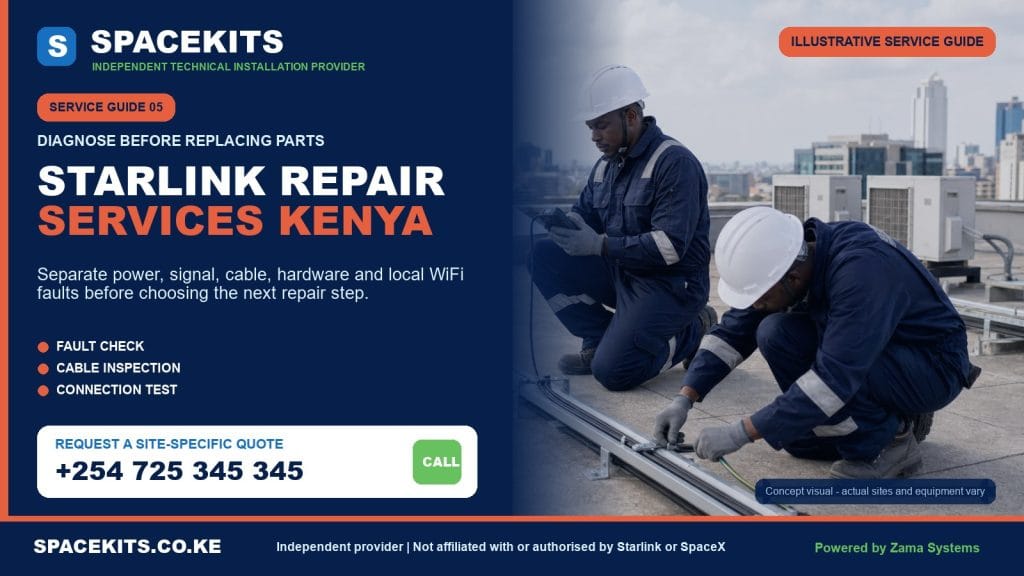
Starlink Repair Services Kenya
Starlink Repair Services Kenya customers need should begin with diagnosis, not an automatic promise to repair every proprietary component. SpaceKits helps homes and organisations investigate suddenly offline systems, intermittent connections, loose or damaged mounts, cable-routing problems, poor router placement, weak internal Wi-Fi and installations affected by relocation, building work or weather. This service is designed for customer-supplied equipment that you already own and control. We identify what is within an independent installer’s scope and what must be handled through official Starlink support or the equipment seller.
Many “Starlink repair” calls are not caused by a failed terminal. A loose connection, damaged cable, interrupted power, new tree growth, moved equipment, an account alert, router configuration or a weak Wi-Fi zone can create similar symptoms. Conversely, remounting cannot fix a locked account or failed sealed hardware. A structured checklist prevents customers from buying parts blindly.
Request a repair assessment: send your exact location, kit model, when the problem started, official-app status or alert screenshot, equipment-light behaviour, photographs of the mount and cable, and any recent storm, movement, renovation or power event. Send the fault evidence to SpaceKits on WhatsApp or call +254 725 345 345.
Independent-provider notice: SpaceKits is an independent Kenyan technical-services provider, not Starlink or SpaceX. We do not claim official affiliation or authority to approve warranty replacements, unlock accounts, alter billing, restore network capacity or make manufacturer support decisions. Repairs and replacement parts depend on diagnosis, compatibility, availability and written scope.
Safe first checks before booking a site visit
Do not climb onto a roof during rain, strong wind, darkness or without appropriate access equipment. A connection problem is not worth a fall. Begin indoors and use the official Starlink application where possible. Record the displayed status and alerts before resetting anything. Screenshots and the approximate time of the fault help SpaceKits understand whether the issue appears physical, local-network, account-related or provider-side.
Confirm the scale of the problem
Check more than one phone or computer. If one device fails while others work, the issue may be with that device, saved Wi-Fi credentials, VPN or application. If every device loses Wi-Fi entirely, the router or power path deserves attention. If devices join Wi-Fi but report no internet, check the official app status and cable path.
Look for official alerts
The app can show account, service, obstruction, cable or hardware information. Copy the wording exactly rather than paraphrasing it as “not working.” Do not share passwords, payment-card details, recovery codes or account-control access with an installer. The account owner should open the app and submit official tickets.
Inspect only accessible connections
Switch off and disconnect power before handling accessible cables unless the official procedure says otherwise. Look for a plug that has worked loose, visible kink, cut, crush point, corrosion, water exposure or heat damage. Do not probe connectors with metal objects, spray unknown chemicals or force a plug. Never pull on the cable to disconnect it.
Perform a controlled power cycle
Current official troubleshooting frequently recommends disconnecting power, waiting and reconnecting the full setup. Follow the exact guidance for your hardware rather than repeatedly flicking a wall switch. Before doing so, photograph current status and check whether a business-critical network will be interrupted. Avoid repeated resets because a factory reset can erase local Wi-Fi configuration without fixing the root cause.
Check the power source
Confirm whether the outlet serves another known-good low-risk device, without overloading or dismantling electrical fittings. If the Starlink uses a UPS, inverter, solar system or generator, test whether the fault appears only on that source. Burnt smell, heat, sparking, a damaged socket or exposed wiring requires isolation and a qualified electrician, not continued troubleshooting.
Observe recent changes
Tell SpaceKits about storms, roofing work, painting, tree growth, construction, a moved router, new mesh system, power surge, cable pulled through a window, account change or relocation. Faults often follow a change. Knowing the sequence can reduce diagnostic time and prevent unnecessary replacement.
Common Starlink symptoms and the questions they raise
Suddenly offline
A system that worked and then went offline may have lost power, developed a loose or damaged cable, encountered a router or terminal fault, received an account alert or experienced a service issue. Official guidance begins with the app, power cycle, status lights and physical connections. SpaceKits can inspect on-site installation components, but an official hardware failure may require a support ticket and manufacturer-directed replacement.
Online but intermittent
Intermittent drops can result from obstructions, cable damage, power instability, moving equipment, weather, local Wi-Fi interference or service conditions. Review the obstruction map and outage history where available. If interruptions occur when wind moves a loose pole, when rain reaches a damaged cable or when an inverter switches, that pattern is valuable evidence.
Connected close to the router but weak in other rooms
This usually points toward local Wi-Fi coverage rather than a terminal repair. Concrete, stone, metal and several floors weaken radio signals. Router relocation, mesh placement, wired access points or removal of interference may help. Replacing the dish will not fix a dead zone caused by reinforced walls.
Slow performance everywhere
Compare the app’s available tests and, where supported, separate the device-to-router result from the router-to-internet result. Check multiple devices and times. Service conditions, plan, congestion, weather, obstruction and account status can affect performance. SpaceKits can correct avoidable installation and local-network issues but cannot guarantee or create network capacity.
Router or device light is off
An off light can indicate no power, a normal model-specific light behaviour or a device fault. Hardware generations use different indicators, and some lights turn off during normal operation. Identify the model and consult its current official guidance. Check the outlet, supplied power equipment and accessible cables. Do not substitute an unverified power supply.
Router light is red, flashing or unusual
Record colour and pattern, because meanings vary by model. The official help centre gives generation-specific interpretations. A red light may indicate no internet on some routers, while Mini uses its own indicator patterns. Avoid diagnosing solely from a social-media chart that may describe another hardware generation.
The app reports obstruction
New branches, neighbouring construction, a moved terminal, water tank or incorrect placement can create an obstruction. Use the official Check for Obstructions tool from candidate positions. The solution may be relocation or an appropriate mount, not repair of the electronics. Official information notes that a mature obstruction map develops over time, so review trends rather than only the first minutes after movement.
The cable is visibly damaged
Stop using equipment if the damage creates an electrical or water risk. Do not wrap a crushed connector or exposed conductor and declare it repaired. Official compatible replacement is usually safer than improvised joining. SpaceKits can assess the exact model, route a compatible replacement and correct the condition that damaged the first cable.
Starlink cable inspection, replacement and rerouting
Cables fail from more than age. They can be pinched under a window, crushed by furniture, cut by roofing work, chewed by animals, abraded on mabati, bent sharply at a connector, submerged, stretched between supports or damaged during repeated relocation. A replacement should address the cause. Installing a new cable along the same harmful path simply delays the next failure.
Identify the exact cable
Different Starlink hardware generations use different connections and lengths. Send photos of the terminal, router or power unit, both connector ends and box label. Do not order only from the phrase “Starlink cable.” SpaceKits can check physical compatibility, while official product specifications and availability remain authoritative.
Accessible visual inspection
With power safely disconnected, inspect the visible route. Look for flattening, cuts, tight coils, severe bends, melted areas, green or white corrosion, dirt or moisture at connectors and strain. A cable can have internal damage without an obvious external cut, so visual inspection is one part of diagnosis.
Connection reseating
A connector should be clean, aligned and fully seated according to the product guidance. Repeatedly forcing it can damage pins or seals. SpaceKits can clean the surrounding accessible area appropriately and reconnect compatible parts, but cannot restore a physically destroyed proprietary connector to manufacturer condition by improvisation.
Replacement routing
The new route should avoid sharp roof edges, hot surfaces, foot traffic, doors and standing water. Outdoor cable should be supported without hanging from the terminal. A building entry should be finished and weather-aware. Conduit or trunking must have enough space and suitable bends for the actual connector.
Longer cable requests
Use an official compatible option for the exact model where available and within guidance. An installer should not promise that an arbitrary Ethernet cable, coupler or extension works for every Starlink generation. For very long distances, relocating indoor equipment and distributing the network through a separate wired, fibre or wireless design may be more reliable.
Underground and between-building routes
Cables in compounds can be struck by vehicles, slashers or digging. Appropriate containment, depth, drainage and service identification matter. SpaceKits can quote rerouting, while substantial trenching and unknown underground utilities may require a separate civil scope. Never excavate blindly near power or water services.
For a full planning checklist, see Starlink cable replacement and routing in Kenya.
Loose mounts, moved terminals and obstruction problems
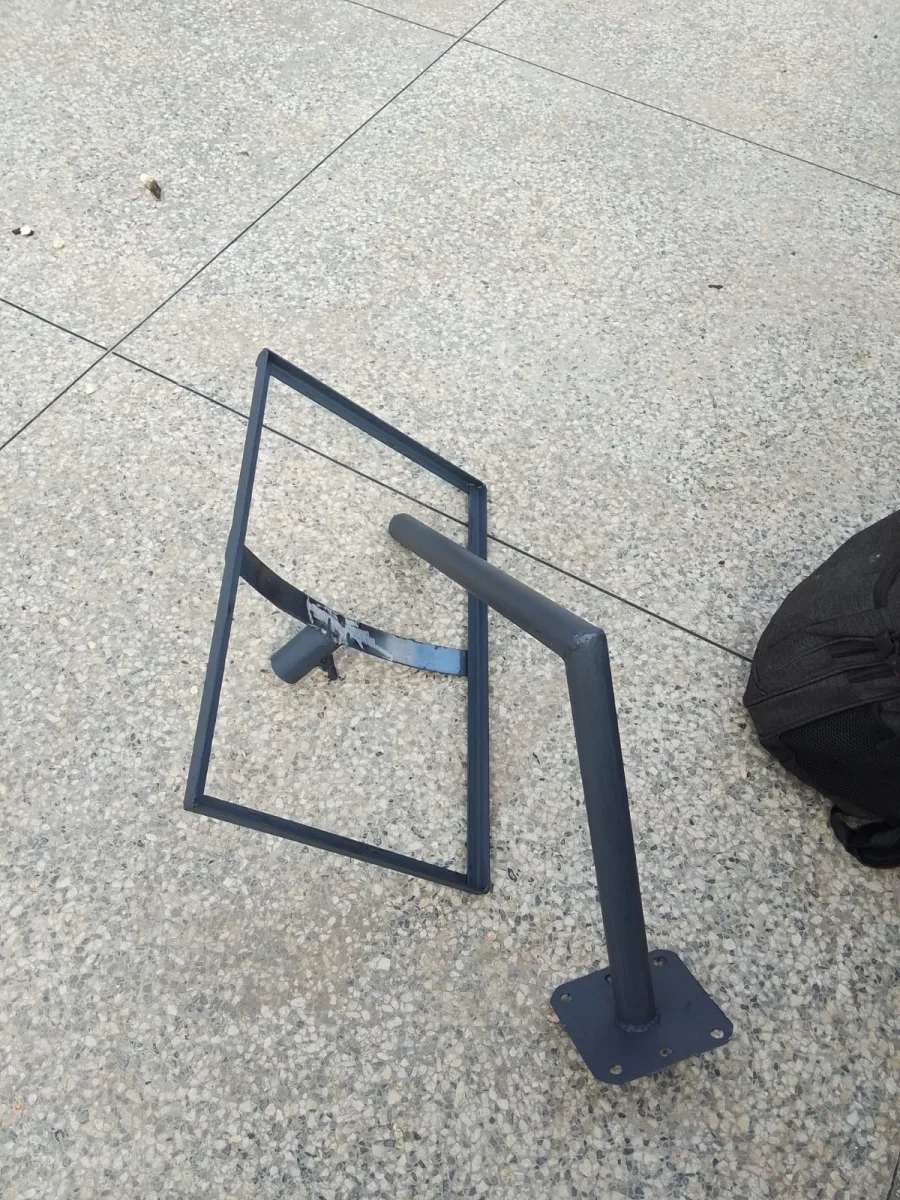
A mount problem can appear as intermittent service, cable strain, unusual vibration or an obvious change in terminal position. Inspect from the ground where possible. Missing bolts, a bent pole, cracked wall, loose bracket, corroded fastener or temporary stand that has shifted needs attention. Do not climb and tighten during wind or rain.
Temporary setup that became permanent
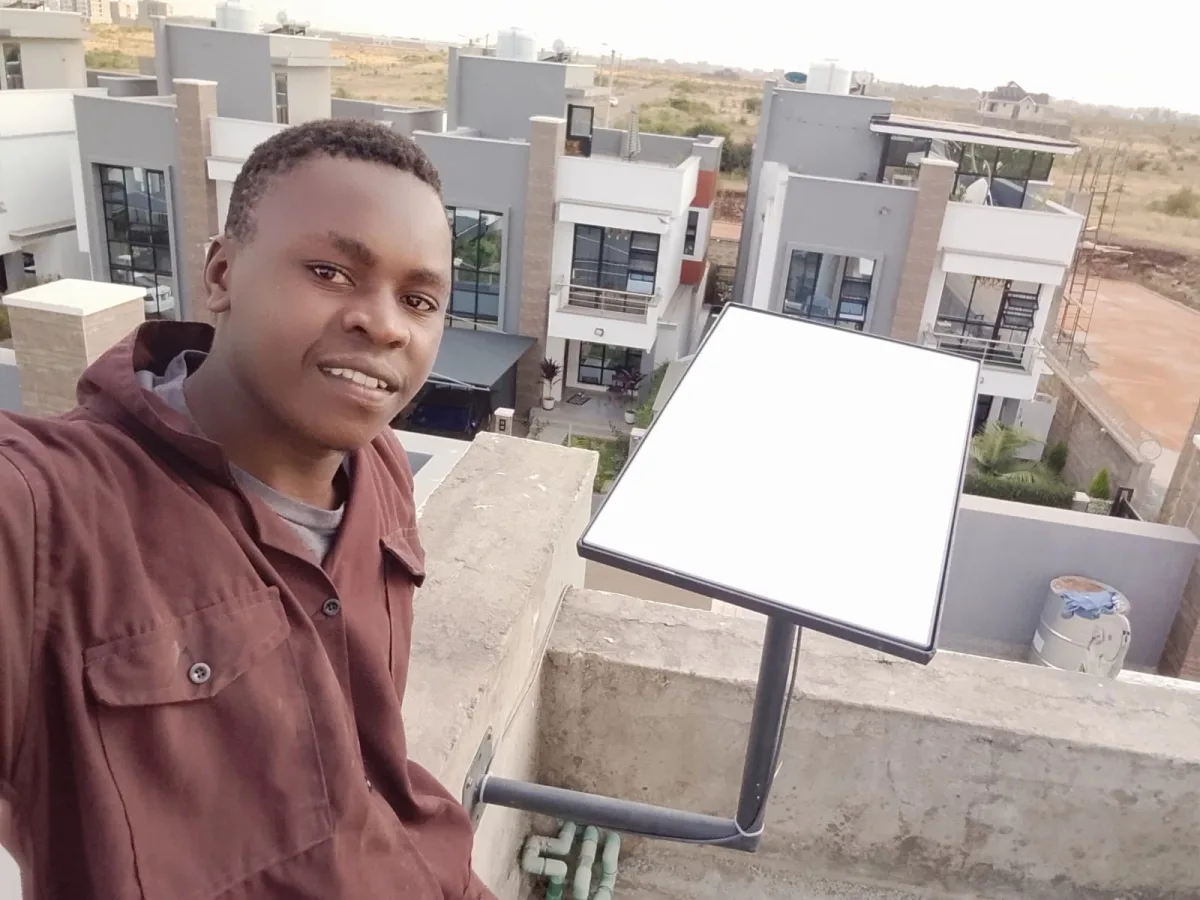
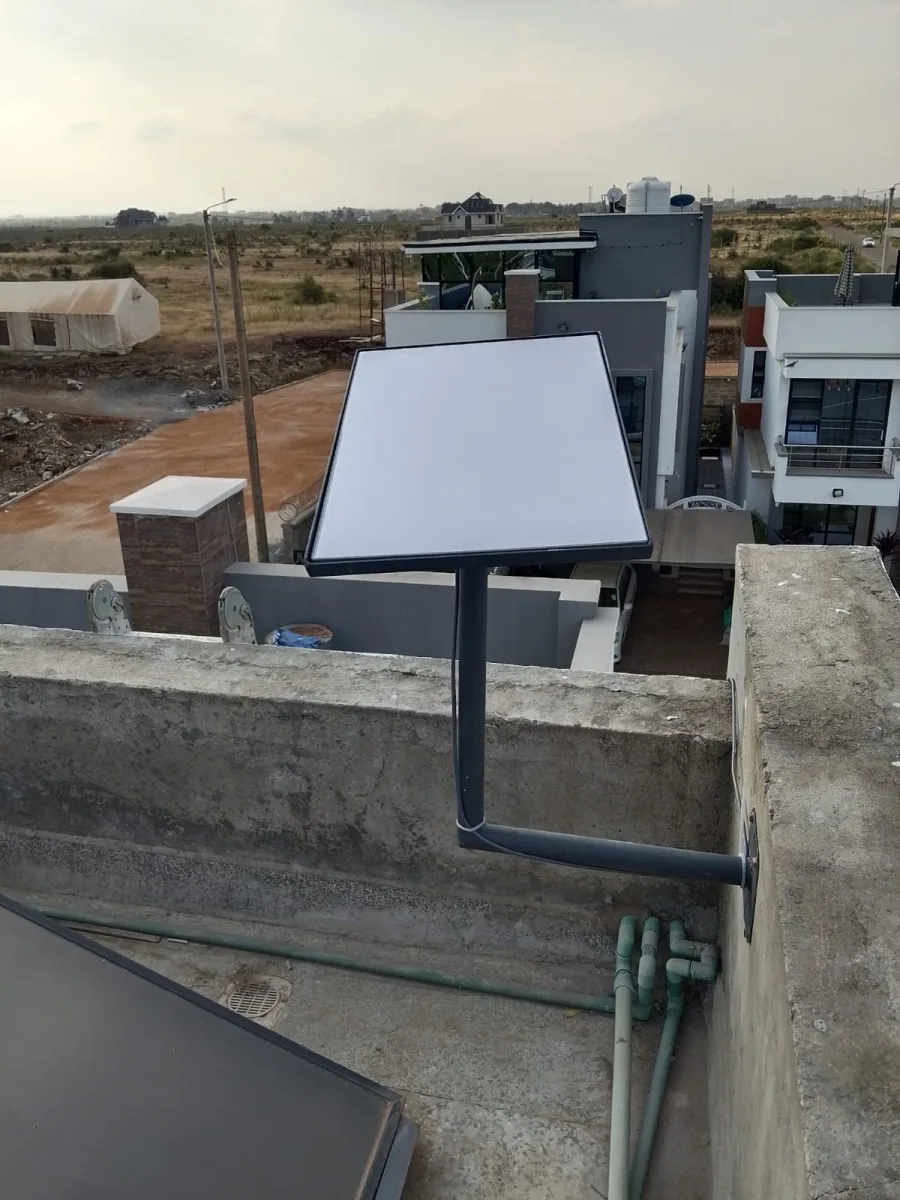
Customers sometimes test on a roof, table, water tank frame or loose stand and leave the equipment there for months. Wind, people and maintenance can move it. A compatible permanent mount can improve stability, cable protection and repeatability. SpaceKits can assess wall, pole and roof options without assuming the highest point is best.
Pole movement
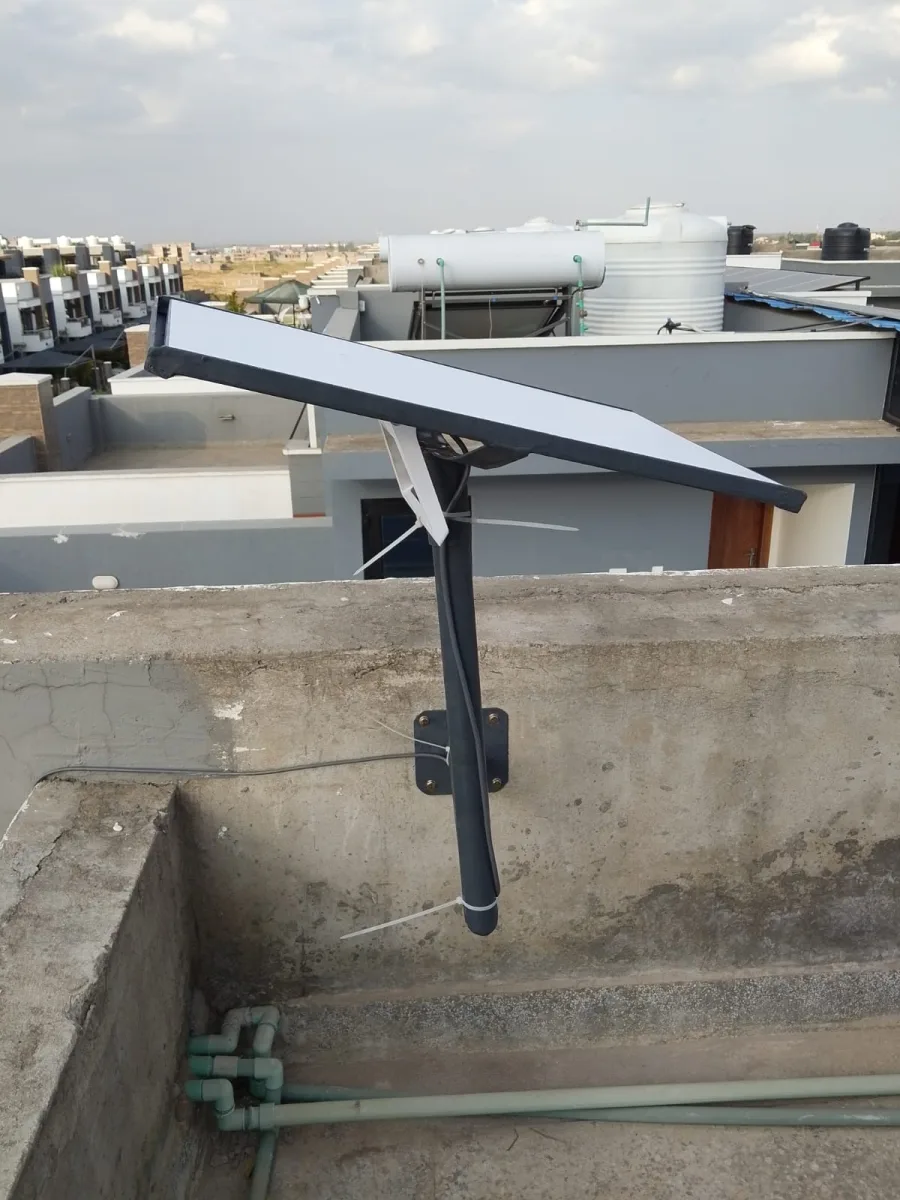
Long unsupported poles amplify wind loads. Tightening one bolt may not correct an undersized pole or weak bracket spacing. The support may need shortening, bracing, replacement or relocation. Tall masts and structural concerns can require a specialist. SpaceKits will not hide visible movement with extra cable ties.
Wall-bracket damage
Cracked masonry, loose anchors and corrosion can compromise a wall mount. Repair must consider the substrate, not just the bracket. Moving the fixings a few centimetres into equally weak material is not a reliable solution. A building professional may be needed where the structure is uncertain.
Roof leaks near an installation
A leak should be investigated by a competent roofer. SpaceKits can inspect the installation route and remove or reposition equipment under an agreed safe plan, but we do not diagnose every roof defect or repair existing waterproofing as routine technical work. The timing of a leak does not prove its cause without inspection.
New tree or building obstruction
The official app’s obstruction tool helps compare positions. Pruning belongs to the property owner and should be done safely and legally. A new neighbouring building cannot be altered by the customer; relocating the terminal may be the practical option. Raising it on an excessively tall pole can create more risk than benefit.
Relocation after renovation
Painters, roofers and solar installers may temporarily move equipment without restoring the previous position or cable route. Take installation photos before building work, mark the cable and arrange professional reinstallation afterward. The Starlink relocation and reinstallation guide explains how to prepare.
Power supply, router and startup diagnosis
Starlink hardware families use different power and status arrangements. Some have separate routers and power supplies; Mini integrates functions differently. Do not swap equipment between generations because the plugs appear similar. Use supplied or official compatible power accessories and current model-specific guidance.
Wall outlet and extension
A loose outlet, overloaded extension or switched socket can interrupt the system. Test safely and look for heat or discoloration. Electrical repairs belong to a qualified electrician. SpaceKits can identify that the internet equipment loses power but should not rewire the building without the appropriate electrical scope.
UPS, inverter and solar transitions
A system that fails only during backup operation may have an undersized inverter, depleted battery, unstable output, incompatible transfer or overloaded circuit. Record when the fault happens. Test the Starlink and local network load together. The router may remain on while another required device restarts, creating confusing symptoms.
Power cycling versus factory reset
A power cycle temporarily disconnects power and restarts equipment. A factory reset returns configuration to defaults and can require the Wi-Fi to be set up again. Do not use both phrases interchangeably. Start with the official troubleshooting sequence for the exact model and preserve network details before a factory reset.
Overheating and ventilation
Power equipment and routers should not be sealed in a hot roof cavity, closed box or direct sun unless designed for that environment. Official status guidance includes model-specific overheating indicators for some power supplies. Move accessible indoor equipment to a dry, ventilated position and seek support if a fault continues.
Possible hardware failure
If official steps, compatible cable checks, known-good suitable power and proper installation do not restore service, the customer may need to submit a support ticket. App diagnostics, serial details and photographs can support that process. SpaceKits can document on-site observations but cannot approve a manufacturer replacement.
Is Starlink broken, or is the problem local Wi-Fi?
This distinction saves money. If the Starlink link is online and fast at the router but a bedroom, shop floor or detached office is slow, replacing the terminal is unlikely to help. The signal between the user’s device and local Wi-Fi is the issue. Conversely, a perfect mesh network cannot create internet when the terminal itself is offline.
Test near the primary router
Use a known working device near the router and compare with the affected area. Check whether the device joined the intended network rather than mobile data or an old extender. Where the official app provides advanced testing, use it to separate Wi-Fi and internet portions. Record results rather than relying on one screenshot.
Check mesh placement
A mesh node needs a good upstream connection. If it sits in the dead zone it is meant to solve, it may repeat a poor signal. Moving it halfway toward the primary source can help, but concrete floors may still require wired backhaul or another access point. Firmware and model compatibility also matter.
Check third-party router changes
Bypass mode, Ethernet adapters, double routing, changed IP ranges, failed switches or unplugged access points can interrupt a third-party network. The authorised network administrator should explain the intended design. SpaceKits can diagnose agreed components but will not reset business firewalls or erase undocumented configuration without approval.
Check device and interference issues
Old phones, crowded channels, Bluetooth devices, thick metal shelving and neighbouring networks affect local performance. A single failing device should be troubleshot separately. A site survey can guide mesh or access-point placement. Read the Starlink Wi-Fi extension and mesh setup service guide for coverage planning.
How SpaceKits handles a Starlink repair request
- Collect symptoms. You send the location, kit model, when the fault began, which devices are affected, app status and visible light pattern.
- Collect evidence. Share clear photos of equipment, connections, cable route and mount plus any recent change. Do not share passwords.
- Complete safe remote checks. SpaceKits may ask the account owner to review app alerts, test accessible power or follow the official model-specific restart sequence.
- Classify the likely fault. The issue may appear related to account/service, power, cable, mount/obstruction, proprietary hardware or local Wi-Fi.
- Agree the visit scope. The call-out, travel, accessible diagnostic work and assumptions are stated. Replacement materials are not promised before compatibility is known.
- Inspect on site. The technician checks safe accessible components and reproduces the symptom where possible.
- Propose repair or referral. Installation faults can be corrected under a quote. Official account or sealed-hardware issues are documented for the customer to raise with the relevant support channel.
- Test the result. App status, connection, cable condition, mount stability and agreed Wi-Fi points are reviewed.
- Handover. The customer receives findings, completed work, remaining limitations and maintenance advice.
An initial visit is a diagnostic service, not a guarantee that every fault can be solved on the same day. A compatible replacement cable, mount or official hardware may need ordering. If the account shows an official outage or billing restriction, paying for roof work may not be useful until that issue is resolved.
Repair work SpaceKits can assess and important limitations
Potential in-scope work
- Inspection and correction of loose or unsuitable accessible mounting.
- Relocation to reduce an identified obstruction, subject to a compatible mount and cable route.
- Routing of an official compatible replacement cable.
- Correction of cable abrasion, support, entry or containment problems.
- Accessible connection checks and customer-led official troubleshooting.
- Router placement, mesh review and local Wi-Fi diagnosis.
- Reinstallation after a move, renovation or roof project.
- Documentation of observations for the customer’s official support ticket.
Work outside ordinary independent repair
SpaceKits cannot unlock accounts, remove ownership restrictions, change plan availability, reverse billing, authorise warranty replacements or repair the provider’s network. We do not open or perform component-level repairs inside sealed proprietary terminals, routers or power supplies unless a future explicitly authorised service arrangement says otherwise. A failed unit generally belongs with official support or the seller.
Major electrical work, roof reconstruction, structural engineering, asbestos handling, tree removal, tower rigging and extensive civil work require relevant professionals. Unsafe roofs and access can be declined. We cannot guarantee data recovery, fixed speeds or uninterrupted service.
What affects the repair quotation?
Cost depends on location, travel, kit generation, diagnostic time, access, roof height, number of technicians, replacement components, cable route, mount work and local-network scope. A call-out may cover diagnosis only, with repair quoted after the cause is found. For budget principles, see Starlink installation cost in Kenya.
Preventive checks that reduce repeat Starlink faults
Inspect from the ground after severe weather
Look for obvious movement, a hanging cable, bent pole or debris. Do not climb in unsafe conditions. If the installation appears altered, arrange an inspection before pulling cables or restarting repeatedly.
Review the obstruction map periodically
Trees grow and neighbouring construction changes. The official app can reveal patterns. Address manageable vegetation safely and consider relocation when a permanent obstruction appears. Avoid raising the system on an improvised pole as a quick fix.
Protect the cable during building work
Tell roofers, painters, solar teams and renovators where the route runs. Photograph it in advance. Do not allow workers to coil, cut or hang tools from the cable. Plan deinstallation and reinstallation if work affects the mount.
Keep indoor equipment ventilated and dry
Do not bury routers and power supplies behind soft furnishings or in closed hot cabinets. Keep liquids away. Use a stable outlet and inspect extensions for heat or damage. Backup systems should be tested under realistic load.
Retain account and hardware records
Keep invoices, seller details, kit model, serial information, installation photos and support tickets. Retain account recovery access. These records help distinguish warranty, seller and workmanship responsibilities.
Use compatible parts
Do not buy replacement cables, routers or adapters only by appearance. Match the exact hardware generation. Keep packaging until a replacement is tested. A lower-cost incompatible part can add another fault and complicate official support.
Create a short fault log before the technician arrives
A fault log turns a vague complaint into evidence. Note the date and time of each interruption, weather, power source, app status and whether Wi-Fi remained visible. Record whether all devices failed or only one room. If the system returns without intervention, note how long recovery took. Do not repeatedly restart equipment during the observation period unless service is essential or official guidance requires it.
For an intermittent problem, compare ordinary mains power with backup operation and note whether the fault starts when an inverter transfers. Observe whether wind moves the pole, rain reaches a damaged route or a new obstruction appears in the app. These patterns can direct the first site checks toward power, mounting, cable or sky view.
Keep screenshots in chronological order and avoid editing out the time or status. For a business, ask the authorised IT person whether the primary router, firewall, switch and access points remained powered. A Starlink app showing online while the office network is unavailable points in a different direction from an app showing the terminal itself offline.
The log does not replace official diagnostics, and it should never delay urgent electrical safety action. It does reduce guesswork and can help SpaceKits document a manufacturer-controlled fault for the customer’s support ticket when no installation problem is found.
Book a Starlink fault assessment in Kenya
For faster triage, send your exact pin, county or town, contact person, property type, kit model, app status, alert wording, light pattern, when the fault began and whether all devices are affected. Add wide and close photos of the mount and cable from safe positions. Mention storms, power events, movement or renovation.
SpaceKits will distinguish safe checks from work that needs a visit. You will be told when the evidence points to official support rather than an installation repair. Replacement parts and same-day restoration cannot be guaranteed before diagnosis.
Frequently asked questions about Starlink repair services in Kenya
1. Can SpaceKits repair every Starlink fault?
No. We can diagnose and correct many installation, cable, mount, power-path and local Wi-Fi issues. Failed sealed hardware, account restrictions, billing and provider-network faults must go through official support or the seller.
2. What should I check when Starlink is suddenly offline?
Safely check the official app alert, affected devices, model-specific status light, accessible power and connections. Record evidence before resetting. Do not climb onto a roof or handle damaged electrical parts.
3. Can a damaged Starlink cable be joined?
Do not assume an improvised join is safe or compatible. An official compatible replacement is generally the better route. SpaceKits can identify the model, reroute the cable and address what caused damage.
4. Can you replace a Starlink cable?
Yes, subject to exact hardware compatibility and part availability. The service can include removal, a safer route, support, containment and testing as stated in the quote.
5. Why does Starlink work near the router but not in another room?
That often indicates a local Wi-Fi coverage problem rather than a failed terminal. Router placement, concrete walls, distance and mesh layout should be assessed.
6. Can a loose pole cause interruptions?
Movement can affect terminal position, cable strain and reliability. The correct repair may involve shorter height, stronger supports, replacement or relocation, not simply tightening one bolt.
7. Will a site visit guarantee same-day repair?
No. Diagnosis may identify a part that must be ordered, unsafe access or an official account or hardware issue. The initial scope can be diagnostic, followed by a separate repair quote.
8. Can SpaceKits unlock a used Starlink kit?
No. Ownership transfer and account restrictions are controlled through official systems. The previous owner, seller or official support must resolve them.
9. Should I factory-reset the router immediately?
No. Record the app status and follow model-specific official steps. A factory reset can erase Wi-Fi settings and may not address cable, power or provider faults.
10. Can you repair a roof leak around the mount?
SpaceKits can inspect installation components and coordinate removal or repositioning, but roof-leak diagnosis and repair belong to a competent roofer. Existing waterproofing is outside routine technical service.
11. How much does Starlink repair cost?
It depends on location, diagnostic time, access, kit model, replacement part, mount work and cable or network scope. A diagnosis may be quoted before the final repair is known.
12. What evidence helps before a repair visit?
Send the pin, kit model, exact symptom, app alert screenshot, status-light pattern, timeline, affected devices, mount and cable photos, plus any recent storm, power event, movement or building work.
Need Starlink Installation or Network Optimization?
We help homes, offices, apartments, and businesses with Starlink installation, WiFi coverage improvement, and professional setup in Kenya.
Request Installation Chat on WhatsApp