
Need Starlink Installation or Network Optimization?
We help homes, offices, apartments, and businesses with Starlink installation, WiFi coverage improvement, and professional setup in Kenya.
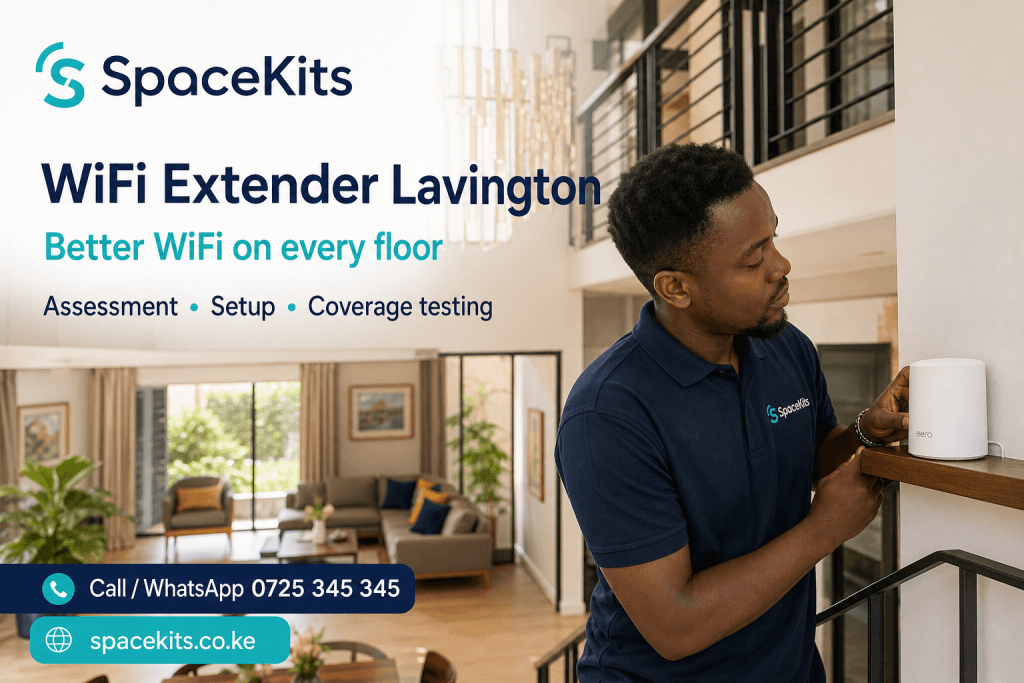
Request Installation Chat on WhatsAppWiFi Extender Lavington enquiries for a maisonette need a floor-by-floor plan. A router that performs well downstairs may struggle through the slab to an upstairs bedroom. Moving a booster around at random can create a stronger-looking network without fixing the link between floors. Start by deciding which rooms must work reliably and how the upstairs equipment will connect.
Talk to Spacekits
Need Starlink help for your home or business?
Talk to Spacekits before you buy or book installation. We help with kit supply, mounting, activation, router placement, WiFi coverage, and written quotes.

Test the landing and the bedrooms separately
In a Lavington maisonette, a staircase may offer a useful wireless path, but the landing is only one test point. Close bedroom doors and check the bed, study desk and any upstairs television independently.
Write down where performance changes as you move away from the stairs. A good result on the landing combined with poor results inside rooms suggests that the final wall or room layout matters. Placing all equipment around the staircase may leave those obstacles unresolved.
Choose the link between floors deliberately
A compatible mesh node can be useful when there is a good wireless path between floors. Confirm where the node will sit and whether its connection to the main unit remains suitable with doors closed.
If an Ethernet route is practical, an upstairs access point or mesh node with supported wired backhaul may reduce reliance on transmission through the slab. Ask the installer to inspect existing data outlets rather than assuming every wall socket is wired and functioning.
Use renovation opportunities without overbuying
When repainting or renovating, consider installing planned data routes before final finishes. Decide where a desk or television will remain, where wireless coverage is required and whether future rooms need spare capacity.
Do not choose a fixed number of access points solely from the floor count. Room size, materials and placement affect the design. A small upstairs floor and a long divided floor may require different arrangements even in houses with the same number of levels.
Check household movement and everyday use
Walk from the downstairs living area to the upstairs desk during a call. Roaming behaviour depends on both the network and the client device, so it must be checked rather than promised from a product label.
Include older phones and smart-home devices in the handover. They may have different band or security requirements from a new laptop. The objective is a workable household network, not just an impressive speed reading on the installer's phone.
Keep the finished installation maintainable
Agree how visible cable will be contained, which equipment remains accessible and who can change network settings. A unit sealed behind joinery is difficult to restart or replace.
Ask the WiFi Extender Lavington installer to demonstrate coverage in the named rooms and document any exclusions, such as a detached room or outdoor boundary. The written quote should separate immediate upstairs improvements from optional whole-property expansion.
WiFi Extender Lavington: plan coverage between floors
A connection that works downstairs can become unreliable in an upstairs bedroom even when the rooms appear close on a floor plan. The radio path may pass through a reinforced floor, a staircase wall, built-in storage or several closed doors. The useful question is not simply how far the bedroom is from the router. It is what lies between the router, the proposed extender and the device you need to connect.
For a maisonette, draw the floors separately. Mark the router, staircase, bedrooms, workspaces and television positions. Then identify the rooms where connection quality matters most. This gives a WiFi Extender Lavington assessment a clear objective: improve the upstairs work desk, support evening streaming or make a particular room usable for calls. Without that objective, equipment may be installed in the easiest location while the troublesome room remains weak.
Do not assume every multi-floor home needs the same number of nodes. Construction, layout, internet demand and available cabling vary. A suitable design might use one carefully placed extender, a compatible mesh system or wired access points on selected floors. The assessment should explain why the proposed arrangement fits your home and how each important room will be tested.
Separate the upstairs signal problem from the internet problem
Begin with a comparison using one familiar device. Try an ordinary task beside the router, then repeat it at the upstairs desk. Keep the application and approximate workload the same. Record whether the difference is slow loading, broken audio, disconnection or an inability to join the network. Each symptom gives a more useful starting point than saying the internet is bad everywhere.
If the connection is poor beside the router as well as upstairs, look at the incoming service, router load and background traffic before purchasing an extender. A household member uploading a large backup can affect calls throughout the home. A service outage can make every room unusable. Neither situation is repaired by creating a stronger local wireless signal in the bedroom.
If downstairs works well while upstairs repeatedly fails, inspect the path between floors. Test near the staircase and in a second upstairs location. This can help identify whether a usable intermediate position exists. It does not replace a professional survey, but it provides practical observations that make the installation brief more specific.
Why the staircase is a candidate, not a guaranteed solution
A staircase can sometimes offer a less obstructed route between floors. That makes it a useful place to assess, but it should not be selected automatically. The available socket may sit behind furniture, beside metalwork or in a position where the equipment is easily disturbed. The path from the staircase to the final bedroom may still cross several walls.
Test both sides of the connection. The extender must receive a usable signal from the router, and the upstairs device must communicate with the extender. A good indicator light on the extender helps with placement, but it does not establish that the bedroom laptop performs well. The room itself remains part of the acceptance test.
Consider practical access and safety too. Equipment should not obstruct a walkway, depend on a loose extension lead across stairs or sit where children can repeatedly unplug it. A location that is technically promising but impractical for everyday use may require a different mounting or cabling approach.
Compare three approaches for a multi-floor home
A conventional extender for one limited weak area
A plug-in extender can be suitable when one upstairs room needs improvement and a usable relay position exists. Confirm the exact product’s supported bands and operating modes. If you plan to connect a desktop computer by cable, check that the Ethernet port supports the required use. Hardware that looks similar can have different limitations.
The main appeal is a relatively simple installation where cabling is unnecessary. The tradeoff is reliance on a wireless path back to the router. If the floor or walls make that path unreliable, buying a more impressive-looking extender may not solve the underlying problem. Placement and testing should come before assumptions about coverage.
Compatible mesh for several connected living areas
A mesh system may be appropriate when several rooms or floors need coordinated coverage. Nodes still need a suitable path to the rest of the system. Positioning every node inside the worst dead zone can leave the system with weak connections between its own components. A design should show where each node belongs and why.
Check whether your existing router and proposed nodes belong to a compatible system. The word mesh is not a universal compatibility standard across every product. Ask how you would add another node later, who owns the management account and whether the system supports a wired connection between nodes if cabling becomes available.
Wired access points for fixed priority rooms
Where a practical cable route exists, an access point on the upper floor can provide local WiFi without relying on a repeated wireless connection through the floor. The cable carries traffic back to the network. This may be especially useful for a permanent office or several busy upstairs rooms.
Discuss cable containment, mounting and power requirements before installation. Existing wall sockets should be tested rather than assumed to work. If Power over Ethernet is proposed, the switch or injector must match the access point’s requirements. Include those accessories in the quotation so the final design is complete.
Use the floor plan to prioritize real activities
A family home often has several competing requirements. One person may work upstairs while another streams downstairs, and children may use tablets in a separate room. Count the activities happening together, not only the total number of registered devices. Ten idle devices create a different demand from several simultaneous video meetings and large uploads.
Identify any location that has little flexibility. A fixed desk, wall-mounted television or wired printer may be harder to move than a phone user. These locations deserve attention early in the plan. It is less useful to demonstrate a strong connection in a hallway if the actual desk cannot be relocated there.
For a WiFi Extender Lavington installation, describe the busiest ordinary evening or working period. Ask the technician to test that scenario as closely as practical. The point is not to create an unrealistic stress test; it is to avoid approving a network after testing an empty house with every other device disconnected.
Think about room doors and furniture
Bedrooms and private offices are often used with their doors closed. Test them that way. A connection that works through an open doorway may behave differently when the room is closed for a meeting. The same principle applies to equipment hidden behind a television, inside a cabinet or close to metal storage.
Place wireless equipment where it can communicate effectively and remain ventilated. A decorative basket or closed cupboard may conceal the device, but it can also make maintenance awkward or impair the wireless path. Agree on a location that balances appearance and performance rather than treating concealment as the only goal.
After rearranging furniture, repeat the important tests. A new wardrobe, large mirror or relocated desk can change the practical environment. Saved installation notes make this easier: you can compare the current setup with the locations and conditions that were accepted originally.
Manage network names and moving devices
Some extenders create a separate network name, while other arrangements use the same name across coverage areas. Ask how your proposed system behaves and whether devices need to reconnect manually. A familiar name can make everyday use simpler, but it does not by itself guarantee seamless movement between floors.
Client devices influence roaming behaviour. A phone or laptop may remain connected to an access point longer than expected, even after you move closer to another one. If you regularly walk upstairs during calls, test that activity with the device you actually use. Do not infer the result from a stationary speed test.
Keep the final network arrangement understandable for the household. Avoid leaving several old network names active without explaining which one to use. If a device needs a particular band or compatibility setting, document that exception clearly so future troubleshooting does not start with guesswork.
Keep guests separate where the equipment supports it
A guest network can provide visitors with internet access without sharing the credentials used for household management. Ask whether the proposed configuration isolates guests from private devices, and test that behaviour if separation is part of the agreed scope. A second wireless name alone does not prove that the networks are isolated.
Also explain any intended sharing. A visitor may need to cast to a television or use a printer, which can conflict with a fully isolated guest network. The installer should clarify the tradeoff and configure the system around your actual requirements. Avoid accepting a setting merely because its label sounds secure or convenient.
Administrator access should remain under the household’s control. Keep account recovery details and device records somewhere appropriate. The ordinary WiFi password and the management password serve different purposes; visitors do not need the latter. Ask for a handover that makes those distinctions clear.
Plan neat cabling without losing maintenance access
If a wired route is selected, walk through the proposed path before work starts. Discuss skirting, ceiling access, existing conduits and the places where cable will remain visible. In a rented property, obtain the necessary consent for drilling or permanent mounting. A verbal assumption about permission can delay an otherwise straightforward installation.
Keep cables away from routes where they can be crushed by doors or create a trip hazard. The installer should use suitable materials and follow appropriate practices for the environment. A cable that works during a quick test is not automatically a durable installation if its route exposes it to repeated damage.
Label the relevant sockets and equipment so another technician can understand the arrangement later. Leave access to power supplies and connectors where practical. Neatness should make the installation easier to live with and maintain, rather than simply hiding all the components from view.
Discuss power and restart behaviour
A network may depend on several powered components: the internet termination equipment, main router, switch and access points. Supporting only one of those devices during a power interruption may not keep the connection working. If continuity matters, ask the installer to identify the complete chain before choosing any backup-power arrangement.
After installation, check how equipment recovers from an ordinary restart. Do the upstairs nodes reconnect without manual intervention? Do important household devices join the intended network again? The answer should be observed where practical rather than assumed from the fact that everything worked before the restart.
Keep restart guidance simple. A handover should explain which device does what and how long recovery normally takes for the installed system. Repeatedly resetting equipment to factory settings is not the same as restarting it and can erase configuration. Make sure household members know the difference.
What a useful quotation should include
Request a room-by-room scope with exact equipment models and quantities. The quotation should identify whether it covers only one upstairs bedroom or several floors. It should include the proposed connection between devices, required power accessories, cabling assumptions, configuration and testing. Those details are more useful than a broad promise of whole-home WiFi.
Ask what happens if the first proposed location fails its test. A competent assessment can reduce uncertainty, but concealed construction or access restrictions may still affect the final design. Agree how any scope change will be explained and priced before additional work proceeds.
Compare support terms as carefully as hardware. Find out who handles configuration questions, whether a return visit is included and what warranty applies to the supplied equipment. Clarify whether a later furniture change, new room or internet-provider change is treated as additional work. Clear boundaries make support more straightforward.
Handover checklist for upstairs and downstairs coverage
Start with the baseline near the router, then visit each agreed room. Use the normal desk and television positions. Close doors where that reflects everyday use. Make a call, load a familiar service and try the tasks that originally caused trouble. Record both improvements and any limitations that remain.
Next, test simultaneous activity. Keep a stream running downstairs while using the upstairs work device, or reproduce another normal household combination. A single quiet-room test can miss a shared-capacity problem. Keep the test practical and tied to the brief rather than expecting every device to reach its maximum speed at once.
Finally, confirm management ownership, network names, guest access and equipment locations. Keep the model list and installation notes with the quotation. A successful WiFi Extender Lavington project should leave you with an understandable system and a record of the conditions under which it was tested.
Common questions about WiFi Extender Lavington projects
Should the extender be upstairs or downstairs?
That depends on the path between the router and the weak room. The best position needs a usable connection in both directions. Test candidate locations rather than assuming the upper floor is always correct. A staircase position may help, but it is only one possibility.
Will a second router solve the problem?
A suitable router configured as a wired access point can sometimes be reused. An incorrectly configured second router may create separate networks or other complications. Confirm its supported mode, security updates and cable connection before treating it as the preferred solution.
Can I keep my existing internet provider?
A coverage improvement often works with the existing connection, subject to equipment compatibility and configuration. The installer should first establish whether the incoming service is adequate. If the service itself is unreliable, that issue may need separate attention.
Does a stronger signal guarantee faster downloads?
No. Signal quality is only one factor. The internet service, backhaul, device capabilities and other traffic also matter. A stronger local signal can help a weak room, but it cannot create capacity that is unavailable elsewhere in the connection.
What should I send when requesting an appointment?
Share the router model, number of floors, affected rooms, important devices and a simple layout description. Mention whether cabling is possible and whether the property is rented. Confirm appointment availability and a written scope with SpaceKits before booking.
Eight decisions to make before your installation visit
- Name the priority room. Choose the room where an improvement would make the greatest difference. Give the installer the actual desk or seating position, because coverage in the doorway is not the same as coverage where you work.
- Identify the busiest period. Explain when calls, streaming and uploads overlap. This helps distinguish a coverage gap from a capacity problem that appears only when several people use the connection together.
- Confirm access between floors. Establish whether ceiling spaces, service ducts or existing conduits can be inspected. Do not assume the easiest-looking route is available or that the person present can authorize permanent work.
- List equipment worth retaining. Record model numbers for the router and any existing nodes. The installer can then assess compatibility and supported modes before recommending replacements or an extension to the current system.
- Agree on visible finishes. Discuss surface cable, mounting positions and equipment colour where appearance matters. A technically suitable location still needs to fit the household’s practical use of the room.
- Choose the test devices. Have the normal work laptop, television and an everyday phone available. Using only a technician’s device may overlook a compatibility or roaming issue that affects your own equipment.
- Plan the interruption. Ask whether the main router will restart and whether network names will change. Schedule those steps around calls and make sure household members know that a short disconnection may occur.
- Define a useful handover. Request the equipment list, tested rooms, management ownership and support terms. These records make the result reviewable and help you describe any later problem without repeating the assessment from scratch.
WiFi equipment terms explained before you buy
A good quotation should be understandable without a networking qualification. The terms below explain the main parts of a coverage upgrade. They are a reference for comparing a proposal, not a substitute for checking the exact equipment manual or assessing the property. Ask the installer to connect each term to the devices and rooms in your quotation.
Internet connection and local WiFi
The internet connection is the service reaching your router from a provider. WiFi is the wireless connection between local equipment and your devices. You can have a working local wireless network while the internet service is unavailable. You can also have a good internet connection at the router but poor wireless coverage in another room. Diagnosis should distinguish those conditions.
Router, extender and access point
A router manages traffic between networks and often includes built-in WiFi. A wireless extender typically repeats an existing wireless connection into another area. An access point provides wireless connectivity from a network connection, commonly through Ethernet. Some products support several operating modes, so the model’s supported configuration matters more than the name printed on a retailer’s shelf label.
Mesh and backhaul
A mesh system uses compatible units to coordinate a network across several positions. Backhaul means the connection carrying traffic between those units or back to the main network. It may be wireless or wired, depending on the equipment and installation. A strong connection between your phone and a nearby node does not prove that the node’s backhaul is performing well.
Wireless bands and device support
Different wireless bands have different propagation and capacity characteristics, and equipment support varies. Many older connected devices use only 2.4 GHz, while other clients can use additional bands. Check the exact client and network equipment requirements before changing settings. A newer wireless standard does not remove the need for sensible placement or guarantee that older devices will use every new feature.
Advertised rate and usable performance
A wireless specification on a box is not a guaranteed internet speed at your desk. The result depends on the service, router, link between devices, radio conditions, client capability and simultaneous use. Ask for a practical test of the activity you care about. Calls, streaming, printing and file transfers reveal different aspects of a connection.
Ethernet ports and access-point mode
An Ethernet socket on an extender may connect a nearby wired device while the extender still communicates wirelessly with the router. It does not automatically mean the whole route is wired. If the intention is to use a cable back to the router, confirm that the unit supports the required mode and that the cable and upstream port have been tested.
Power over Ethernet
Some access points receive both data and power through a suitable Ethernet connection. This requires compatible equipment and an appropriate power source, such as a supported switch or injector. Do not assume that every Ethernet socket supplies power or that every powered network device uses the same requirements. The quotation should identify what provides power and where it will be installed.
Network names, roaming and guest access
A network name helps users identify a wireless connection. Reusing one name does not by itself guarantee uninterrupted movement between coverage points. Client devices influence roaming behaviour. Similarly, giving guests a separate name does not establish isolation unless the network is configured accordingly. Ask for demonstrations of the behaviour included in the installation scope.
Restarting and resetting
A normal restart turns equipment off and back on while retaining its configuration. A factory reset can erase that configuration. Follow the specific device instructions and avoid pressing reset buttons as a routine response to every problem. Keep an agreed recovery guide and support contact so a temporary connection fault does not turn into a complete reconfiguration task.
Indoor and outdoor equipment
Equipment should be installed in the environment it is designed for. An indoor unit placed under a roof edge is not automatically suitable for outdoor use. Where work extends outside, include environmental rating, mounting, cable entry and safe power in the assessment. Building-to-building routes may also need a separate technical evaluation before the equipment choice can be finalized.
Ownership and support
Retain receipts, model numbers, configuration ownership and the written scope. Confirm who handles equipment faults, who supports the internet service and what installation follow-up is included. Ask whether any management subscription or continuing fee applies. These details make it easier to maintain the network and compare proposals on more than the initial hardware price.
Request a WiFi assessment in Lavington
Contact SpaceKits with your estate or building, router model, internet source, affected rooms and approximate number of active devices. Request a written quotation that separates equipment, cabling, configuration and installation. Confirm appointment availability, access arrangements and any travel charges before booking.
Request a WiFi Extender Lavington quote on WhatsApp, or call +254 725 345 345. For the wider service comparison, read the WiFi extender Kenya guide.
Equipment setup reference
Follow the exact equipment manual for supported modes, placement indicators and firmware instructions. See TP-Link’s extender placement guidance; product-specific instructions take precedence over a general layout example.
Need Starlink Installation or Network Optimization?
We help homes, offices, apartments, and businesses with Starlink installation, WiFi coverage improvement, and professional setup in Kenya.
Request Installation Chat on WhatsApp